
Have you ever thought about changing the color of your bullet points in PowerPoint? It’s a small change, but it can really make your slides look better and more interesting. In this guide, we’ll show you how to easily adjust the color of your bullet points in PowerPoint. By following a few simple steps, you’ll be able to give your presentations a fresh, professional look that grabs attention without being over the top.
Quick Answer
To change bullet color in PowerPoint: select your text, right-click and choose Bullets and Numbering (or go to Home > Bullets > arrow), click Color, then pick a color from the palette or choose More Colors for a custom shade. To apply one color to bullets across your whole deck, make this change in Slide Master (View > Slide Master) instead of on a single slide.
How to Change Bullet Points Color in PowerPoint?
For a Single Slide
Here’s a step-by-step guide to customizing the color of your bullet points in a PowerPoint presentation:
- Select Your Text: Begin by highlighting the text that you want to format with colorful bullets.
- Access the Formatting Options:
- Right-click: Right-click on the selected text and choose “Bullet” from the context menu.
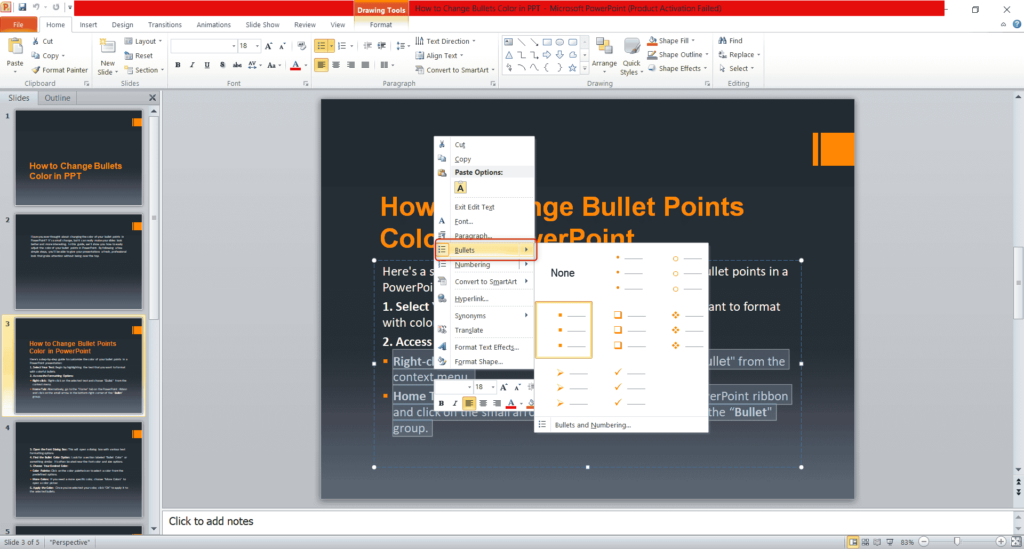
- Home Tab: Alternatively, go to the “Home” tab on the PowerPoint ribbon and click on the small arrow in the bottom-right corner of the “Bullet” group.
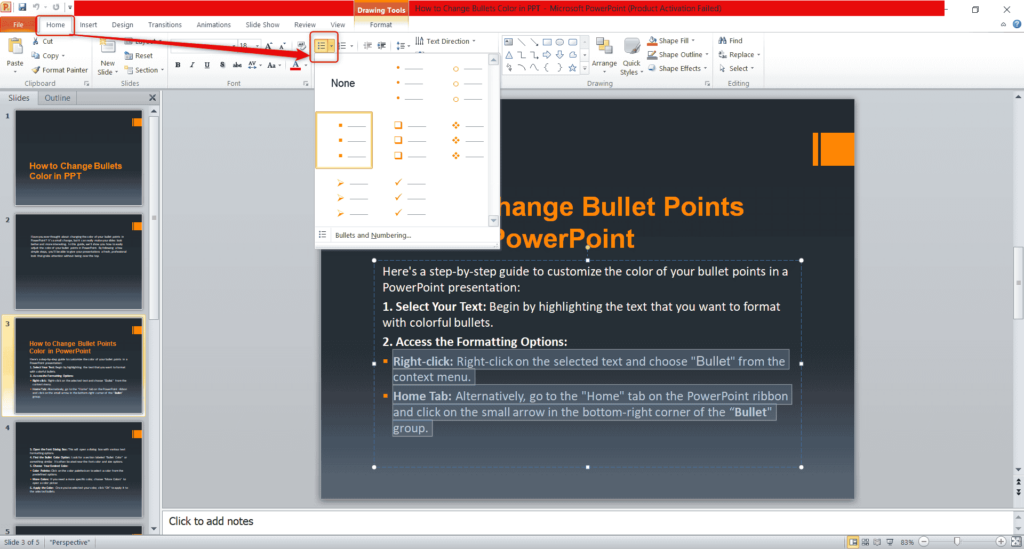
- Right-click: Right-click on the selected text and choose “Bullet” from the context menu.
- Open the Bullet Dialog Box: This will open a dialog box with various bullet formatting options. Access the Bullets and Numbering dialog box.
- Find the Bullet Color Option: Look for a section labeled “Color” or something similar. It’s often located below size options.
- Choose Your Desired Color:
- Color Palette: Click on the color palette icon to select a color from the predefined options.
- More Colors: If you need a more specific color, choose “More Colors” to open a color picker.
- Apply the Color: Once you’ve selected your color, click “OK” to apply it to the selected bullets.

For the Entire Presentation (Using Slide Master)
- Open Slide Master: Go to the View tab and select Slide Master.
- Select the Master Slide: In the left pane, click the top (master) slide to apply changes across all layouts.
- Select Body Text: Click inside the main body text placeholder.
- Change Bullet Color: Open the Home tab, then go to Bullets ▸ Bullets and Numbering ▸ Color and choose your desired bullet color.
- Close Slide Master: Return to the View tab and click Close Master View.
Want beautifully designed slides without manual formatting? Start with PowerPoint presentation templates and customize them to match your brand or theme.
How to Change the Color of Individual Bullets?
You can change the color of specific bullets without changing the color of the entire list. Follow these steps:
- Select the bullet you want to change. You can click directly on the bullet or select the text next to it.
- Go to the Home tab and click the Font Color button (the A with a colored line underneath).
- Choose your preferred color from the color palette.
- The selected bullet will now appear in the new color while the rest of the bullets remain unchanged.
Pro Tip: If selecting the bullet is difficult, select the text next to it first and then change the font color. The bullet will usually take on the same color as the text.
Closing Thoughts
Changing the color of bullet points in PowerPoint is a quick way to make your slides more engaging and visually appealing. With just a few steps, you can customize your presentation to better match your style or theme. Try it out and see how small tweaks can elevate your slides!
If you’re looking to create beautifully designed presentations without manually formatting every element, try SlidesAI. It automatically generates professional PowerPoint presentations with well-balanced layouts, colors, and formatting, so you can focus on your content instead of design.
Save time creating professional presentations by using an AI presentation maker that automatically generates visually consistent slide decks from your ideas.
Frequently Asked Questions Related to Changing Bullet Colors in PPT
Can I change the color of the bullets individually or all at once?
Yes, you can change the bullet colors one by one or all together, depending on what you need.
Can I use a custom color for my bullets?
Absolutely! You can choose a custom color for your bullets by selecting “More Colors” and picking the shade you want.
Is there a way to change the bullet colors automatically across several slides?
Yes, you can set it up with themes or custom styles to change the bullet colors on multiple slides at once.
Why won’t my bullet color change when I select the text?
PowerPoint may not select the bullet itself. Select the bullet or the text next to it, then go to Home > Font Color and choose your color.
Do colored bullets work with animated text?
Yes. Colored bullets work with PowerPoint animations and will retain their assigned color during the animation.
Will my custom bullet colors show correctly on other computers?
Yes, generally. However, differences in PowerPoint versions, themes, or formatting may occasionally affect how they appear.
<SlidesAICTAPowerPoint />
Related Posts
-

Ever looked at your PowerPoint presentation and thought it lacked a bit of color pizzazz?…
-

Picture this: You’ve poured your heart and soul into creating a presentation for your final…
-

{ “@context”: “https://schema.org”, “@type”: “FAQPage”, “mainEntity”: [{ “@type”: “Question”, “name”: “How do you change the…
-

Sometimes, when you often create presentations, you might find yourself in a situation where you…
-

Captivate your audience with impactful presentations using the 7×7 rule. This design principle encourages a…