
Turning a dense thesis into an engaging presentation may feel overwhelming, but it doesn’t have to be. Whether you’re preparing for a defense, a seminar, or a conference, the key lies in simplifying complex ideas, structuring them logically, and designing slides that support, not overshadow, your narrative. This blog walks you through actionable steps on how to turn a thesis into a presentation that is clear, concise, and compelling.
How to Turn Your Thesis into a Presentation with SlidesAI?
Method 1: Using Add-ons Directly in Google Alises or Poweroint
Converting a lengthy thesis to PPT can be time-consuming, but with SlidesAI, it becomes a breeze. This AI-powered PwerPoint tool helps you turn academic content into well-structured slides in seconds. Follow the steps below to streamline the process:
Step 1: Add SlidesAI Google Slides add-on or PowerPoint add-in
- For Google Slides: Open the blank Google Slides Presentation. Go to extension > Add on > Get Add on

- For PowerPoint: Open a blank presentation. Go to Add-ins, search for SlidesAI, and add the add-in
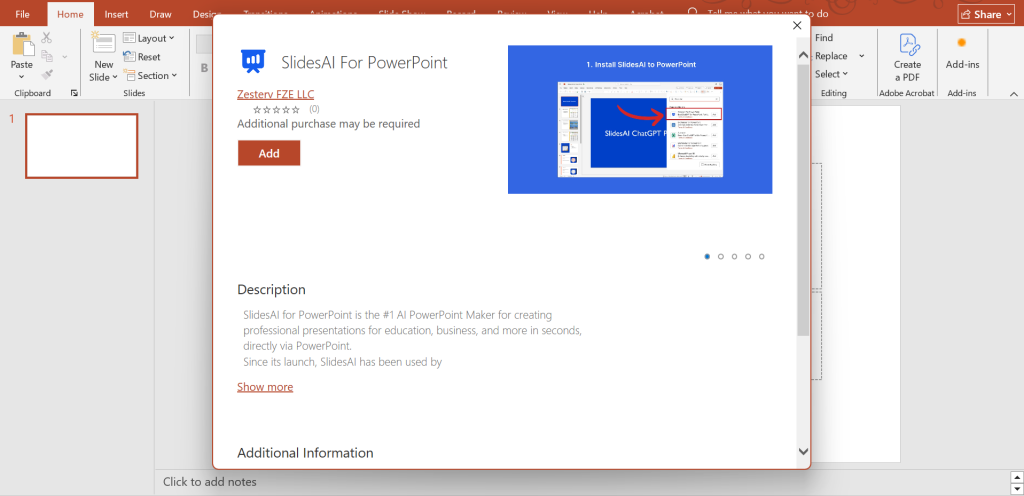
Step 2: Prepare Your Thesis File

- Your thesis can be in PDF, .txt, or .doc/.docx format.
- If your PDF is longer than 50 pages, convert it to a Word document for better performance.
Ready to turn your thesis into a presentation? Convert your thesis document into slides with SlidesAI and save hours of manual formatting.
Step 3: Generate a new presentation
For Google Slides:
- Go to Extensions
- Locate SlidesAI > Generate new presentation.
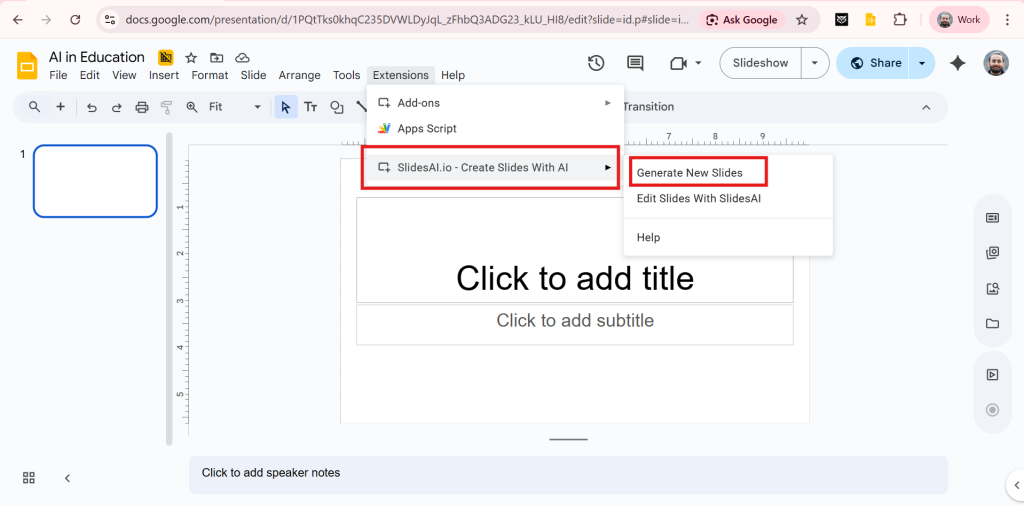
For PowerPoint:
- Go to Home tab
- Click in SlidesAI Add-in from the ribbon
- Select “New Presentation”
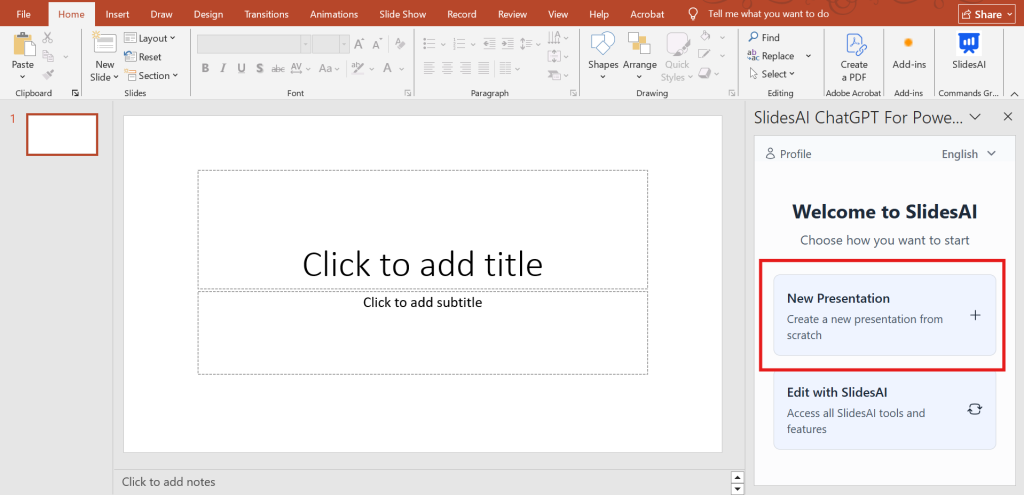
Step 4: Enter the topic
- Enter the topic in the “What is your Presentation about?” section
- Select Full draft/ Script option
- Click on Continue
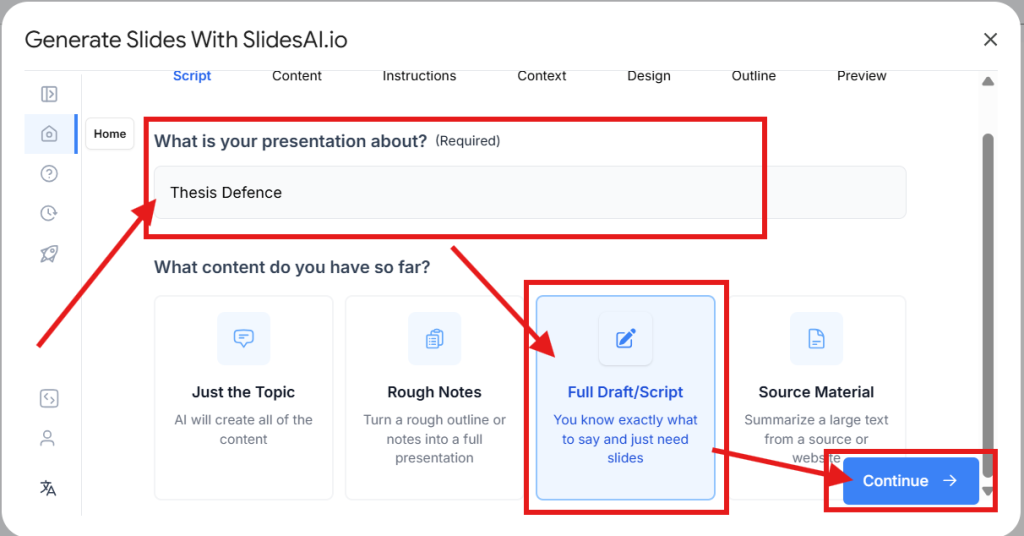
Step 5: Upload Content
- Choose Full Draft/Script mode.
- Upload your thesis file.
- Click Continue.

Step 6: Customize Your Preferences
Set the following parameters:
- Presentation Type (e.g., academic, summary, etc.)
- Audience (e.g., students, professors)
- Tone of Voice (e.g., formal, friendly)
- Language (e.g., English)
- Then click Continue.

Step 7: Select a Design
- Pick a suitable theme.
- (Optional) Add a watermark.
- Choose between stock images or AI-generated visuals.
- Click Generate Slides.


Step 8: Let SlidesAI Generate Your Presentation

SlidesAI will now process your thesis and generate a slide deck based on your preferences. This may take a few moments.
Step 9: Review and Edit
Once the slides are ready:

- Review each slide for accuracy and clarity.
- Use SlidesAI’s built-in tools to:
- Shorten or expand the text
- Rewrite or rephrase content
- Translate slides into different languages
- Add or remove slides
- Insert new images
Your thesis is now a polished presentation! You’re ready to present confidently with SlidesAI by your side.

Method 2: Using Web App
Step 1: Open SliesAI and login to SlidesAI WebApp
Step 2: A dashboard will open. Select “Start with AI”
Step 3: Enter your thesis topic and select “Full Draft.”
Step 4: Select the presentation requirements i.e presentation type, language, tone, and audience.
Step 5: Attach your thesis document and proceed.
Step 6: Select whether you are pesenting live or you will be sharing the presentation.
Step 7: Select how long should be your presentation. Add the prompts if you need certain things or elements in your presentation and then proceed.
Step 8: Choose the relevant template and image options. You can get the images generated from SlidesAI or else if you have the images you can put those aswell.
Stpe 9: Review the slide content. Revise if needed. You can delete or add the slide and then proceed.
Step 10: SlidesAI will design the presentation. Do the final review and checks, and you are done!
<SlidesAICTAWeb />
Method 3: Using PDF to PPT converter or Word to PPT converter
Step 1: Prepare your thesis document. Keep it in Word or PDF format.
Step 2: Open SlidesAI, look for “Free Tools” under Resource tab.
Step 3: Select the relevant tool:
- If your thesis is in PDF format, select PDF to PPT converter.
- If your thesis is in Word document, select Word to PPT converter.
Step 4: Attach your docuent and download the converted file.
Step 5: Desing the downloaded PTP as per your requirements.
Explore our Pre-designed Thesis Defense Presentation Template
Conclusion
Now that you know how to turn a thesis into presentations, it no longer has to be a daunting task. With SlidesAI, the process becomes fast, intuitive, and customisable, whether you’re presenting to a panel of professors or a classroom of students. By following a few simple steps, you can turn your complex research into visually compelling slides that communicate your ideas effectively. Give your thesis the spotlight it deserves with the power of AI.
Creating slides from a lengthy thesis can be time-consuming. With SlidesAI’s ChatGPT Presentation Maker, you can generate a clear and organized presentation from your content in just a few clicks.
Related Posts
-

SlidesAI is a Google Workspace Add-on (think of it like a Chrome Extension but only…
-

From 5-minute talks to hour-long sessions, discover how many slides you need for a presentation…
-

{ “@context”: “https://schema.org”, “@type”: “FAQPage”, “mainEntity”: [{ “@type”: “Question”, “name”: “Why should I time my…