AI presentation tools can save time, but the quality of your slides depends heavily on the prompt you give. A weak instruction often produces generic slides that need heavy editing. A stronger prompt gives the AI direction, structure, and purpose.
In this guide, we will take a look at how to write better AI prompts for PowerPoint slides, what details matter most, and how small prompt improvements can completely change the final presentation.
Why Better Prompts Make AI Slide Generation More Useful
AI presentation tools work based on instructions. They do not automatically know your audience, your message, or how detailed the presentation should be. The prompt becomes the foundation for everything that follows.
A vague request often creates slides that feel disconnected or overly basic. A detailed prompt gives the tool enough context to build a presentation that feels more intentional.
Poor Prompts Often Lead To:
1. Generic Slides
Without clear direction, AI tends to create broad content that could apply to almost any topic.
2. Weak Flow
Slides may not connect logically, making the presentation feel scattered instead of structured.
3. Too Much Text
AI may overload slides with paragraphs instead of concise presentation-friendly points.
4. Irrelevant Visuals
When no style or context is provided, suggested visuals may not match the message.
Strong Prompts Usually Create:
1. Clear Storylines
The presentation follows a logical sequence from introduction to conclusion.
2. Better Slide Layouts
AI can organize information more effectively when it knows the structure and purpose.
3. Audience Focused Messaging
Slides become more relevant when written for a specific group of people.
4. Ready to Edit Presentations
Instead of rebuilding slides from scratch, you only need small refinements.
What Makes a Good AI Prompt for PowerPoint Slides
A good prompt is not about writing something long. It is about giving useful direction. The more clearly you explain what you want, the easier it becomes for AI to build slides that feel polished and relevant.
Here are the details that matter most.
1. Define the Topic Clearly
Start by explaining exactly what the presentation is about. Broad topics create broad results. Narrow topics create stronger outputs.
Instead of saying “marketing presentation,” say “social media marketing strategy for small ecommerce brands.” Specific wording helps AI understand the subject more accurately.
2. Mention the Audience
The same topic can look completely different depending on who will see the presentation. Mentioning the audience helps shape the language, slide depth, and examples.
Common audiences include:
- Executive teams
- Students
- Investors
- Clients
- Employees
A presentation for investors will sound different from one built for internal staff training.
3. State the Goal of the Presentation
Every presentation has a purpose. The AI needs to understand what you want the slides to achieve.
Common goals include:
- Inform
- Persuade
- Sell
- Teach
- Pitch
When you define the goal clearly, the slide structure becomes more focused.
4. Specify the Number of Slides or Length
AI performs better when given boundaries. Mention how long the presentation should be or how many slides you expect.
Examples include:
- 5 slide summary
- 10 slide pitch deck
- 15 minute training presentation
- Short overview presentation
- Detailed workshop deck
This prevents content from becoming too short or unnecessarily long.
5. Add Tone and Style Preferences
Tone changes how the presentation feels. A corporate presentation should not sound like a classroom lesson. Style instructions help create visual consistency.
Examples include:
- Professional
- Modern
- Bold
- Minimal
- Friendly
- Data focused
Adding tone gives AI a clearer direction for wording, formatting, and layout suggestions.
Also Check Out: How to Make a Good PowerPoint Presentation
A Simple Prompt Structure You Can Reuse Every Time
You do not need to reinvent prompts every time you create slides. A repeatable structure makes prompting easier and more consistent.
A strong AI slide prompt usually includes five things:
- Topic
- Audience
- Goal
- Length
- Style
Prompt Template
Create a [number] slide presentation about [topic] for [audience]. The goal is to [objective]. Use a [tone or style]. Include [specific requests or visual preferences].
Example Prompt
Create a 12 slide presentation about AI in healthcare for hospital executives. The goal is to explain benefits, risks, and future opportunities. Use a professional and modern style. Include clean visuals, charts where needed, and concise slide text.
This type of prompt gives AI enough detail to create a stronger first draft.
Also Check Out: 75+ AI Prompts for Presentations
How SlidesAI Makes Prompting Easier
Writing detailed prompts can feel difficult when you are not sure what information to include. That is where AI presentation tools become helpful.
Instead of asking users to guess the perfect wording, SlidesAI helps guide the process.
1. Guided Inputs Instead of Open Guesswork
Many AI tools rely on a blank text box. You type something in and hope the output works.
SlidesAI takes a different approach by helping users enter information step by step. This makes the prompt more complete before generation begins.
2. Collects Important Details Automatically
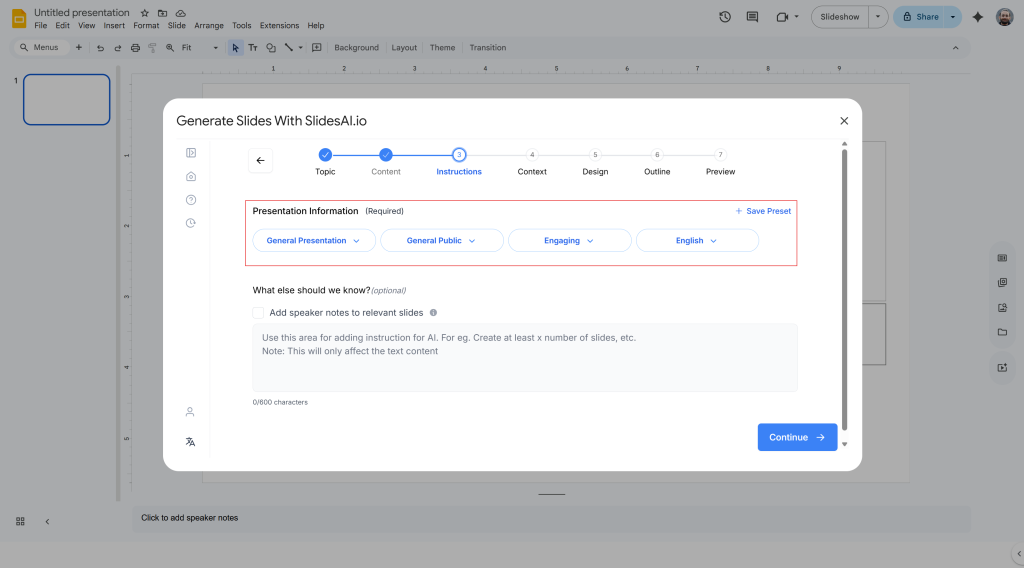
Rather than expecting users to remember everything, the tool asks for important presentation details upfront.
These often include:
- Presentation topic
- Number of slides
- Audience type
- Language
- Style preference
- Presentation format
This creates stronger prompts without requiring advanced prompt writing skills.
3. Better Results Without Complicated Prompt Writing
Not everyone wants to memorize formulas or experiment with wording repeatedly.
Structured prompting helps users generate more organized presentations while reducing trial and error.
This is especially useful for:
- Beginners creating slides for the first time
- Professionals working under deadlines
- Teams building presentations quickly
4. Faster Workflow From Idea to Slides
The process becomes simple:
Idea → Enter preferences → Generate presentation
Instead of writing long instructions manually, users provide structured details that guide the output.
5. Easier Updates and Revisions
Presentations often change after feedback.
When prompts are structured, users can quickly adjust slide count, tone, or audience and regenerate updated versions without rebuilding from scratch.
Common AI Prompt Mistakes to Avoid
Even strong AI tools struggle when prompts are unclear. Avoiding a few common mistakes can improve your slide quality immediately.
1. Being Too Vague
Short prompts like “make a presentation on business” leave too much open to interpretation.
2. No Audience Mentioned
Without audience context, slides may feel generic or mismatched.
3. No Goal Defined
AI performs better when it knows whether the presentation should inform, persuade, or teach.
4. Asking for Too Much in One Prompt
Trying to create multiple presentations inside one instruction often produces messy results.
5. Ignoring Revision Prompts
The first version is rarely perfect. Small follow up prompts often improve results significantly.
Closing Thoughts
AI can speed up presentation creation, but the quality of the output depends on the quality of the prompt.
A well written prompt gives AI clear direction. It tells the tool who the slides are for, what message matters most, how long the presentation should be, and what style fits best.
The more specific your instructions become, the less editing you need later. Instead of spending time fixing weak slides, you spend time refining good ones.
Learning how to prompt well is not complicated. It simply requires clearer thinking before generation begins.
Related Posts
-

In the realm of presentations, engaging your audience is crucial. Slide transitions are an efficient…
-

{ “@context”: “https://schema.org”, “@type”: “FAQPage”, “mainEntity”: [{ “@type”: “Question”, “name”: “When You Should Convert From…
-

PowerPoint presentations have been around for a long time and are still one of the…
-

It is no secret that a well-designed presentation helps you communicate your ideas clearly, keeps…
-

Learn the ideal number of slides you need for a 10 minute presentation, including tips…