Your presentation can have the right message, the right colors, and the right layout, but if the font is wrong, it can still feel off-brand. SlidesAI can structure your content and build a deck quickly, but once that deck exists, it still has to look like you made it, not like a template.
Typography is one of the most recognizable parts of a brand identity, and a close match to your brand font isn’t the same as your brand font.
With Custom Fonts, you can upload your own font files and apply them directly to your slides, so your presentations use your exact brand typeface instead of the closest built-in option.
Brand guidelines are rarely flexible about typography, often specifying exact fonts, weights, and styles. Before this update, that could mean settling for the nearest match in SlidesAI’s built-in library or exporting the deck to adjust fonts elsewhere.
Custom Fonts closes that gap. Now the font itself doesn’t have to be a compromise.
Why Did SlidesAI Introduce Custom Fonts?
Custom Fonts gives you more control over your presentations and makes it easier to maintain a consistent visual style.
- Choose fonts that fit your needs – Use fonts that match your personal preferences, project requirements, or brand guidelines.
- Reduce manual font changes – Instead of fixing fonts after generating a deck, you can bring your preferred typography into your SlidesAI workflow.
- Create a reusable font library – Once a font is uploaded, it can be reused across presentations. You can also choose whether it is available only to you, your organization, or a specific team.
Who Benefits Most From Custom Fonts?
Custom Fonts is especially useful for anyone whose presentations need to reflect an established visual identity.
- Businesses with established brand guidelines: Keep presentations aligned with approved brand fonts and maintain a consistent visual identity across decks.
- Agencies producing decks for multiple clients: Use each client’s specific brand fonts to create presentations that feel tailored to their brand.
- In-house marketing teams: Ensure presentations use the right fonts and remain consistent with the company’s brand assets.
- Design teams: Get more control over typography and how fonts work with the overall layout, colors, and visual style.
- Consultants: Create polished presentations that feel tailored to each client rather than relying on generic typography.
If your presentations need to reflect your organization’s visual identity, Custom Fonts lets you do that without leaving SlidesAI.
How to Add and Use Custom Fonts in SlidesAI
Uploading a font in SlidesAI is a guided process built directly into the editor.
Here’s how it works:
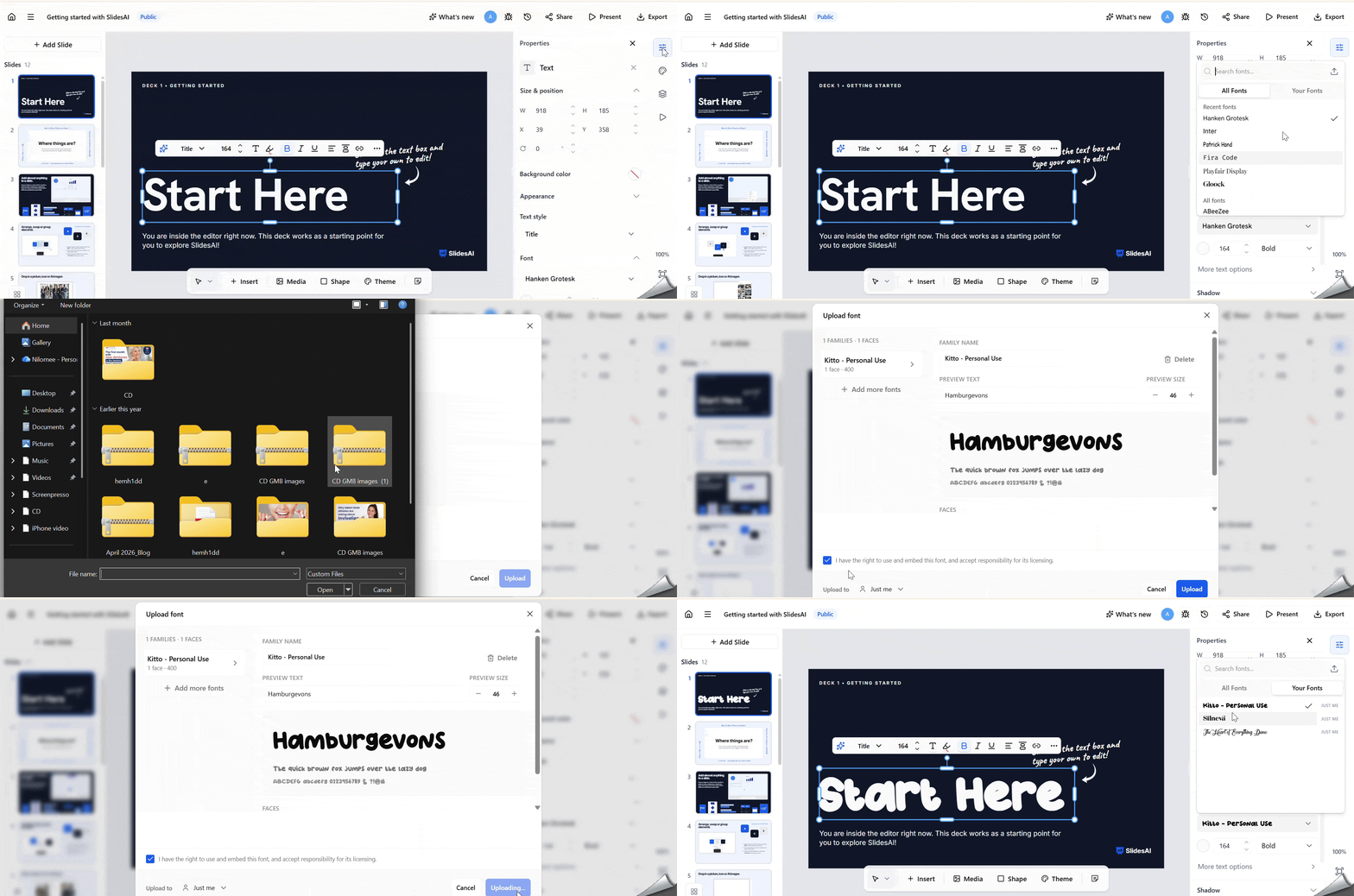
- Select a text element on your slide and open the Properties panel.
- Select Upload Font.
- Choose your font file and select who can access it: just you, everyone in the organization, or a specific team.
- Once uploaded, your font appears under Your Fonts and can be applied to text just like a built-in font.
SlidesAI groups uploaded files into font families and identifies the available weights and italic styles.
You can also preview fonts, edit the family name, remove individual font faces, or delete an entire font family.
What Font Files Can You Upload?
SlidesAI supports TTF, OTF, and WOFF font files up to 15 MB each. If you’re uploading a font family with multiple weights or styles, you can also upload them together in a ZIP file.
A Note About Font Licensing
Before uploading a font, make sure you have the right to use and embed it. SlidesAI may flag fonts whose licenses restrict embedding, but this check is advisory.
Having a font installed on your computer does not necessarily give you the right to redistribute or share it. You are responsible for confirming that your font license and organizational permissions allow its use.
Who Can Access Your Custom Fonts in SlidesAI?
When you upload a font, you can choose who can use it:
- Just me: For personal projects or work that doesn’t need to be shared.
- Everyone in the organization: So teammates can use the brand font without uploading it themselves.
- A specific team: Useful when different teams or client accounts use different typefaces.
Only people with team membership can give custom font access to team members.
This gives teams more control over how shared fonts are used. For example, a marketing team can make an approved brand font available across the organization, while a client-specific font can be limited to the team working on that account.
Keep Your Presentations On-Brand
Custom Fonts lets you bring your organization’s typography into SlidesAI, so you can create presentations that stay consistent with your existing brand identity.
Whether you’re creating a company report, client proposal, sales deck, or recurring presentation, you can use the fonts you already work with without leaving SlidesAI.
<SlidesAICTAWeb />
Frequently Asked Questions
1. Will my custom fonts be available to everyone in my organization?
Not necessarily. You choose the access level when uploading a font. You can keep it personal or make it available to your organization or a specific team.
2. Can I use custom fonts for personal and team projects?
Yes. Custom fonts can be configured for personal use, organization-wide use, or access by a specific team.
3. Can custom fonts improve my presentation’s branding?
Yes. Using your organization’s approved fonts helps keep typography consistent across presentations and can make your slides feel more aligned with your brand.
4. Can I use different custom fonts for headings and body text?
Yes. You can use different fonts for different text elements to create a clear visual hierarchy while keeping your presentation on-brand.
5. Are custom fonts useful for presentation templates?
Yes. Custom fonts can be especially useful when creating reusable presentation templates that need consistent brand typography.
6. Can I upload a font that my company uses but I don’t own?
Check the font’s license and your organization’s permissions before uploading or sharing it. A font being installed on your computer does not necessarily mean you have the right to redistribute it.
7. What font formats does SlidesAI support?
SlidesAI supports TTF, OTF, and WOFF font files up to 15 MB each. You can also upload a ZIP containing multiple supported font files from a font family.
8. Can I share a custom font with my team?
Yes. When uploading a font, you can choose to make it available to a specific team or everyone in your organization, depending on your access and team settings.
Related Posts
-

SlidesAI is a Google Workspace Add-on (think of it like a Chrome Extension but only…
-

Fonts may seem like a small design choice, but they play a major role in…
-

Instead of building presentations from scratch, teams can now create polished board deck presentations much…
-

How do I cancel my SlidesAI Subscription? You can cancel your subscription from Your Account…