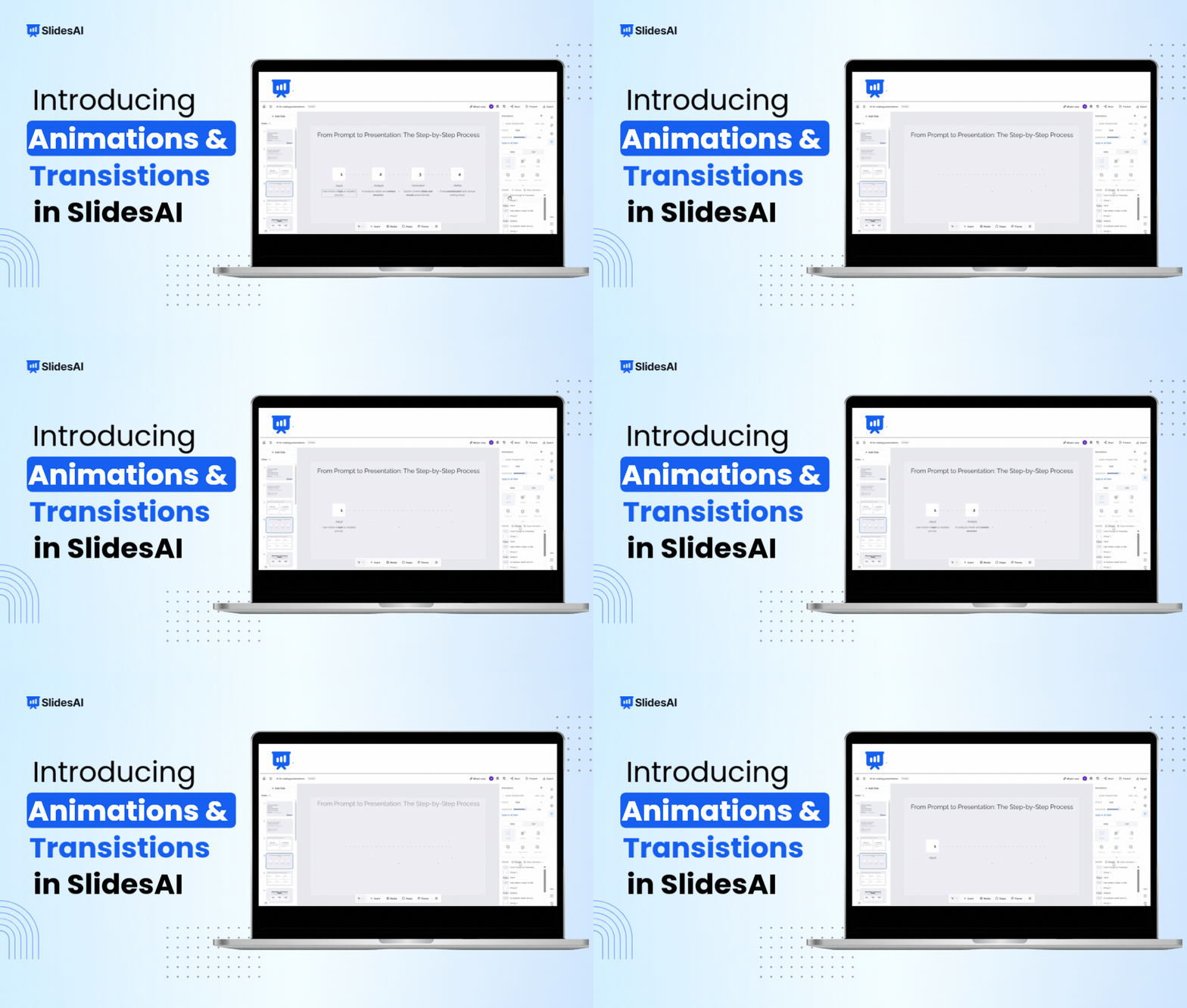
A presentation isn’t only about what appears on the screen. It’s also about when your audience sees it.
When everything appears at once, audiences can read ahead while you’re still explaining a point. With animations and transitions in SlidesAI, you can control how information unfolds, reveal content when it matters, and create smoother movement from one slide to the next.
You can animate individual elements such as text, images, shapes, and other objects. Slide transitions work at the slide level, controlling how your presentation moves between slides.
Whether you’re teaching a lesson, explaining a process, presenting a pitch, demonstrating a product, or telling a story, controlling the sequence of information can make your presentation easier to follow and help keep your audience focused.
What Animations and Transitions Let You Do?
Animations and transitions give you more control over the pacing and flow of your presentation.
- Reveal information gradually – Show different parts of a slide as you explain them instead of displaying everything at once.
- Guide audience attention – Bring focus to a specific point, image, statistic, or other element when it becomes relevant.
- Control the order of information – Choose which elements appear first and adjust the sequence to match the way you present.
- Create smoother movement between slides – Use transitions to control how one slide moves into the next.
SlidesAI-generated presentations already include animations, which you can adjust in the editor to suit your presentation.
What Can You Animate in SlidesAI?
Animations work at the individual element level, giving you control over specific parts of a slide.
- Text: Reveal headings, key points, statistics, or other text as you talk through them.
- Images: Bring an image onto the slide when it becomes relevant to your explanation.
- Shapes and visual elements: Animate shapes, diagrams, and other objects to build a slide step by step.
- Individual elements: Choose which elements appear first and control their order.
You can also add an entrance and an exit animation to an element. Available effects include Fade, Slide, Zoom, Spin, and Instant.
This is particularly useful for busy or information-heavy slides where revealing content gradually can make the presentation easier to follow.
How to Add Animations and Transitions in SlidesAI?
You can manage element animations and slide transitions from the Animations panel in the SlidesAI editor.
Animate Individual Elements
- Open your presentation in the SlidesAI editor.
- Open the Animations panel.
- Select an element on the slide or choose it from the animation order.
- Choose an entrance or exit animation.
- Select the effect you want, such as Fade, Slide, Zoom, Spin, or Instant.
- Set when the animation should play.
- Adjust the duration and delay if needed.
- Drag the animations in the list to change their order.
Each element can have one entrance animation and one exit animation. Choosing a different effect replaces the existing one.
Control the Order and Timing
You can decide exactly when each animation starts.
- Click: Starts when you advance during the presentation.
- With Previous: Starts at the same time as the previous animation.
- After Previous: Starts after the previous animation finishes.
You can also set the duration and add a delay.
The animation list shows the order of the elements, and you can drag them to change that order.
This gives you control over how a slide is presented without having to rearrange the slide itself.
Add Transitions Between Slides
Transitions control what happens when you move from one slide to the next.
Choose from:
- None
- Fade
- Slide
- Push
- Zoom
You can adjust the transition duration and apply it to all slides or only the slides you select.
Use a simple transition throughout a deck, or change it when you move into a different section of the presentation.
Start With Animations Already Set Up
SlidesAI-generated presentations come with animations already applied.
You can open the deck in the editor and change the effects, order, or timing to suit your presentation.
Slides you add manually start without element animations. They do have a standard Push transition, which you can change from the Animations panel.
If you change your mind, you can remove an animation from an individual element or clear all animations from the presentation.
Where Animations Can Help?
Animations are particularly useful when information needs to be presented in a sequence.
You can use them to:
- Reveal the stages of a process one at a time
- Introduce parts of a product during a demo
- Walk through a chart
- Build a pitch around individual points
- Explain one part of a slide before showing the next in a teaching or training presentation
You don’t need to animate every element. In many cases, a few well-timed animations are enough.
Keep the Sequence Simple
Think about the order in which you plan to explain the slide and set the animations accordingly.
Avoid giving every object a different effect or creating a long sequence that takes attention away from the content. For slides with several animations, check the timing and make sure each element appears when you need it.
You can preview the presentation before presenting it and make changes from the Animations panel.
Preview Before You Present
Use presentation preview to check the animation order, timing, and slide transitions together.
If something appears too early, takes too long, or comes in at the wrong point, you can change its settings without rebuilding the slide.
<SlidesAICTAWeb />
Frequently Asked Questions
Can SlidesAI animate elements automatically?
Yes. Presentations generated with SlidesAI already include animations. You can open the presentation in the editor and change the effects, order, and timing.
Can I animate a specific element?
Yes. You can select individual text boxes, images, shapes, and other objects and add an entrance or exit animation.
Can I change the animation order?
Yes. The animation order appears in the Animations panel. You can drag elements into a different position to change when they appear.
Can I change or remove an animation?
Yes. You can replace an existing effect by selecting another one, choose None to remove it, or clear all animations from the presentation.
Can I use the same transition on multiple slides?
Yes. You can apply a transition to all slides or select specific slides and apply it to those slides.
Do animations work when I export my presentation?
Animations and transitions are supported in PowerPoint and Google Slides exports. You can also choose to leave them out when exporting. PDF exports remain static.
Should I add animations to every slide?
No. Use them where they help with the way you want to present the information. Some slides may work better without any element animations.
Related Posts
-

Your presentation can have the right message, the right colors, and the right layout, but…
-

How do I cancel my SlidesAI Subscription? You can cancel your subscription from Your Account…
-

SlidesAI is a Google Workspace Add-on (think of it like a Chrome Extension but only…
-

Instead of building presentations from scratch, teams can now create polished board deck presentations much…
-

Creating a quarterly business review means spending hours on editing charts, rewriting summaries, and fixing…