
Explaining complex topics in today’s classroom takes more than static slides. Teachers are expected to keep students engaged, simplify difficult concepts, and manage limited prep time all at once. As traditional teaching methods struggle to hold attention, interactive and time-saving tools have become essential.
Google Slides can handle a lot on its own, but there are still plenty of small jobs that can make lesson preparation take longer than it should. You might need to turn notes into a presentation, add a quick quiz, find a suitable icon, translate a few slides, or send the same activity to an entire class.
Google Slides add-ons can help with those jobs without making you leave the platform. In this blog, we’ll look at 10 Google Slides add-ons for teachers and what each one is actually useful for.
What Are the Best Google Slides Add-Ons for Teachers?
There isn’t really one add-on that does everything. The better choice depends on what you usually struggle with when putting a lesson together.
Here’s a quick look at the 10 options covered in this guide:
| Add-on | Best for | What you can use it for |
|---|---|---|
| SlidesAI | Creating presentations | Turn a topic, prompt, or existing text into a starting presentation. |
| Pear Deck | Classroom participation | Add questions, polls, drawings, and other activities to your slides. |
| Nearpod | Interactive lessons | Bring quizzes, videos, polls, simulations, and activities into a lesson. |
| MathType | Maths and science | Create equations, formulas, chemical structures, and other notation. |
| Slides Toolbox | Slide management | Handle repetitive formatting and organisation tasks more quickly. |
| Flaticon | Finding visuals | Search for and add icons directly to your presentation. |
| GeoGebra | Maths visualisation | Create graphs, constructions, functions, and 3D mathematical visuals. |
| Grackle Slides | Accessibility | Find accessibility problems in your presentation and work through fixes. |
| Slides Translator | Multilingual lessons | Translate slide text, speaker notes, and certain image content. |
| Slip-in-Slide | Sharing with students | Add selected slides to multiple student presentations at once. |
1. Pear Deck

A presentation can explain a topic, but it doesn’t necessarily tell you whether students are following along.
Pear Deck adds a more interactive layer to Google Slides. You can take a presentation you already have and add questions or activities to individual slides. Students then respond from their own devices while you see the responses as the lesson continues.
This can be useful for something as simple as asking students what they think before revealing the answer, or giving them a quick question halfway through a lesson to see who has understood the concept.
Key features
- Add multiple choice, text, number, drawing, and draggable questions.
- Use templates for warm-ups, reflections, checks for understanding, and exit tickets.
- Let students work through a presentation at their own pace with Student-Paced Mode.
- View responses in real time through the teacher dashboard.
- Display selected answers anonymously for class discussion.
- Continue editing your presentation in Google Slides while keeping the interactive elements.
Best for: Teachers who want students to do more than simply watch a presentation and want quick feedback during a lesson.
Rating: 4.3/5
Downloads: 81M+
2. SlidesAI

Making a presentation isn’t always the hard part of teaching. The annoying part is often everything that comes before it.
You may already have your lesson notes, a textbook chapter, a worksheet, or a rough idea of what you want to explain. Turning all of that into a sensible presentation can still take an afternoon.
SlidesAI helps with that first draft.
It works directly inside Google Slides and can turn text, notes, or a topic into a structured presentation. For example, you could start with a topic such as “The Water Cycle for Grade 6” and let SlidesAI create the initial deck. You can then change the wording, remove anything your students don’t need, add your own examples, and arrange the slides around the way you actually teach the lesson.
You can also give it longer source material and use it to condense the information into presentation-friendly content. This is useful when you have a lot of material but don’t want every slide to become a wall of text.
Key Features
- Text-to-slides: Turn lesson notes, articles, worksheets, or other text into a presentation.
- Topic-based generation: Start with a topic and get an initial outline and slide content.
- Educational presentation formats: Create decks suited to teaching and classroom presentations.
- Document summarisation: Condense longer material into shorter slide-ready content.
- Theme-aware designs: Work with your existing Google Slides theme, layouts, fonts, and colours.
- AI visuals and icon search: Find suitable visual elements without constantly leaving your presentation.
- 100+ languages: Create or translate presentations in multiple languages.
- Works inside Google Slides: You can build and edit the presentation without moving between different presentation apps.
Best For
Teachers who frequently make lesson decks, revision presentations, study material, or classroom slides and want to spend less time building the first draft.
Rating: 4.3/5
Downloads: 15M+
Transform your ideas into stunning slides in seconds. Try our AI Google Slides generator for teachers for fast, intuitive, and impactful results.
3. Nearpod

Nearpod is useful when a lesson needs more than a series of static slides.
Its Google Slides add-on lets you add Nearpod activities to presentations you already have. You can bring in polls, quizzes, open-ended questions, videos, web content, simulations, and other activities without rebuilding the entire lesson elsewhere.
You can then run the lesson with the whole class or allow students to work through it at their own pace.
Key Features
- Add polls, quizzes, open-ended questions, and formative assessments.
- Bring videos, web content, and interactive simulations into lessons.
- Run teacher-led Live Lessons or Student-Paced lessons.
- Use gamified activities to break up longer presentations.
- Build on existing Google Slides lessons rather than starting over.
Important Note: The Google Slides add-on is limited to users with paid Nearpod accounts at Gold, Platinum, School, or District levels.
Best for
K–12 teachers who already use Nearpod or have access to a qualifying Nearpod plan and want to add more interaction to their Google Slides lessons.
Rating: 4.1/5
Downloads: 57M+
4. MathType

Typing a simple equation into Google Slides is easy enough. Things get less convenient when you need fractions, matrices, integrals, chemical structures, or more complicated mathematical notation.
MathType gives you a dedicated equation editor inside Google Slides. You can build expressions visually rather than trying to format everything manually.
There is also a ChemType mode for science teachers who need to work with chemical formulas and structures.
Key features
- Create fractions, integrals, matrices, multiline equations, and other expressions.
- Use ChemType for chemical formulas, structures, and reactions.
- Write equations by hand using a mouse, stylus, or touchscreen.
- Reopen and edit equations you’ve already added.
- Access LaTeX or MathML code when needed.
- Use MathType across Google Docs and Google Slides.
Best for
Math, science, and engineering teachers who need more control over equations and technical notation than standard Google Slides text tools provide.
Rating: 3.9/5
Downloads: 52M+
5. Slides Toolbox

Some presentation tasks aren’t difficult. They’re just repetitive.
If you maintain several lesson decks, you probably know the feeling. You change the same formatting, organise slides, or clean up similar content again and again.
Slides Toolbox is aimed at these smaller jobs. It gives you tools and shortcuts for managing presentations, particularly when you’re working with larger decks or lots of files.
Key features
- Speed up repetitive formatting tasks.
- Make changes across presentation content more easily.
- Help organise slide content and larger presentations.
- Reduce the number of manual steps involved in common editing jobs.
Best for
Teachers who regularly work with large numbers of presentations and want to spend less time on repetitive slide management.
Rating: 4.3/5
Downloads: 3M+
6. Flaticon

Sometimes a small icon is enough to make a slide easier to understand.
Flaticon’s Icons for Slides & Docs add-on lets you search for icons without leaving Google Slides. You can look up something related to your lesson, make basic adjustments, and add the icon directly to your presentation.
This can be handy for instruction slides, diagrams, classroom routines, or simply breaking up a page that has too much text.
Key features
- Access to more than 18 million free icons.
- Search for icons from within Google Slides.
- Add icons directly to presentations, Docs, and Sheets.
- Make basic changes to icons before inserting them.
- Search based on concepts, topics, or classroom activities.
Best for
Teachers who want to add simple visuals to their slides without spending a lot of time searching for and downloading individual graphics.
Rating: 3.8/5
Downloads: 10M+
7. GeoGebra
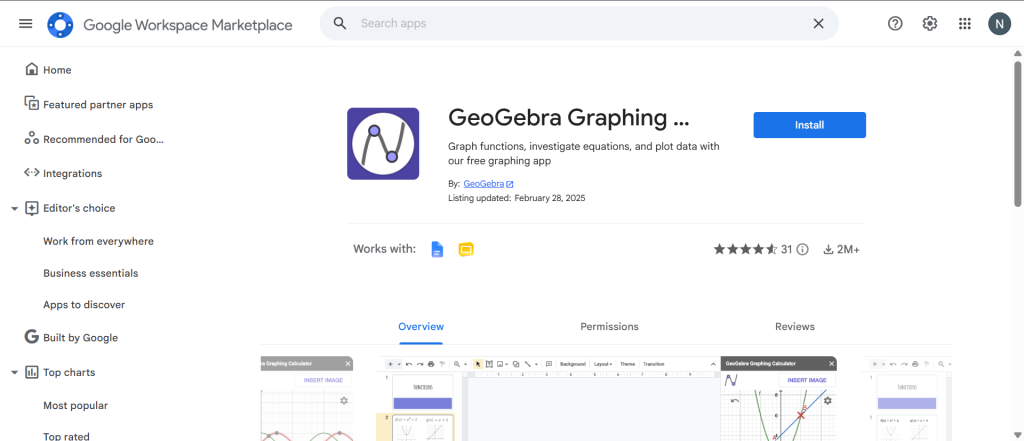
Some maths topics make much more sense when students can see what is happening.
GeoGebra lets you create those visuals. Its Graphing Calculator and 3D Calculator add-ons can be used with Google Slides to create graphs, functions, geometric constructions, transformations, and 3D objects.
Instead of showing students an equation and asking them to imagine the graph, you can put the visual representation directly into the lesson.
Key features
- Plot functions and investigate equations.
- Create graphs and coordinate systems.
- Build geometric constructions and transformations.
- Create 3D shapes, surfaces, and functions.
- Export mathematical visuals for presentations.
- Support concepts across algebra, geometry, calculus, and other areas of maths.
Best for
Math teachers who want to use graphs, shapes, transformations, and other visual demonstrations alongside their regular lesson content.
Rating: 4.6/5
Downloads: 2M+
8. Grackle Slides
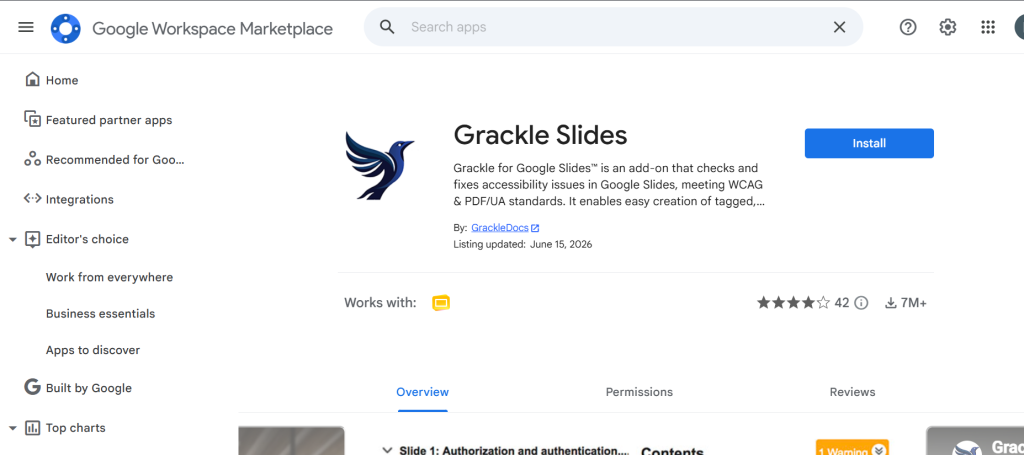
Accessibility is one of those things that’s easy to forget when you’re rushing to finish tomorrow’s lesson.
Grackle Slides gives you a way to check your Google Slides presentations for common accessibility issues. It scans the presentation and points out areas that may make the content harder to access for some students.
It can also guide you through making those changes, so you’re not left trying to figure out what an accessibility warning actually means.
Key features
- Check presentations for common accessibility problems.
- Identify issues involving things such as colour contrast and reading order.
- Provide guidance for fixing flagged problems.
- Support accessible PDF creation from Google Slides.
- Help schools maintain more consistent accessibility practices.
Best for
Teachers and schools that want to make digital learning materials more accessible and need a way to check their presentations before sharing them with students.
Rating: 4.1/5
Downloads: 7M+
9. Slides Translator
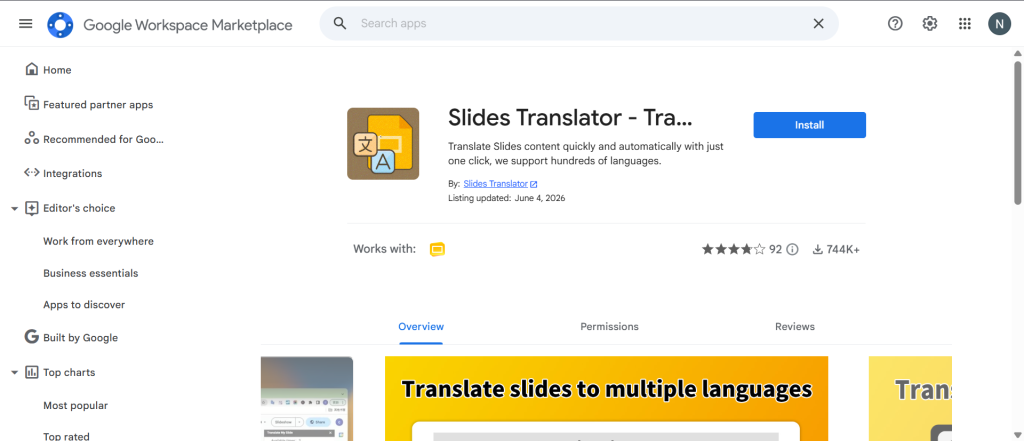
Teaching students who speak different languages can sometimes mean creating several versions of the same presentation.
Slides Translator can help reduce that work by translating content directly within Google Slides. You can select text or translate larger sections of a presentation without having to copy everything into a separate translation tool.
The add-on can also work with speaker notes and text contained in images, which gives it some extra uses beyond translating the visible text on a slide.
Key features
- Translate selected text or presentation content into 100+ languages.
- Automatically detect the source language.
- Translate speaker notes.
- Translate text contained within images.
- Use voice typing and read-aloud features for additional language support.
Best for
Multilingual classrooms, language teachers, international schools, and ESL or EFL educators who regularly adapt presentation material for students who speak different languages.
Rating: 4.1/5
Downloads: 744K+
10. Slip-in-Slide
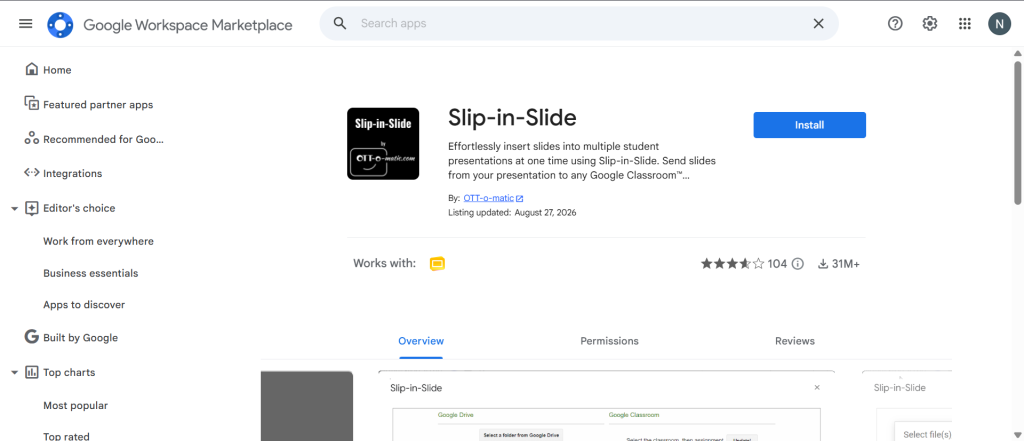
Imagine you’ve created a new instruction slide for an assignment.
Now imagine having to open 30 student presentations and copy that slide into each one.
That is exactly the sort of repetitive classroom task Slip-in-Slide is designed to avoid.
The add-on lets teachers take one or more slides from a master presentation and send them to multiple student presentations through Google Drive or Google Classroom. This can be especially useful when students each have their own digital notebook or project presentation.
Key features
- Send one or several slides to multiple student presentations.
- Work with files connected through Google Drive and Google Classroom.
- Use linked slides so changes made to the teacher’s version can be passed on.
- Get a summary showing which student files received the slides successfully.
- Use it for digital notebooks, templates, instructions, activities, and project material.
Best for
Teachers who regularly distribute new slides to individual student presentations and want to avoid copying and pasting the same material dozens of times.
Rating: 3.7/5
Downloads: 31M+
How to Download the Google Slides Add-ons?
Now that you are familiar with some powerful add-ons let’s look at how you can easily download and install them.
Step 1: Open Google Slides
Access your Google Slides account where you want to install the add-ons or use the SlidesAI web application.

Step 2: Navigate to the Add-ons Menu
On the top menu bar, you will see ‘Add-ons.’ Click on it to see the options available.
Step 3: Click on “Get add-ons.”
In the dropdown menu, select “Get add-ons” to open the Google Workspace Marketplace.
Step 4: Browse or Search for Extensions
You can either browse featured add-ons or use the search bar to find specific add-ons like “SlidesAI”.
Step 5: Click on “Install”
Find the desired add-on and click on the “Install” button.

Step 6: Grant Necessary Permissions
You will need to grant permission for the add-on to access certain features of your Google Slides account.
Step 7: Access the Extension
Once installed, you can return to the ‘Add-ons’ menu to access and integrate the add-on into your current presentation.
Step 8: Check for Updates
Add-ons may receive updates that improve their functionality. Regularly check for updates in the same ‘Add-ons’ menu to ensure you are using the latest version.
Google Slides add-ons can profoundly change the way you teach. They make your lessons more interactive and engaging while helping you save time and effort in preparing teaching materials.
With the right tools at your disposal, like SlidesAI, Pear Deck, and MathType, you can create a highly effective and differentiated learning environment. You can ensure every student can connect with the material in meaningful ways.
All these options are the best Google Slides add-ons for teachers. So, how do you choose which one is best for you? It’s pretty simple – Choose the resource that best meets your teaching goals and watch how your classroom dynamics change dramatically!
Teaching is already a full-time job, and building engaging lesson slides shouldn’t take up more of your day than it needs to. Google Slides add-ons designed for educators can help you create interactive, visually rich lessons in far less time. Here are the top picks to add to your classroom toolkit today.
- 12 Best Google Slides Add-Ons for Your Presentations in 2026
- 27 Best PowerPoint Add-ins to Supercharge Your Presentations
- Top ChatGPT Plugins for Presentations: Create Professional Slides in Minutes
- 15 Best ChatGPT Plugins for Students
- 15 Best ChatGPT Plugins for Teachers
<SlidesAICTAGoogleSlides />
Frequently Asked Questions
1. Are add-ons for Google Slides free?
Yes, the majority of add-ons are free, and others allow you to gain additional capabilities with a paid membership.
2. Can I use more than one Google Slides extension at once?
Yes. It is possible to use more than one extension. However, to guarantee compatibility and peak performance, make sure they work well together and check for updates on a regular basis.
3. Are extensions safe? How can I know that the permissions they ask for are reliable?
Extensions are perfectly safe. Google upholds stringent security guidelines. Moreover, by providing the required access to features without jeopardizing your data, permissions provide a smooth integration.
4. What is the best Google Slides add-on for creating presentations?
SlidesAI is a great option for teachers who want to create presentations from a topic, prompt, notes, or existing text. It can build a structured first draft directly inside Google Slides, which you can then edit and adapt for your students.
5. Can Google Slides add-ons create interactive lessons?
Yes. Add-ons such as Pear Deck and Nearpod can add questions, polls, quizzes, drawing activities, and other interactive elements to Google Slides presentations. This allows teachers to add participation and formative checks without rebuilding an existing lesson from scratch.
6. Can Google Slides add-ons save teachers time?
Yes, although the amount of time saved depends on what you’re using them for. SlidesAI can speed up presentation creation, while other add-ons can help with repetitive editing, visuals, translation, accessibility, or distributing slides to students. If a particular task comes up regularly in your lesson preparation, an add-on can often make that part of the process less tedious.
Related Posts
-
If you’ve ever looked at a slide and thought, “This could use a little extra…
-

In Google Slides, you might need to add footnotes to include extra information or citations.…
-

{ “@context”: “https://schema.org”, “@type”: “FAQPage”, “mainEntity”: [ { “@type”: “Question”, “name”: “How long should I…
-

If you use Google Slides regularly, you’ve probably found yourself wishing it could do just…
-
Learn how to add, move, duplicate or delete slides in Google Slides with this step-by-step…