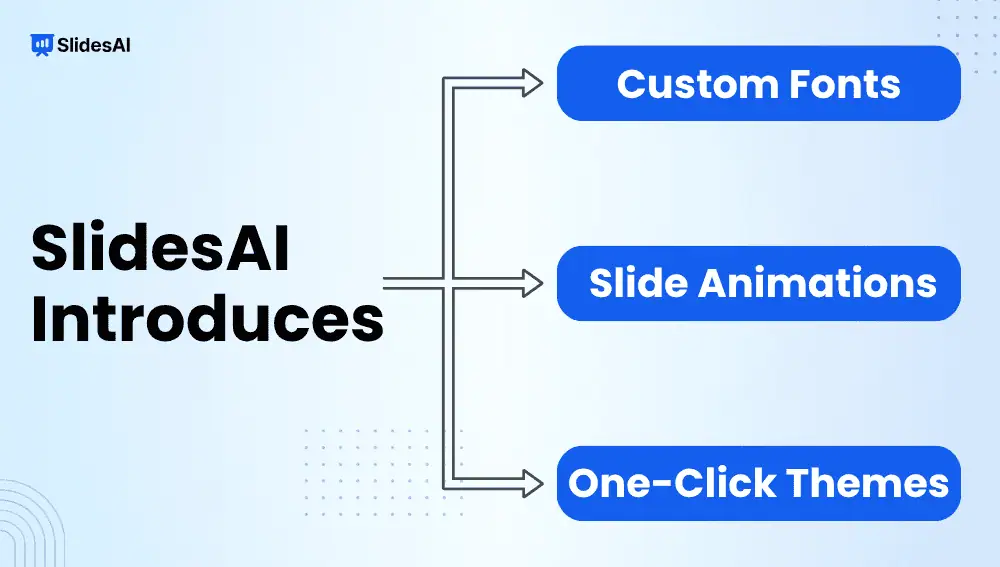
More control over how your presentations look, move, and feel.
SlidesAI has always helped you create presentations faster. With our latest updates and features, you have more control over what happens after your presentation is generated.
You can now upload your own fonts, add entrance animations to individual slide elements, and change the theme of an existing presentation without rebuilding it. We’ve also made improvements to RTL formatting, equation rendering, shared presentation viewing, and more.
What’s New?
1. Use Your Own Fonts
Your presentations can now use the fonts you already work with.
Upload custom fonts directly to SlidesAI and use them when creating or editing presentations. This is especially useful for brand presentations, client work, company templates, and teams that need to maintain consistent typography across decks.
You no longer have to generate a presentation first and replace the fonts afterward.
With custom fonts, you can:
- Keep presentations consistent with your brand guidelines
- Use client or company-approved typefaces
- Maintain the same typography across recurring presentations
- Create and edit presentations using your preferred fonts
Want to learn more about using custom fonts in SlidesAI? Read the full guide to see how to upload, use, and manage your fonts.
2. Add Animations to Individual Elements
You can now animate individual elements on a slide, including text boxes, images, shapes, and other objects.
Instead of showing everything at once, control when different parts of a slide appear. This can help you explain information in the order you want your audience to see it.
For example, you can use animations to:
- Reveal the steps in a process one at a time
- Introduce events along a timeline
- Present sales points in sequence
- Reveal information gradually during a lesson
- Bring attention to a specific number or insight on a data slide
- Introduce the two sides of a comparison at the right moment
You can add animations during your presentation workflow and adjust them later from the editor.
Want to get more out of slide animations? Read the full guide to learn how to add animations and control when individual elements appear.
3. Change the Look of an Existing Presentation
Finished your presentation but want a different visual style? You no longer need to start over.
The updated Theme Panel lets you switch the theme of an existing presentation while keeping your content, images, positioning, and slide structure intact.
You can also make more targeted changes when you don’t want to change everything.
We’ve also added a Guided Theme Tour to help you find and use these controls in the editor.
Want to explore the new Theme Panel? Read the full guide to learn how to switch themes, change colors, and customize the look of your presentation.
Other Improvements
Along with these new features, we’ve made several improvements across SlidesAI.
- RTL alignment: Better alignment and formatting for right-to-left languages.
- Equation rendering: Cleaner rendering of mathematical equations in presentations.
- Presentation viewing: Improved viewport controls for shared presentation links, along with a new “What’s new” prompt.
- Formatting: Fixes for issues involving table colors, image borders, and list formatting.
More Control, Even After Your Presentation Is Created
These updates make it easier to refine a presentation without rebuilding it.
Change the typography to match your brand. Try a different visual style. Add animations to guide your audience through a slide. Make these changes while keeping the presentation you’ve already built.
Whether you’re creating a presentation from scratch or updating an existing deck, you have more flexibility to make the final result work for you.
Frequently Asked Questions
Can I upload my own fonts to SlidesAI?
Yes. You can upload custom fonts and use them when creating and editing presentations.
Can I animate individual elements?
Yes. You can add entrance animations to individual elements such as text, images, and shapes.
Can I change the theme of an existing presentation?
Yes. You can switch the theme without rebuilding your presentation.
Can I change only the colors?
Yes. You can change the color palette without replacing the entire theme.
Do these updates work with existing presentations?
Yes. You can use the new theme, font, and animation controls with presentations you’ve already created.
What other improvements are included?
The update also includes improvements to RTL alignment, equation rendering, shared presentation viewing, table colors, image borders, and list formatting.
Available Now
Custom Fonts, Slide Animations, and the updated Theme Panel are now available in SlidesAI.
Open an existing presentation or create a new one to try the new controls.
Related Posts
-
Your presentation can have the right message, the right colors, and the right layout, but…
-

SlidesAI is a Google Workspace Add-on (think of it like a Chrome Extension but only…
-

A presentation isn’t only about what appears on the screen. It’s also about when your…
-

How do I cancel my SlidesAI Subscription? You can cancel your subscription from Your Account…