
Videos can transform a plain PowerPoint presentation into a dynamic and memorable experience. They help you explain complex concepts visually, add a touch of emotion, and cater to different learning styles. Whether you choose online videos, YouTube videos, or files from your computer, this guide will show you how to embed a video in PowerPoint in a few easy steps.
How to Embed a Video in PowerPoint?
For this guide, we’ll use screenshots from the free web-based version of Microsoft PowerPoint. Similar steps can be taken for other versions of PowerPoint, so long as they support the mentioned methods and web video links.

💡 Read more about embedding videos in the various versions of PowerPoint on Microsoft’s website.
Method 1: Embed a video from your device
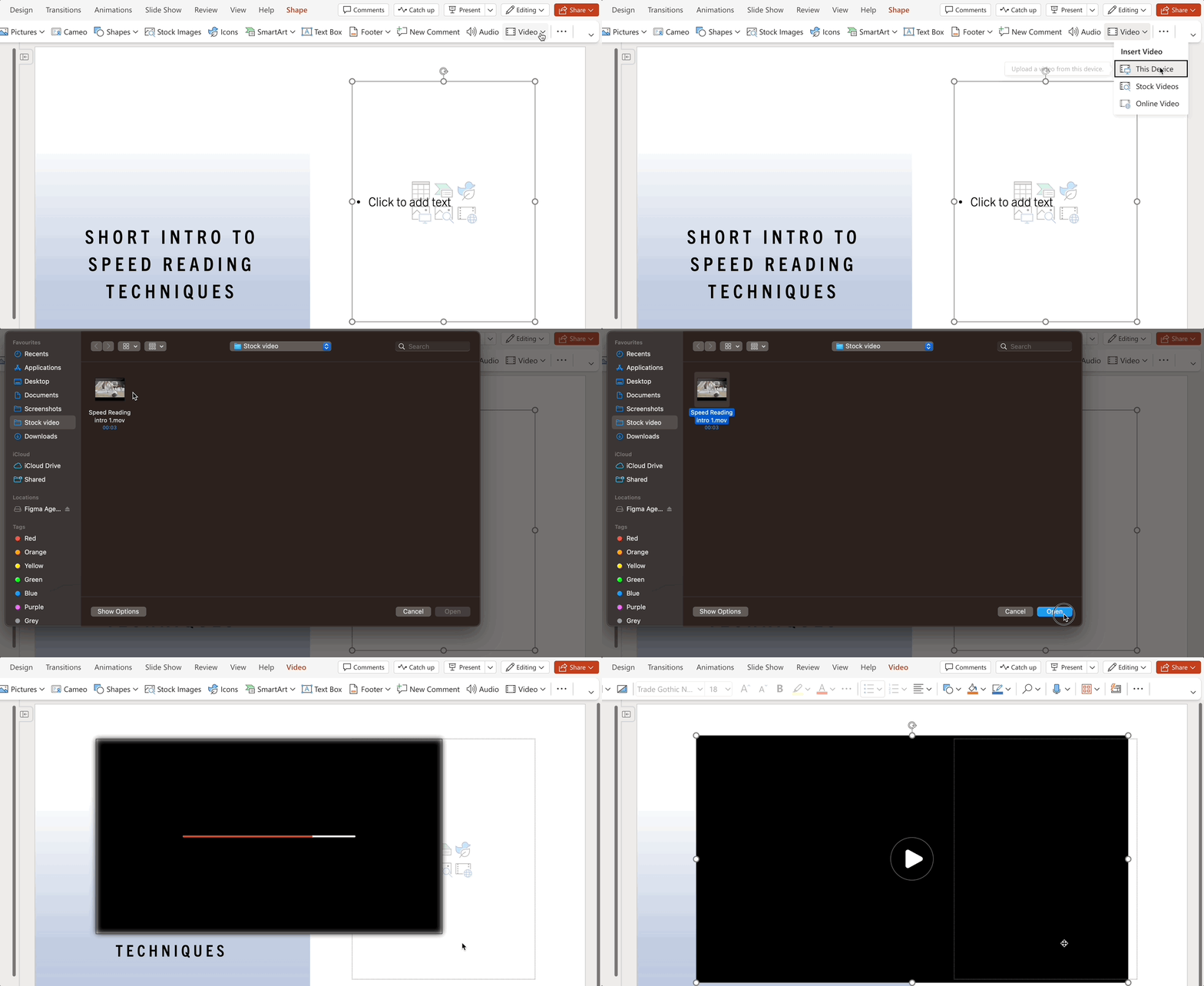
This option works across all Microsoft PowerPoint versions — for Windows, PC, or Mac. Insert videos directly from your device for guaranteed playback and complete control over your presentation delivery.
- Click ‘Insert’ on the main tab/panel.
- Select ‘Video’ → ‘This Device’.
- Find the folder and double-click the file to insert the video.
💡Pro tip: Not all Vimeo videos are downloadable, but look for the download button—it means you can embed the video directly.

<SlidesAICTA3 />
Method 2: Embed a YouTube video
You can embed videos directly from YouTube, SlideShare, Vimeo, Stream, and Flip.
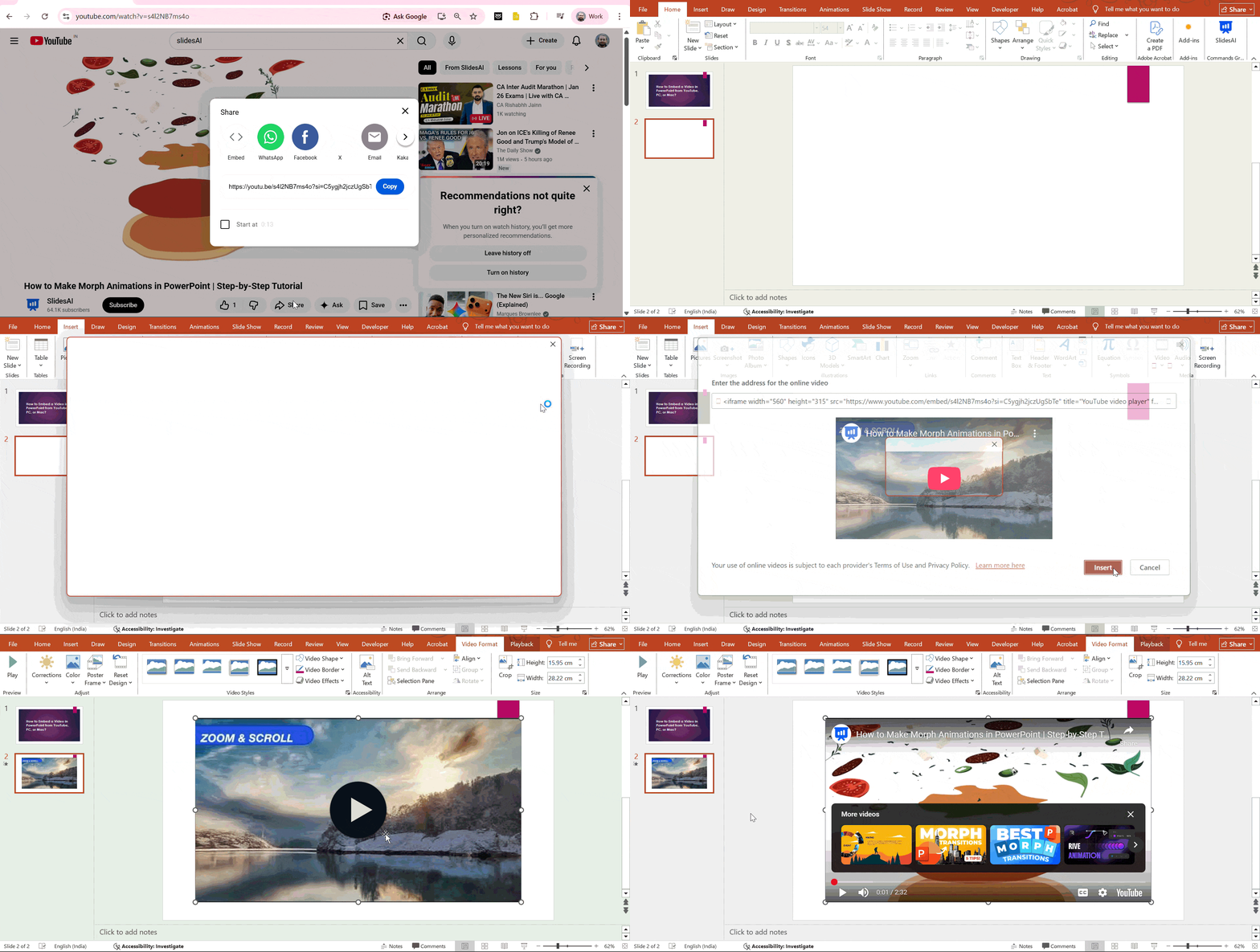
- Find the video you want from YouTube. Click on Share →Embed and then copy the code
- Go back to PowerPoint and navigate to the slide you want to insert the video.
- From the ‘Insert’ tab, select ‘Video’ → ‘Online Video.’
- Paste the video link or embed code. (from Step 1)
- Click the Insert button.
Note about using YouTube videos
Unlike videos embedded directly into your presentation file, online videos are hosted externally. You control them through the website’s video player, not PowerPoint’s built-in features (the video format tab will not be available).
Remember, a reliable internet connection is essential for smooth playback of online videos.
💡 Read more: Insert a video from YouTube or another site [Microsoft]
<SlidesAICTA1 />
Method 3: Using Video URL
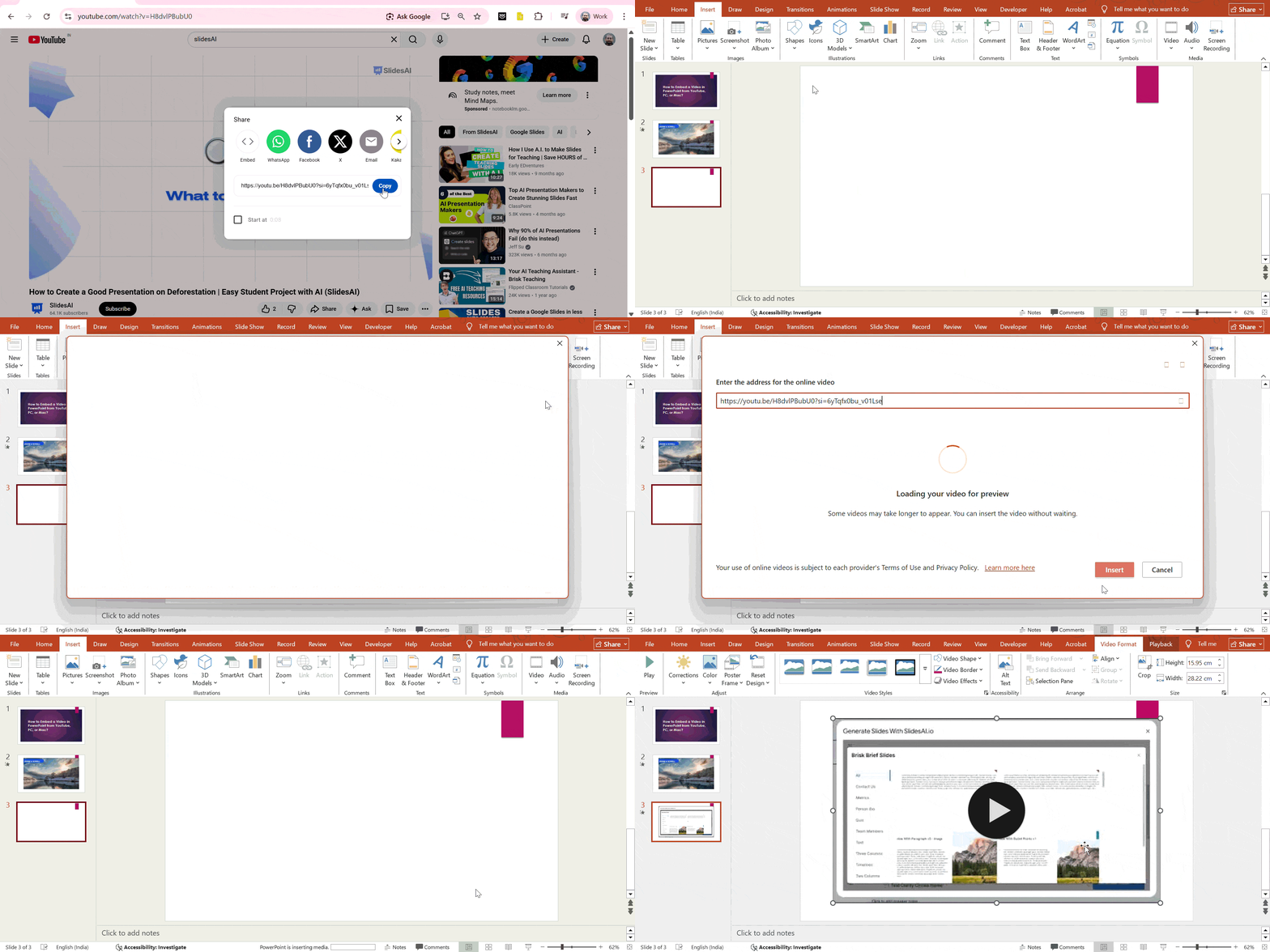
- Launch PowerPoint and go to the slide where you want the video to appear.
- From the top menu, select Insert to access media options.
- Click Video in the toolbar, then select Online Video from the dropdown.
- Copy the video link (for example, from YouTube) and paste it into the URL field.
- PowerPoint will embed the video directly into your slide.
- Adjust the video frame on the slide to fit your layout.
- Enter Slide Show mode and play the video to ensure it works properly.
Method 4: Insert a video from Microsoft’s creative content library
For users of PowerPoint for the Web: Microsoft 365 offers a selection of royalty-free stock videos (and images). You can find and insert videos from the online library.
- Click ‘Insert’ on the main tab/panel.
- Select ‘Video’ → ‘Stock Videos’.
- Find the video you want and click ‘Insert.’

💡 You’ll need a Premium Microsoft Office membership to unlock the entire stock library.
How to play embedded videos in PowerPoint?
Ready to rehearse your PowerPoint presentation? Embedded videos won’t start automatically, so you have time to check that the audio settings are correct. When ready, click the ‘Play’ button on the video embed frame.
▶️ Play an uploaded video (from PC, Mac)
Uploaded videos have more playback options than linked web videos. This option also does not require the internet or a stable connection during the presentation. Click on the ‘Play’ icon to start the video.

You’ll see this video playback tab with controls appear:

▶️ Play an embedded online video (from YouTube, Vimeo, etc)
You will need a stable internet connection during your PowerPoint presentation as the embedded video is directly streamed from the video platform. Click on the ‘Play’ icon to start the linked video.

💡 Note: When embedding online or YouTube videos, you’ll primarily use the streaming site’s controls (play, pause, volume). PowerPoint’s advanced editing features won’t work on these web videos.
You can also watch a video on a complete guide on how to insert videos in PowerPoint here!
Troubleshooting video embedding issues in PowerPoint
If your video isn’t playing or embedding correctly in PowerPoint, try these common fixes:
- Verify Video Format Compatibility – PowerPoint works best with MP4 videos encoded using H.264 video and AAC audio. Convert unsupported formats before inserting.
- Insert Videos Using the Built-In Insert Option – Always use Insert → Video instead of copy-pasting to ensure the video embeds correctly.
- Keep the Video File in the Same Folder – Moving or renaming the video after insertion can break the link, especially in older PowerPoint versions.
- Update PowerPoint and Required Codecs – Outdated PowerPoint versions or missing codecs may prevent videos from playing properly.
- Optimize and Compress Media Files – Use File → Info → Compress Media to reduce file size and improve playback performance.
- Check Internet Access for Online Videos – Videos from YouTube or Vimeo require a stable internet connection during the presentation.
- Test Playback on the Presentation Device – Run the slideshow on the actual device you’ll use to catch compatibility or playback issues in advance.
Tips for embedding videos in PowerPoint
While videos add a powerful element to your presentations, there are some downsides worth considering, such as the risk of technical glitches and a larger PowerPoint file size.
Use these tips to keep your PowerPoint presentation smooth:
- Purpose: Ensure each video serves a clear purpose and enhances your message rather than being a distraction.
- Length: Keep videos short and focused to maintain your audience’s attention.
- Audio: Ensure the video’s audio is clear and at the right volume for your presentation.
- Manage video size: Large video files can make your presentation slow and challenging to share. Use online tools to compress media files without sacrificing significant quality.
- Prioritize reliability: If a smooth presentation is crucial, embed videos directly from your device to avoid internet dependency. Inserting a video from your device guarantees playback even without an internet connection.
- Test and rehearse: Review your presentation beforehand to ensure your videos play seamlessly.
You can also use our Video Presentation templates for your presentations.
Related article: Don’t Present Without These 16 PowerPoint Dos and Don’ts
<SlidesAICTA2 />
Summary
Videos are a fantastic addition to your presentation toolbox. Embedding videos into your PowerPoint slideshow makes them more engaging and memorable. Videos grab attention, explain complex ideas, and make your presentation more impactful. They offer a powerful way to complement your core message and keep things interesting.
This short tutorial covers three options: directly from your device or computer, using Microsoft’s stock video library, or pasting a video file link from online platforms like YouTube.
Keep your audience captivated with a variety of content: videos, images, well-crafted text, and engaging delivery. Remember to rehearse beforehand for a smooth, successful presentation!
Frequently Asked Questions About Embedding a Video in PowerPoint
What are the supported video formats?
Recommended: .mp4 (offers the best balance of compatibility, quality, and file size).
For older PowerPoint versions (2010 and earlier): Consider using .wmv for wider compatibility.
Other PowerPoint-supported video formats:
- .mpg4
- .m4v
- .avi (may require additional codecs)
- .mpeg or .mpg
- .mov (for Mac users)
Is embedding a video different from linking a video in PowerPoint?
Yes, embedding stores the video inside the presentation file, while linking keeps it as an external file.
How can I embed a video without increasing file size too much?
Use File → Info → Compress Media to reduce video size while keeping acceptable quality.
Do embedded videos work offline in PowerPoint?
Embedded local videos play offline, but online videos require an active internet connection.
Why does my video play on my computer but not on another device?
The other device may lack the required codecs or be using an older PowerPoint version.
Can I embed multiple videos in one PowerPoint presentation?
Yes, you can embed multiple videos, but large files may affect performance.
Can I use an older version of PowerPoint?
Yes, you can use earlier versions of PowerPoint or PowerPoint for the Web (free). However, remember that limited support is available, potential compatibility issues with newer file formats or online features exist, and new features are missing.
Consider upgrading to Microsoft 365 if you prioritize security and support, need the newest features, or work with collaborators using newer versions.
Related article: Step-by-Step: How To Convert PowerPoint to Google Slides
Related Posts
-

“Attention, please!” – this is what your presentations will shout, not you. No more yawning…
-

Ever looked at your PowerPoint presentation and thought it lacked a bit of color pizzazz?…
-

PowerPoint presentations are a go-to for clear and informative content delivery. But what if you want…
-

The font you choose can make a major difference in your PowerPoint presentations. While the…
-

Sometimes, when you often create presentations, you might find yourself in a situation where you…