
PowerPoint slides often need more than just preset layouts to clearly share your message. Sometimes you want to add a short note, highlight a point, or place text in a specific spot on the slide. That is where text boxes come in handy. Knowing how to add and use a text box gives you better control over your slide design and content flow. In this blog, we will show you how to add a text box in PowerPoint and use it effectively for different presentation needs.
What Is a Text Box in PowerPoint?
A text box in PowerPoint is a basic tool that lets you add custom text anywhere on a slide. Unlike preset placeholders, a text box gives you full control over where the text appears and how it looks. You can use it to add titles, explanations, captions, quotes, or short notes. Text boxes are useful when you want to place text freely without changing the slide layout.
How to Add a Text Box in PowerPoint?
To add a text box in PowerPoint, follow these steps:
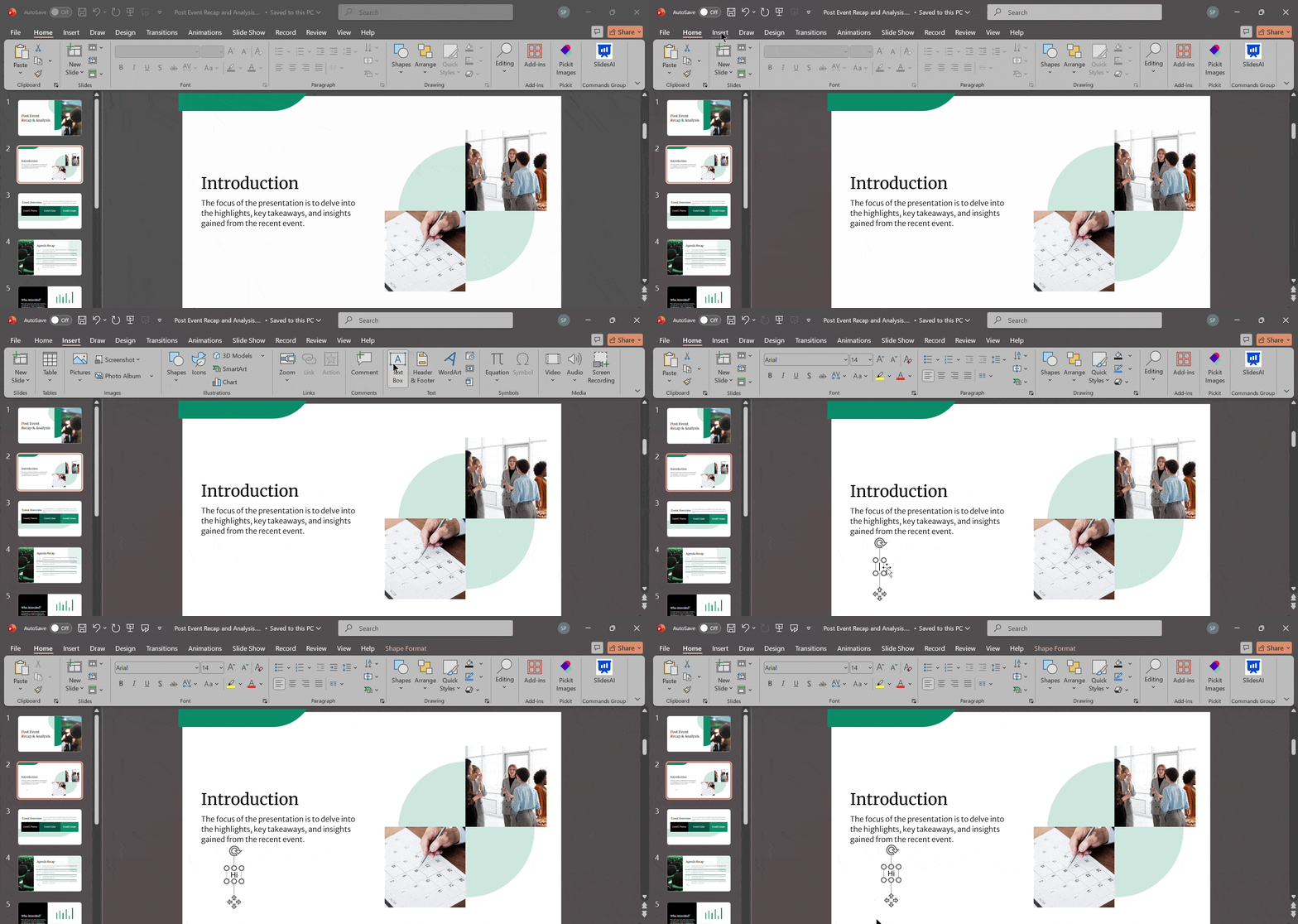
1. Open Your PowerPoint Presentation
Start by opening the presentation where you want to add the text box. You can either create a new slide or work on an existing one.
2. Go to the Insert Tab
Look at the top menu bar and click on the Insert tab. This section contains all the elements you can add to your slide such as images, shapes, charts, and text boxes.
3. Click Text Box
Inside the Insert tab, find the Text Box option. Click on it to activate the text box tool.
4. Click and Drag on the Slide
Now go to your slide, click anywhere, and drag your mouse to draw the text box. You can adjust the size based on how much text you want to add.
5. Type Your Text
Once the box appears, start typing your content. You can format the text using font styles, sizes, colors, and alignment options from the Home tab.
<SlidesAICTA1 />
How to Add a Text Box Using Keyboard Shortcut
1. Shortcut for Windows
Shortcut: Alt + N, then X
Step by step:
- Open your PowerPoint presentation.
- Click the slide where you want to add the text box.
- Press Alt + N on your keyboard. This opens the Insert tab using the Ribbon shortcut.
- Press X. This selects Text Box.
- Your cursor will turn into a crosshair. Click and drag on the slide to draw the text box.
- Type your text.
Tip: If you want a quick text box without dragging, click once on the slide after step 5 and start typing.
2. Shortcut for Mac
Shortcut: Command + Option + Shift + T
Step by step:
- Open your PowerPoint presentation.
- Click the slide where you want to add the text box.
- Press Command + Option + Shift + T.
- Your cursor will change so you can place the text box.
- Click and drag on the slide to create the text box.
- Type your text.
How to Format a Text Box
1. Changing Font Style, Size, and Color
Start by selecting the text inside the text box. Go to the Home tab. From here, you can change the font style, adjust the size, and pick the text color.
Choose fonts that are easy to read, even from the back of the room. Use bold, italics, or underline only to highlight important points. Overusing styles can make the slide look cluttered.
For professional presentations, limit yourself to one or two fonts. Also, make sure the text color contrasts clearly with the background so everything stays visible.
2. Adjusting Text Alignment and Spacing
Alignment helps organise your content visually. You can align text to the left, center, right, or justify it depending on the layout.
These options are available in the Paragraph section under the Home tab.
You can also adjust line spacing and paragraph spacing. Adding space between lines makes text easier to read. Proper spacing prevents the slide from feeling overcrowded and helps your audience scan information quickly.
3. Adding Fill Color, Outline, and Effects
Click on the border of the text box to access design settings. Then open the Shape Format tab.
From here, you can add a fill color inside the text box, change the outline color, increase or reduce outline thickness, or remove the outline completely.
You can also apply subtle effects like shadows or soft edges. These features help your text stand out, especially when placed over images or colored backgrounds.
Keep effects minimal so the slide still looks professional.
4. Resizing and Rotating a Text Box
To resize the text box, click and drag the corner handles. This keeps the proportions balanced.
Dragging from the side handles may stretch the box unevenly, so use corners whenever possible.
To rotate the text box, use the circular handle at the top. Rotation works well for creative layouts or labels. Just make sure the text stays readable and does not distract from your main content.
Closing Thoughts
We hope this guide helped you understand how to add and use a text box in PowerPoint with ease. It is a simple feature, but it makes a big difference when you want better control over your slide content and layout. With a little practice, you will be able to place, format, and style text exactly the way your presentation needs.
<SlidesAICTA2 />
Frequently Asked Questions (FAQs)
1. How to Add Color to a Text Box in PowerPoint?
Select the text box first. Go to the Shape Format tab. Click on Shape Fill and choose the color you want. The background of the text box will change instantly.
2. How to Add Columns to a Text Box in PowerPoint?
Select the text box. Go to Shape Format and click Columns. Choose the number of columns you need. Your text will adjust automatically within the box.
3. How to Add Text to a Text Box in PowerPoint?
Click on Insert and select Text Box. Draw the box on the slide. Start typing inside it to add your text.
4. Can You Lock a Text Box?
Yes. Open the Selection Pane, select the text box, and lock its position through PowerPoint settings or Slide Master. This prevents accidental movement.
5. Can Text Boxes Be Animated?
Yes. Select the text box, go to the Animations tab, and choose an effect. You can control timing, direction, and sequence.
6. How Many Text Boxes Can a Slide Have?
There is no fixed limit. You can add as many text boxes as needed, but too many can make the slide look cluttered.
7. What Is the Difference Between a Text Box and a Placeholder?
A text box is added manually and can be placed anywhere. A placeholder comes with the slide layout and is pre formatted for content like titles or body text.
Related Posts
-

To insert a timer in PowerPoint, the easiest method is to use add-ins via Insert…
-

To add animation in PowerPoint, select the object you want to animate (text, image, or…
-

Adding a header in PowerPoint is a smart, easy way to give your slides a…
-

Want to give your presentation that extra touch? Adding page numbers can be a simple…
-
Whether you’re presenting at work, school, or to an audience, animated GIF files are one…