
Key Takeaways
- Create engaging classroom presentations by focusing on visuals, storytelling, and interactivity instead of text-heavy slides.
- A well-designed classroom presentation improves attention, participation, and learning outcomes in online classes.
- Using the right presentation templates saves time and ensures consistency across lessons.
- Adding interactive elements like quizzes, videos, and polls makes a classroom presentation more effective.
- AI tools can help teachers make a killer classroom presentation faster with less manual effort.
You’ve got 25 students on a video call. Half of them have their cameras off. One is definitely eating cereal. And you’re three slides into a lesson that, if you’re being honest, you’d find boring too.
Online teaching is hard. You’re competing with everything on their screens: social media, games, group chats. A slide deck full of bullet points isn’t going to win that battle.
The good news? You don’t need to be a designer or spend hours building something elaborate. A few deliberate changes to how you structure and present your lessons can make a real difference. In how much your students pay attention, how much they participate, and how much they actually remember afterward.
This guide walks you through 10 practical ways to make your online presentations more engaging, whether you’re teaching 10-year-olds or college students.
Presentation helps you explain concepts clearly, hold attention longer, and make online teaching more effective and enjoyable.
Why Do Creative Classroom Presentations Matter in Online Teaching?

Presentations are not just visual aids. They shape how students experience your lesson. Here’s how they help:
1. Boosts Engagement & Motivation
Students are more likely to stay attentive and participate actively when presented with creative visuals. Visual slides and interactive elements reduce boredom and increase motivation.
2. Encourages Active Learning
A structured classroom presentation allows you to include questions, discussions, and activities. This encourages students to think, respond, and engage instead of passively listening.
3. Builds Digital Communication Skills
Students learn how ideas are presented visually and verbally. This exposure helps them develop their own communication and presentation skills.
4. Makes Learning More Engaging
Visual elements such as diagrams, charts, and images simplify complex topics. This makes it easier for students to understand and retain information.
Read related: How to Create Visuals for Presentations?
5. Reduces Isolation & Improves Connection
Interactive presentations create a sense of involvement. Students feel more connected to the lesson and the teacher, even in a virtual setting.
6. Supports Skill Development
Presentations help students develop critical thinking, listening, and analytical skills through structured content delivery.
7. Improves Retention
Compared to plain texts and lectures, visually presented information is better retained by students.
8. Enables Assessment & Feedback
You can include quizzes, polls, or quick checks within your classroom presentation to evaluate your students’ understanding and provide instant feedback.
Also Read: 11 Best Presentation Tools for Teachers
10 Practical Ways to Create Engaging Classroom Presentations Online
Creating impactful classroom presentations does not require advanced design skills. Here are proven strategies to help you create engaging presentations effectively:
1. Choose Templates That Match Your Audience
A slide deck built for a college seminar will feel cold and text-heavy for a room of 8-year-olds, while a bright, cartoon-heavy template will undermine your credibility with older students. Matching your educational presentation template to your audience sets the right tone before you’ve said a single word.
For younger students, go for bold colors, large fonts, and playful visuals. For older students or professional subjects, cleaner layouts with structured sections work better. Starting with the right educational presentation template also means you’re not redesigning every slide from scratch, keeping your lessons visually consistent across the week.
2. Avoid Overloading Slides with Text
If your slide looks like a paragraph from a textbook, students will either try to read it and stop listening to you, or ignore it entirely and zone out. Either way, you’ve lost them.
A good rule of thumb is to ask yourself: would this slide still make sense with half the words removed? Usually, the answer is yes. Keep each slide to one idea, a few words, or a single visual that you can speak around rather than read from.
3. Use Mind Maps for Complex Topics
Some topics just don’t fit neatly into a linear slide structure. When you’re teaching something with a lot of moving parts, like a historical event with multiple causes, or a science concept with interconnected systems, a mind map gives students a visual overview of how everything connects.
Instead of processing information point by point, they can see the big picture first and then zoom in on the details. This makes it much easier for students to organize what they’re learning in their own heads.
4. Add Multimedia for Better Interaction
Reading about how a volcano erupts is one thing. Seeing it, hearing it, or watching an animation of it is something else entirely. Mixing in images, audio clips, and short videos breaks the monotony of slides and gives students a different way to process the same information.
It also helps you reach students who struggle with text-heavy content but respond well to visual or audio learning.
5. Include Short Videos or GIFs
You don’t need a long documentary clip to make an impact. A 30-second video or adding a well-chosen GIF can demonstrate a process, show a real-life example, or just reset the room’s energy mid-lesson.
They work especially well when you’re explaining something hard to describe in words, like a chemical reaction, a grammar rule in context, or a historical moment. Just make sure what you’re showing is directly tied to what you’re teaching, not just filler.
6. Use Animations Carefully
Adding a well-timed animation can actually help students follow your train of thought, revealing one point at a time rather than dumping everything on screen at once. But the moment your slides start whooshing, spinning, and bouncing, you’ve lost the room.
Students are watching the effects, not listening to you. Use animations sparingly and only when they genuinely help guide attention or explain a sequence. If an animation doesn’t add meaning, cut it.
Read related: How to Add Animation to Google Slides? A Complete Guide
7. Add Live Quizzes & Polls
Nothing tells you faster whether your lesson is landing than asking students a question mid-way through and seeing the responses in real time. Live quizzes and polls give students a reason to stay alert because they know participation is expected, not optional.
They also take the pressure off individual students since everyone answers at once. Use them to check understanding before moving on, not just as a fun add-on at the end.
Read Related: How to Create a Quiz in Google Slides?
8. Gamify Your Content
Students are already motivated by games outside the classroom, so it makes sense to borrow some of that energy for your lessons. Adding points, small challenges, or friendly competition to your presentation can shift the mood from passive to active without much extra effort. It doesn’t have to be elaborate either.
A simple “first team to answer correctly gets a point” is enough to make students sit up and pay attention. The goal is to make participation feel rewarding rather than obligatory.
Also Read: 18 Interactive Presentation Games That Boost Engagement
9. Turn Lessons into Stories
Facts are easy to forget. Stories are not. When you frame your lesson around a narrative, a problem to solve, a character to follow, or a real-world scenario to work through, students have something to hold onto emotionally and mentally.
It doesn’t mean every lesson needs a plot twist. Even framing a math problem as a real situation, or starting a history lesson with a personal account, is enough to make the content feel relevant rather than abstract.
10. Replace Bullet Points with Visuals
A slide full of bullet points is essentially asking students to read while you talk, which means they’re doing neither properly. Swapping lists for icons, diagrams, or a single strong image forces you to simplify your message and gives students something to look at that supports what you’re saying rather than competing with it.
If you feel like you need bullet points to cover everything, that’s usually a sign the slide is trying to do too much. Break it up, or just say it out loud.
Also Read: 12 Interactive Activities For Presentations
How SlidesAI Simplifies Presentation Creation for Teachers?
Creating presentations regularly can be time-consuming, especially when teachers already manage lesson planning, grading, and student interaction.
SlidesAI helps teachers create engaging classroom presentations quickly by turning ideas into structured slides automatically. So, instead of spending hours designing slides, you can focus more on teaching and interaction.
Step-by-Step Guide on How to Create a Presentation Using SlidesAI
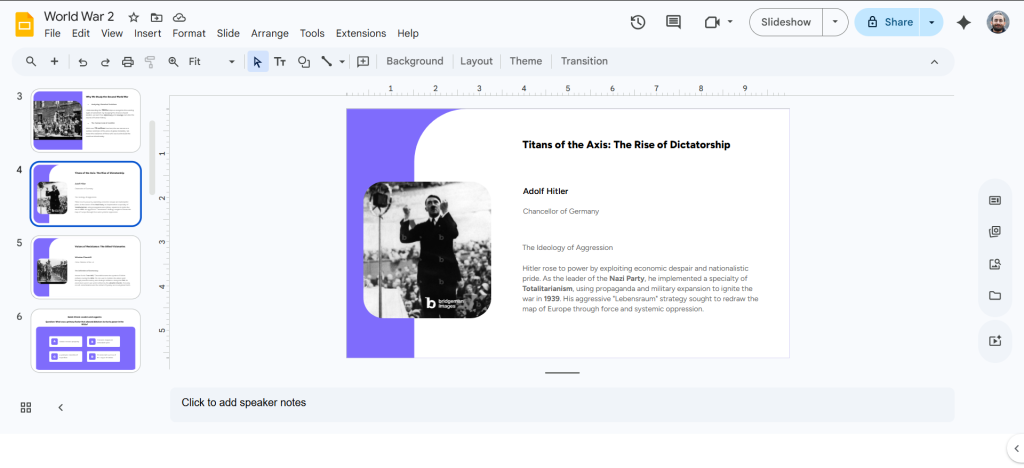
Step 1: Open Google Slides and install the SlidesAI add-on. Then log in or create your account.

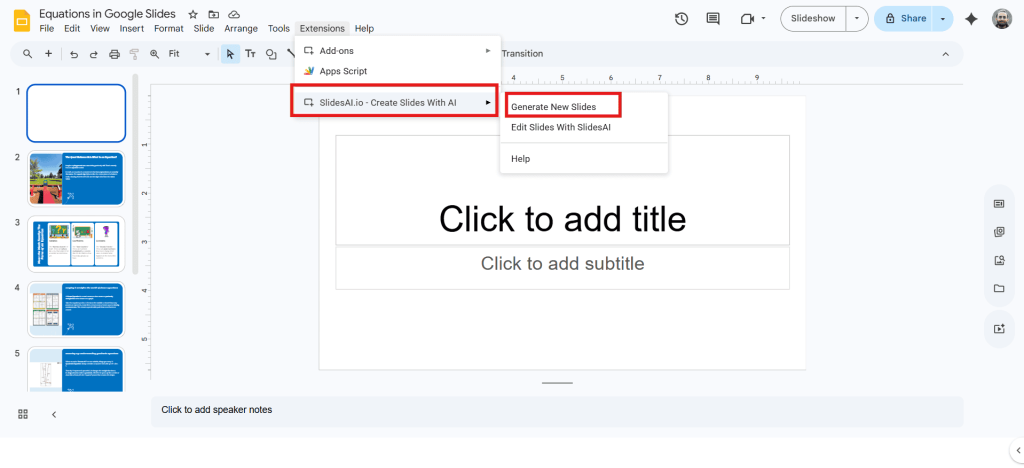
Step 2: Go to “Extensions” → SlidesAI → “Generate New Slides.”
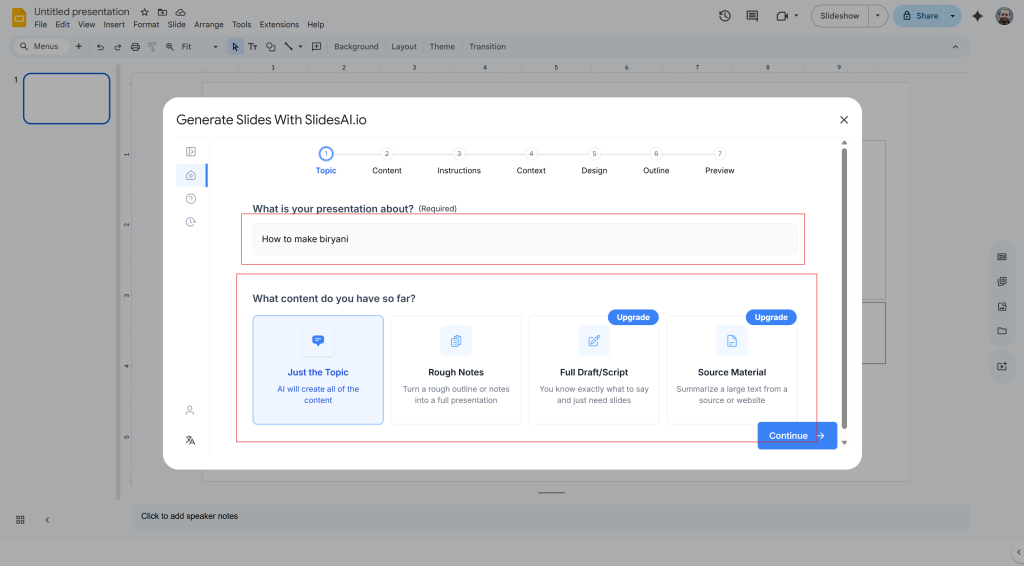
Step 3: Enter the topic of your presentation.
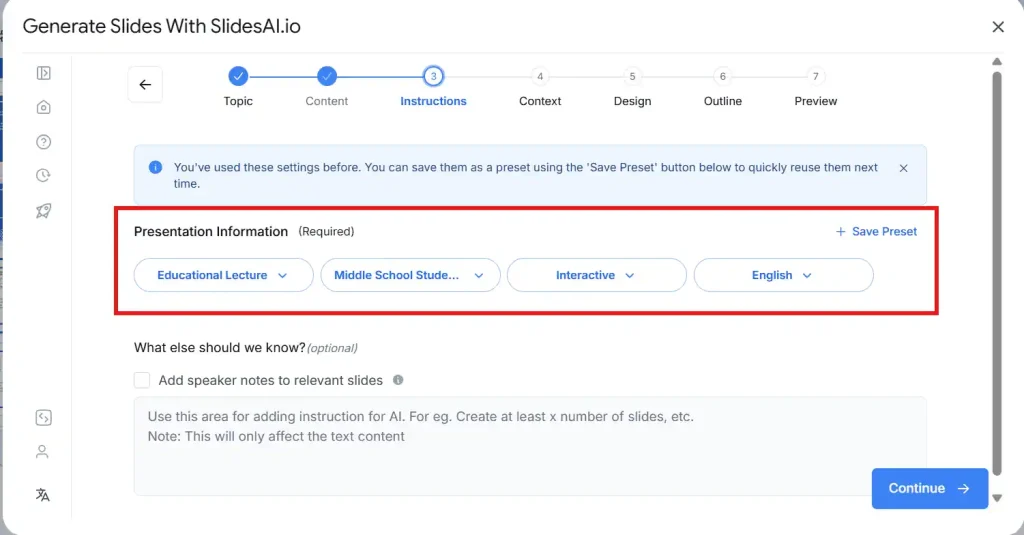
Step 4: Select presentation type, audience, tone, and language.
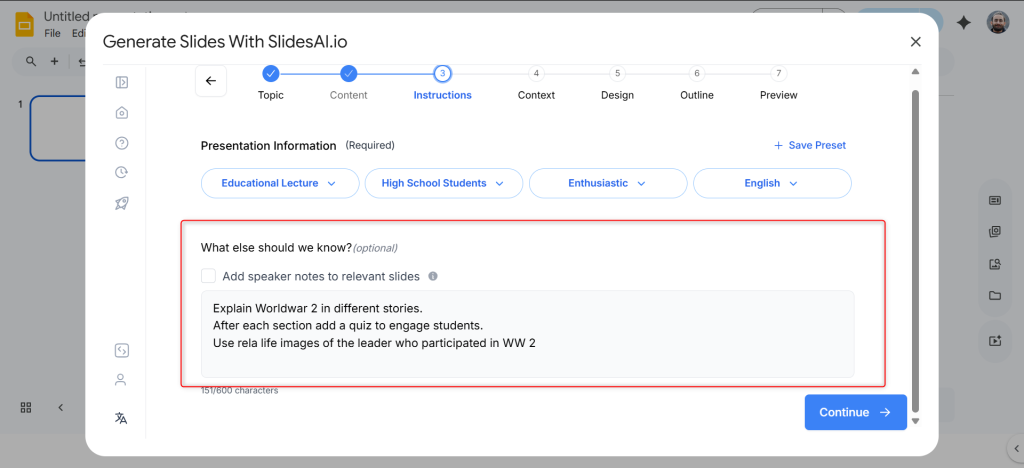
Step 5: Add specific instructions in the “What else should we know?” section if needed.
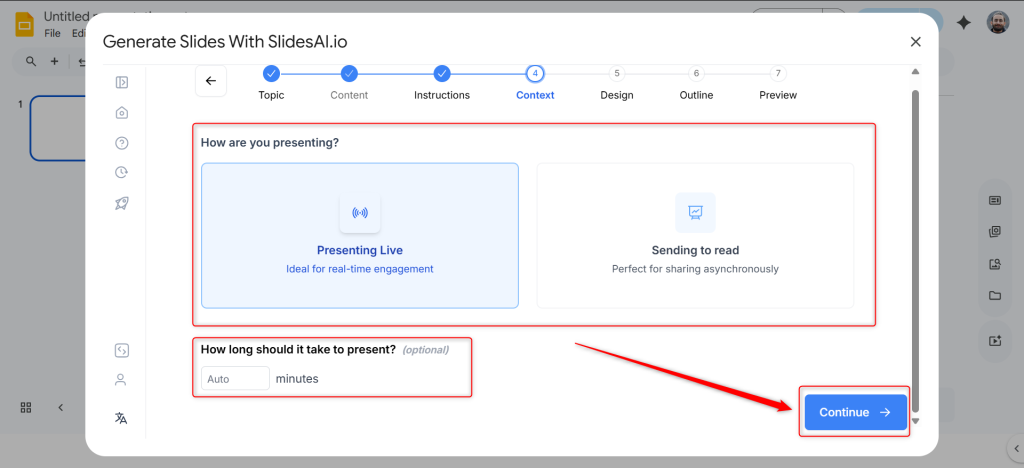
Step 6: Choose how you want the presentation to be structured.
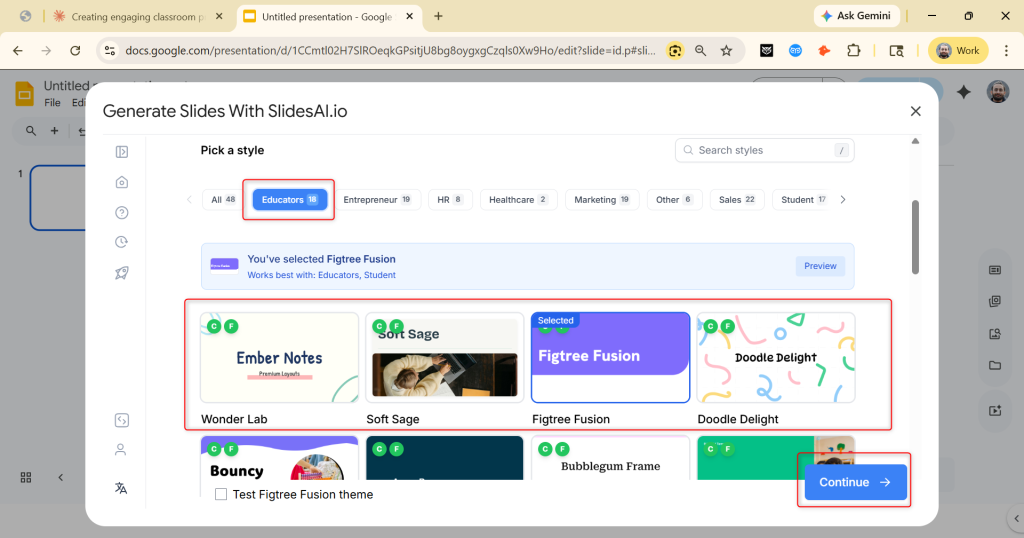
Step 7: Select a suitable classroom presentation template.
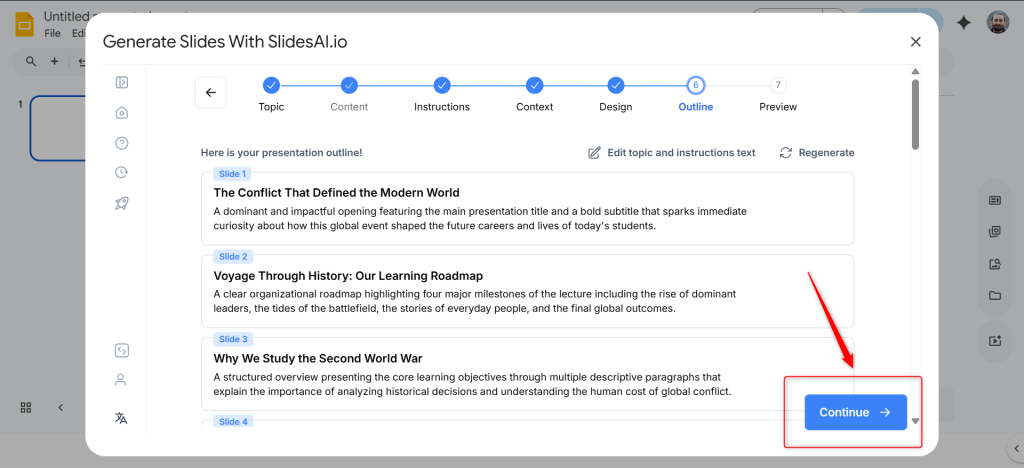
Step 8: Review the generated outline and make edits if necessary.
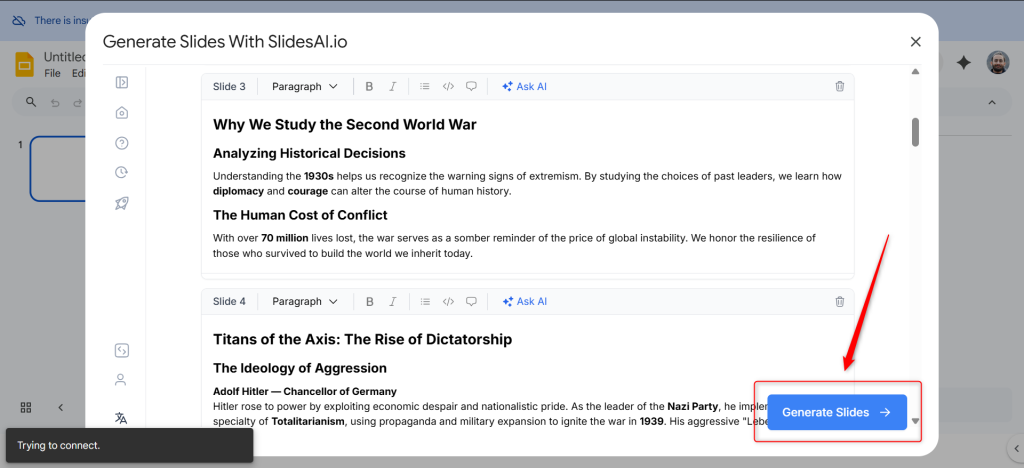
Step 9: Approve the content and click “Generate Slides.”
Step 10: SlidesAI will create your complete presentation instantly.
<SlidesAICTA1 />
Frequently Asked Questions About Engaging Presentation
1. How long should an online classroom presentation be?
An online classroom presentation should ideally last 20-30 minutes, depending on the topic and student attention span.
2. Which tool is best for teachers?
Tools like Google Slides, combined with AI-powered tools such as SlidesAI, are highly effective for creating engaging presentations quickly.
3. How many slides should I use for a 30-minute class?
You can use around 10-20 slides, depending on the depth of the content and level of interaction.
4. Should online presentations include animations?
Yes, but keep animations minimal and only use them to guide attention to avoid distraction.
5. What mistakes should teachers avoid in online presentations?
Avoid overcrowded slides and excessive text, as they reduce clarity and focus. At the same time, ensure your presentation includes enough visuals and a clear structure to maintain engagement.
6. How can AI help create engaging classroom presentations?
AI tools help generate structured content, design slides automatically, and save time, making it easier to focus on teaching.
Related Posts
-

Key Takeaways Visuals make presentations engaging and easy to understand. Use high-quality, relevant images and…
-
AI has rapidly transformed the way we work, communicate, and create, becoming an essential part…
-

Creating a report presentation means turning detailed information or findings into a visual format that’s…
-

{ “@context”: “https://schema.org”, “@type”: “FAQPage”, “mainEntity”: [{ “@type”: “Question”, “name”: “Can ChatGPT plugins help me…
-

A marketing presentation is more than just a set of slides; it’s your chance to…