
Harvey Balls in PowerPoint are circular ideograms, partially filled circles, used to represent qualitative information such as project progress, feature completeness, or comparative ratings at a glance. Originally designed by Harvey L. Poppel at Booz Allen Hamilton, they are a staple in management consulting presentations at McKinsey, BCG, and Bain — and are equally effective in any business or academic PowerPoint deck.
There are 3 ways to create Harvey Balls in PowerPoint:
1. Manually using the Oval and Partial Circle shapes (no add-ons required)
2. Using the Segoe UI Symbol font to insert ready-made Harvey Ball characters
3. Downloading SlidesAI’s free pre-built Harvey Balls PPT template
This post walks through all three methods step by step, with screenshots, plus best practices for using Harvey Balls effectively in your slides.
What is Harvey Ball?
Harvey balls are a simple visual tool used to show qualitative information, like ratings, in documents, reports, and presentations. They consist of circles that are typically filled in with different shades or colors. The amount of shading or color represents things like completion, satisfaction, importance, or any other quality that can’t be easily measured with numbers.
They’re quite flexible. You can adjust the size of the circles or the amount of shading to create the effect you need. Generally, a full circle means something is high (like full completion or high satisfaction), while an empty circle means something is low (like incomplete or not very good).
Harvey balls are often used to compare things. For example, you might use them to compare products by price, weight, quality, taste, safety, and so on. Now that you know what Harvey balls are, let’s take a look at their advantages.
When to Use Harvey Balls in PowerPoint
Harvey Balls are designed for one specific job: comparing qualitative information across multiple items or criteria. Here are the three most common use cases in PowerPoint:
1. Product or feature comparison tables. Rate multiple products, services, or options against a set of criteria (price, quality, reliability, usability) using Harvey Balls in a comparison table. This is the format made famous by Consumer Reports and used extensively by consulting firms.
2. Project status tracking. Use Harvey Balls in a project dashboard or Gantt chart to show the completion status of each task or workstream. A quarter-filled circle signals in early progress; a full circle means complete.
3. Vendor or supplier evaluation. Compare vendors against key criteria (cost, delivery, quality, scalability) without assigning arbitrary scores — Harvey Balls convey relative fit at a glance.
When NOT to use Harvey Balls:
Harvey Balls are not suited for trends over time (use a line chart), for precise quantitative comparisons (use a bar chart), or for data with more than 5–6 comparison criteria per row — overcrowding defeats the purpose of their simplicity.
How to Create Harvey Balls in PowerPoint?
Ready to visually represent progress or performance with Harvey Balls? Here’s how to create them in PowerPoint:
Method 1: Using SlidesAI’s Pre-designed Template
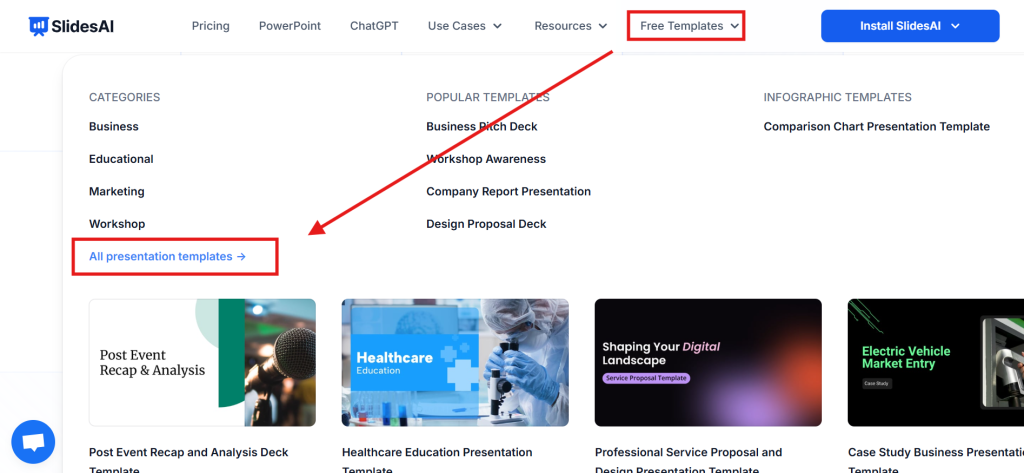
Step 1: Open SlidesAI. Go to Free templates and select “All Presentation Templates.”
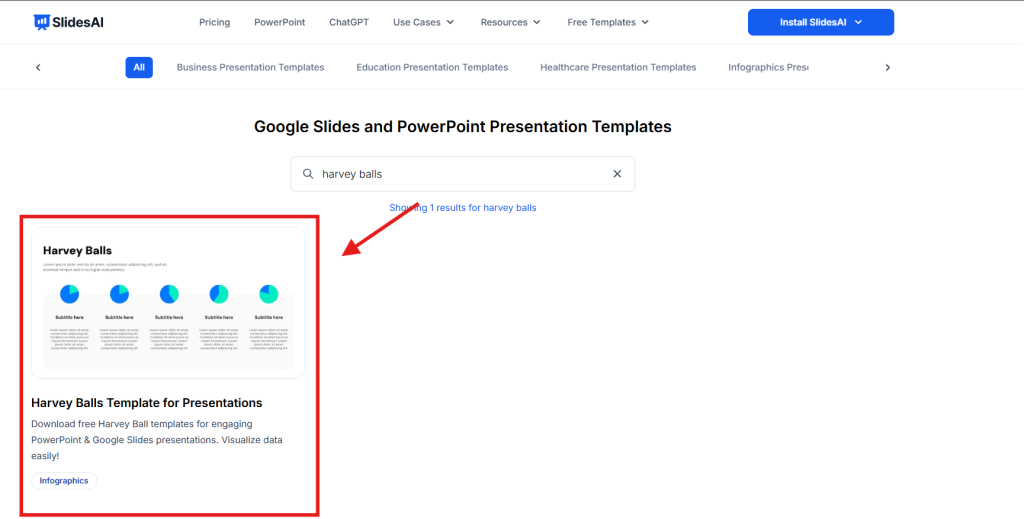
Step 2: Search for “Harvey Balls template” and open it.
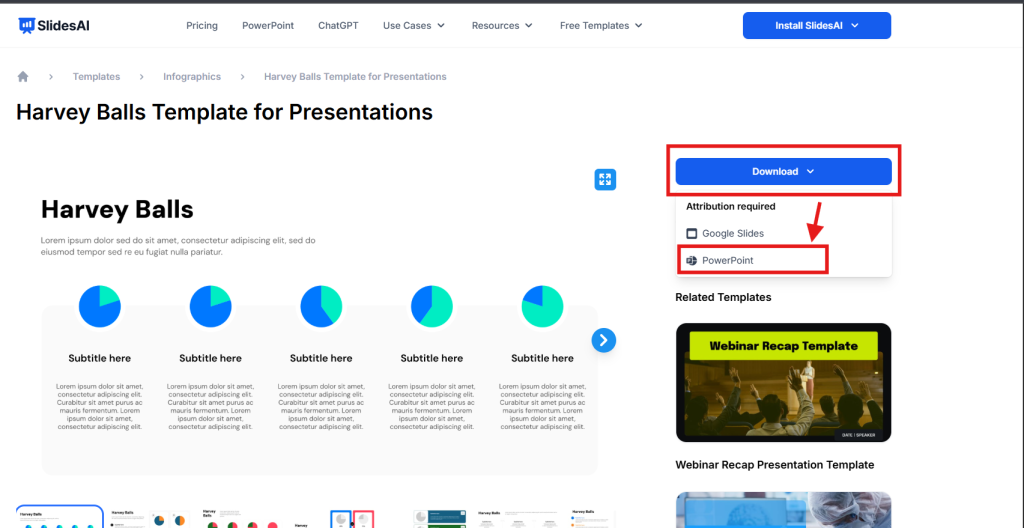
Step 3: Once the template page is open, on the right side, click on “Download” dropdown and download it for PowerPoint.
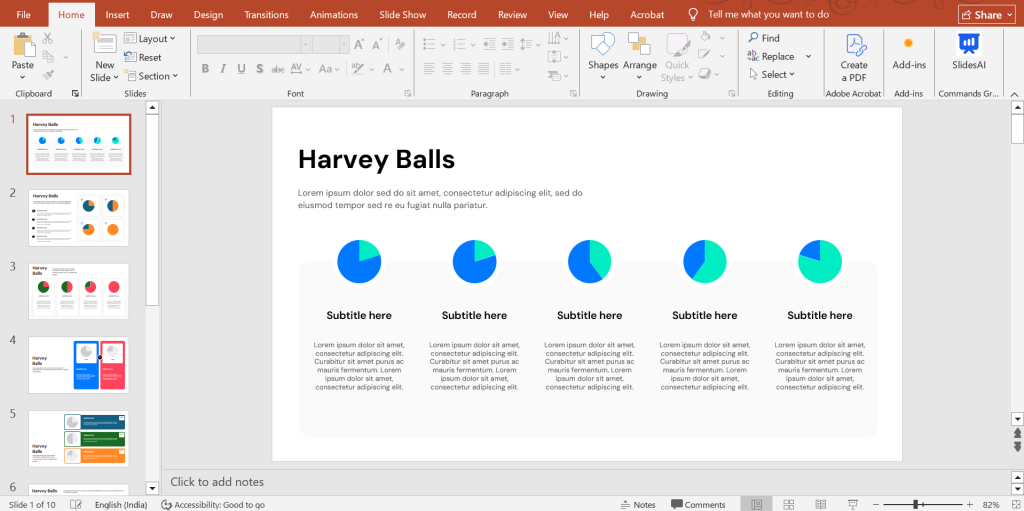
Step 4: Open the downloaded Harvey Balls template in PowerPoint. Make the necessary edits, and your Harvey Balls slide will be ready.
Standard Harvey Ball Fill Levels
| Fill Level | Represents | How to achieve in PowerPoint |
| 0% — Empty circle | Not started / No fit / None | Draw oval → Fill: Transparent → set Border color |
| 25% — Quarter filled | Low progress / Poor fit | Partial circle → drag handle to ~90° (quarter arc) |
| 50% — Half filled | Moderate / Partial fit | Partial circle → drag handle to ~180° (semicircle) |
| 75% — Three-quarter filled | Good / Near complete | Partial circle → drag handle to ~270° (three-quarter arc) |
| 100% — Full circle | Complete / Full fit / Best | Draw solid oval → fill with the chosen color |
Always include a legend on your slide when using Harvey Balls. Audiences unfamiliar with the convention need to know what each fill level represents in the context of your specific data.
Method 2: Creating Manually
Step – 1. Base Circle: First, click the “Insert” tab and then the “Shapes” dropdown menu. Choose “Oval” from the “Basic Shapes” section. Hold down the “Shift” key while dragging to create a perfect circle. You can adjust its size using the corner handles.

Step – 2. Format (Optional): If you’d like to customize the look, right-click the circle and choose “Format Shape.” This lets you change the color for a solid Harvey Ball, try out gradients for a more interesting look, or adjust the outline.
Step – 3. Filled Segment: Go back to the “Insert” tab and “Shapes” again. This time, choose “Partial Circle.” Hold down “Shift” while drawing it on top of your circle. Resize and move it around until it fits perfectly.

Step – 4. Fill Level: Click the partial circle to select it. You’ll see small yellow handles. Drag these to change the angle, which controls how much of the circle is filled in your Harvey Ball.

Step – 5. Grouping (Optional): To make it easier to manage, you can select both shapes and right-click, then choose “Group.” This will combine them into a single Harvey Ball graphic.

Add Harvey Balls Using the Segoe UI Symbol Font
If you don’t want to build Harvey Balls from scratch using shapes, PowerPoint includes a built-in font — Segoe UI Symbol — that contains ready-made Harvey Ball characters you can insert directly as text.
Step 1: Click on the slide where you want to insert the Harvey Ball and place your cursor in a text box.
Step 2: Go to Insert → Symbol.
Step 3: In the Symbol dialog, set the Font dropdown to Segoe UI Symbol.
Step 4: In the Subset dropdown, select Geometric Shapes.
Step 5: Find and select the Harvey Ball characters — you’ll see the empty circle (○), quarter-filled (◔), half-filled (◑), three-quarter filled (◕), and full circle (●). Click Insert.
Step 6: Resize the inserted character by adjusting the font size. You can also change the color using the Font Color tool.
Limitation: Font-based Harvey Balls can sometimes display inconsistently across different computers or when saving as PDF, depending on whether the Segoe UI Symbol font is installed on the receiving device. For maximum compatibility, the shape-based method (Method 1) is more reliable.
Harvey Balls Design Best Practices for PowerPoint
1. Always include a legend. Harvey Balls are intuitive but not universal. Add a small legend box on each slide that shows what each fill level represents (e.g., ○ = No fit, ◑ = Partial fit, ● = Full fit).
2. Maintain consistent size and color. All Harvey Balls on a slide should be the same diameter and use the same fill color. Inconsistency implies inconsistent data.
3. Use color purposefully. A single color (typically black or your brand color) is standard. Avoid using multiple colors to encode additional dimensions — this defeats the simplicity Harvey Balls are designed for.
4. Limit to 5 fill levels. The five standard levels (0%, 25%, 50%, 75%, 100%) are the convention. Introducing non-standard fill levels (e.g., 33% or 66%) confuses audiences.
5. Don’t overcrowd. Harvey Balls work best in comparison tables with 3–8 rows and 3–6 columns. Beyond that, the visual advantage is lost — consider splitting into two slides.
6. Group the shapes. After creating each Harvey Ball (base circle + partial circle), right-click → Group. This keeps both elements together when you copy, resize, or move the graphic.
<SlidesAICTA1 />
What are the Benefits of Harvey Balls in PowerPoint Presentations?
Harvey Balls offers several advantages that can make your PowerPoint presentations more effective:
1. Clear and Easy to Use: Harvey Balls provide a straightforward way to show qualitative information. They can take complex data and make it easier for your audience to understand quickly.
2. Save Space on Slides: Instead of filling slides with lots of text or detailed charts, you can use Harvey Balls to keep information concise, freeing up valuable space. This leads to cleaner and more visually pleasing presentations.
3. Show Non-Numerical Data – Harvey Balls work well for showing qualitative information that might be difficult to express with numbers. The amount of shading in the circle can easily convey ideas like progress, risk level, or customer satisfaction.
4. Improve Understanding: By replacing slides with lots of text with clear visuals, Harvey Balls can help your audience understand and remember information better. They can also act as a starting point for discussion, encouraging questions and making your presentation more interactive.
5. Flexible and Adaptable: Harvey Balls can be used for many presentation needs. You can use different colors, shading, or even add icons inside the circle to show different categories or breakdowns. This flexibility allows you to customize them to fit your specific data and message.
6. Easy to Understand for Everyone: The simple design of Harvey Balls makes them easy to understand, regardless of language. This offers a visual communication tool that can be grasped by audiences from all backgrounds.
<SlidesAICTA2 />
Closing Thoughts
Harvey Balls are a powerful tool that can take your PowerPoint presentations to the next level. By using these simple visuals, you can effectively communicate qualitative data, save space on slides, improve audience understanding, and create more engaging presentations. So next time you’re faced with presenting complex information, consider using Harvey Balls to bring your message to life!
Frequently Asked Questions About Making Harvey Balls in PowerPoint
What are Harvey balls used for?
Harvey balls are used in presentations to show:
- Project status and progress
- Comparisons between different options or data points
- Overall performance or completion levels
Which font has Harvey balls?
To access Harvey Balls, select your text box and navigate to the Insert tab. Locate the Symbol option. In the font dropdown menu, select “Segoe UI Symbol,” and under the subset dropdown, choose “Geometric Shapes.” There you’ll find the Harvey Ball choices. Just click the insert button to add them to your text box.
What can I use instead of Harvey balls?
Consider these alternatives to Harvey Balls:
- Charts: Bar charts, pie charts, or heatmaps can effectively display comparisons or data proportions.
- Icons: Simple icons can represent achievement levels or categories.
- Emojis (use with caution): Emojis can add a touch of informality but ensure clarity for your audience.
Related Posts
-

Ever looked at your PowerPoint presentation and thought it lacked a bit of color pizzazz?…
-

If you want your PowerPoint slides to play continuously without manual clicks, you can enable…
-

Hyperlinks in PowerPoint can be really helpful. They let you link to other websites, slides…
-

The font you choose can make a major difference in your PowerPoint presentations. While the…