
If you have ever added a video to your presentation and later needed the original file, you might wonder how to extract video from Google Slides. Unlike PowerPoint, Google Slides does not offer a direct “Download Video” button. That said, it is still possible to retrieve the video, depending on how it was inserted.
This blog is here to guide you on how to extract a video from Google Slides, understand the different video types supported, and explore practical methods that actually work.
Why Would You Need to Extract a Video?
There are several situations where you may need to extract video from Google Slides to save time and prevent unnecessary rework. Some of the most common ones are as follows:
- You want to reuse the video in another presentation.
- You need to edit the original file.
- A teammate shared slides, but you need the raw video.
- You are archiving content for offline access.
- The embedded video is not playing properly, and you want a backup copy.
Types of Videos Embedded in Google Slides
Before you attempt to extract video from Google Slides, identify where the video is hosted. Google Slides supports two main types.
- YouTube Videos
These videos stream directly from YouTube. You cannot download them directly from Slides because the file is not stored inside your presentation. However, you can retrieve the original YouTube link and download it using a YouTube downloader tool.
- Google Drive Videos
These are videos uploaded to Google Drive and then inserted into Slides. If you have proper access permissions, you can open the file in Google Drive and download it in its original format. Knowing the source makes it easier to determine how to extract a YouTube video link from Google Slides or download a Drive-hosted file.
Steps to Extract Video From Google Slides Using YouTube Downloader
These steps apply if the video included in your Google Slides comes from a YouTube downloader:-
Step 1. Open Google Slides presentation.
Step 2: Go to the slide with the video.
Step 3: Right-click the video and choose “Open in new tab.” If this option is not accessible, right-click and copy the video’s URL.
Step 4: The video appears in a new tab as a YouTube link.
Step 5: Copy the URL from your browser’s address bar.
Step 6: Use a YouTube downloader such as y2mate, SSYouTube, or others to download the video in your desired format (e.g., MP4).

Note: Always verify that you download videos in accordance with YouTube’s Terms of Service.
Steps to Extract Video From Google Slides Using Google Drive
Download Directly From Slide
These methods apply if the video integrated into your presentations comes from Google Drive.
To watch the video directly from a slide, follow these steps:
Step 1. Open the presentation with the video.
Step 2: Go to the slide that has the Google Drive video linked.
Step 3: Click on the video to choose it. A little “Open in Drive” icon will appear in the top-right corner.
Step 4: Click the “Open in Drive” icon to access the video in Google Drive.
Step 5: Locate the Download icon in Google Drive’s upper-right corner. If it isn’t visible, click the three-dot menu and select Download.
Step 6: Click Download. The video will be saved to your computer in its original format.

<SlidesAICTA1 />
Download From PDF
Here’s how you can have your video from slide converted to PDF.
Step 1: Open the presentation that includes the video.
Step 2: Download the file as a PDF (File > Download > PDF Document).

Step 3: Open the PDF file and navigate to the slide containing the video.
Step 4: Click the video. It will bring up the video in a new window.
Step 5: Click the symbol in the top-right corner.
Step 6: The video will open on Google Drive. Locate the Download icon in the top right corner. If it isn’t visible, click the three-dot menu and select Download.
Step 7: The video will be stored on your computer in its original format.

Note: Ensure you have permission to access and download videos from Google Drive before using them.
Steps to Extract Video by Screen Recording
If direct download options are unavailable, screen recording is an alternative method. Here’s how to do it:
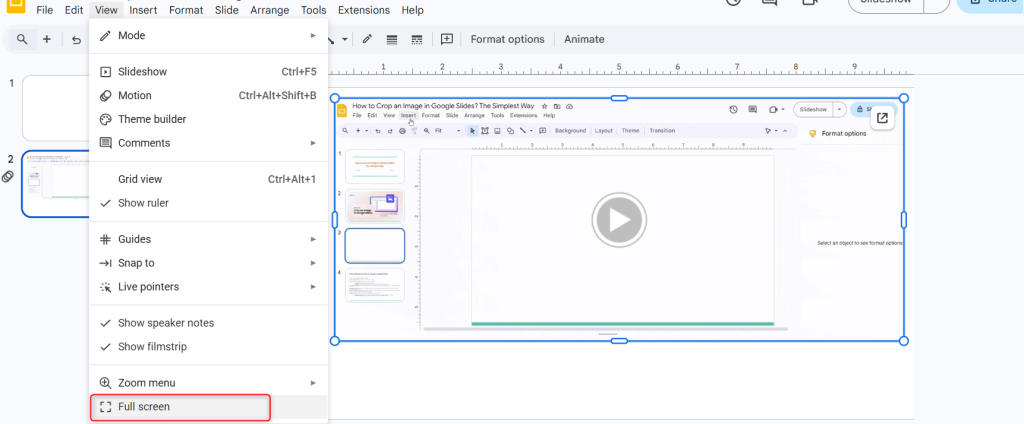
Step 1: Open your Google Slides presentation and navigate to the slide containing the video.
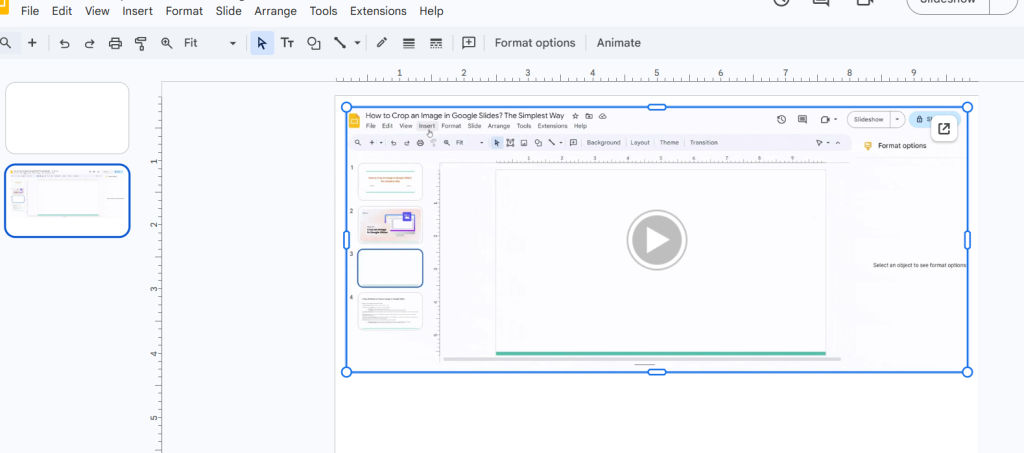
Step 2: Switch to full-screen presentation mode for better resolution.
Step 3: Use a screen recording tool such as:
- Windows built-in recorder (Press Windows + G)
- macOS QuickTime Player
- OBS Studio
Step 4: Play the video and record the screen while it plays.
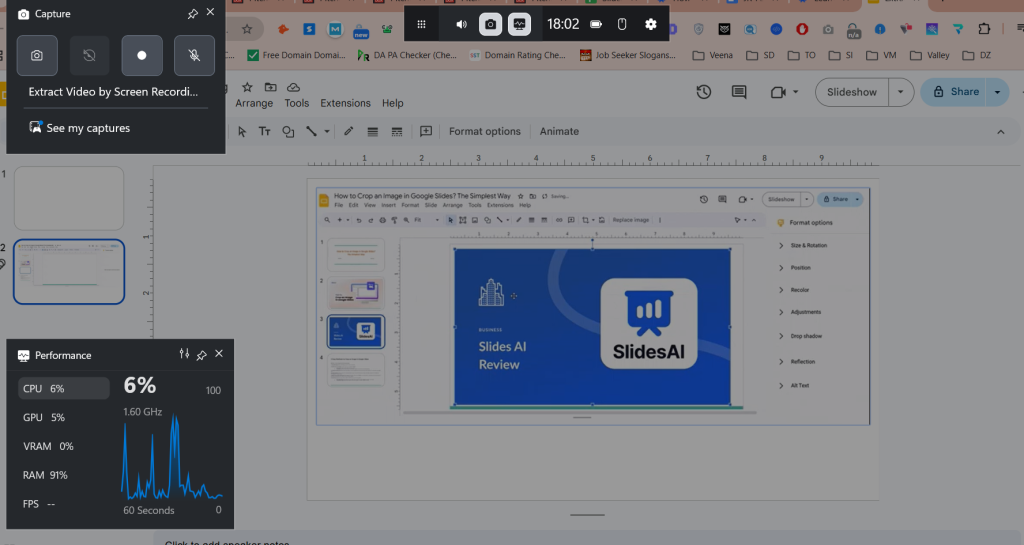
Step 5: Save the recording as MP4 or MOV.
Screen recording is helpful when you cannot directly extract video from Google Slides. However, it should only be used if you have permission to use the content.
Why You May Not Be Able to Download Videos?
Sometimes, attempts to extract video from Google Slides fail. Here are common reasons:
- Deleted Video From Google Drive: If the original file was deleted or moved, it will no longer load.
- No Direct Download Option for YouTube Videos: Slides embeds the YouTube player, not the actual video file.
- Restricted Video Permissions: The file owner may not have granted you download access.
- Use of a Restricted Work or School Account: Administrative policies may block downloads or external access.
- Browser Blocking Pop-Ups: Some Drive links fail to open when pop-ups are disabled.
To conclude, while Google Slides does not provide a built-in download option, there are practical ways to extract video from Google Slides depending on the source.
- If the video is from YouTube, you can copy the link and download it externally.
- If it is hosted on Google Drive, you can open and download the original file directly.
- When both options are unavailable, screen recording serves as a fallback method.
Understanding how to extract a video from Google Slides ensures you can reuse, edit, and archive your content without starting from scratch.
<SlidesAICTA3 />
Frequently Asked Questions
1. Can I export a video directly from Google Slides?
No, Google Slides does not have a built-in tool for downloading or extracting embedded videos. However, you may go to the video’s original source (such as YouTube) by clicking on it and following the link to the hosting site.
2. Can I screen-capture the video and remove it from Google Slides?
Yes, screen recording is a workaround for capturing video footage. You may use screen recording tools (such as OBS Studio or native screen recorders on macOS/Windows) to capture the movie as it plays.
3. Are there any programs that can assist you in extracting videos from Google Slides?
While there are no direct solutions for extracting videos from Google Slides, you may use screen-recording software or visit the source platform (YouTube, Google Drive) to obtain the video using third-party applications.
4. How do I know if my video is from YouTube or Google Drive?
Click on the video once. If the side panel shows a YouTube link, it is a YouTube video. But if you see a Google Drive icon, the video is stored in Drive.
5. Why is the “Open in Drive” icon missing?
This usually happens due to permission limitations. Request “Viewer” or download access from the file owner.
6. What should I do if I don’t have access to the Drive video?
You need permission from the owner. Without proper authorization, Google Drive will block downloads.
7. Is screen recording a legal method to extract videos?
Screen recording is allowed only if you have the legal right to use the content. Always follow copyright and usage policies.
8. Can I extract videos from a PDF version of Google Slides?
If the PDF contains an active link to the Google Drive video, you can click the link and download it from Drive.
9. Why does my video show a broken link in Google Slides?
The original file may have been deleted, moved, or restricted in Google Drive, causing the link to fail.
Key Takeaways
- Google Slides does not offer a direct download button. But you can still extract video from Google Slides based on where the video is hosted.
- YouTube videos require copying the link and using an external downloader, while Google Drive videos can be downloaded directly with proper permissions.
- Screen recording works as a fallback method when direct access is not available.
- Permission settings, deleted files, or account restrictions often prevent video downloads.
- Identifying whether the video is from YouTube or Google Drive is the first step in successfully extracting it.
Related Posts
-

Want to add videos to your Google Slides presentations on your iPad? While the Google…
-

Working with multiple slides at once in Google Slides can save you a lot of…
-

{ “@context”: “https://schema.org”, “@type”: “FAQPage”, “mainEntity”: [{ “@type”: “Question”, “name”: “Why should I time my…
-

If you see the “Error Rendering Shape” message while trying to insert an image into…
-

When preparing for a presentation, it’s often helpful to provide your audience with handouts that…