You’ve got a great idea. You know your topic inside out. But the moment you open a blank slide, everything stalls. What font looks professional? Should the background be dark or light? Where do you even put the text without it looking cluttered?
Design is a skill, and most people were never taught it. So presentations end up looking either too plain to hold attention or too busy to make sense. And spending hours watching tutorials just to make a slide deck feels like the wrong use of your time.
Here’s the thing, though. You don’t need design skills anymore. AI tools can take your raw ideas and turn them into structured, visually clean presentations in minutes. No templates to wrestle with, no font pairing anxiety, no starting from scratch every single time.
This guide shows you exactly how AI presentation makers build decks that look polished and communicate clearly, even if your design experience begins and ends with changing the slide background color.
Read Related: How to Use AI to Improve PowerPoint Presentations
7 Smart Ways to Level Up Your Presentation Using AI
AI not only helps you speed up your presentation-making process, but it also improves the quality, clarity, and consistency of your slides. Here are practical ways to enhance your slides with AI:
1. Improve Image Quality Instantly
You find the perfect image, drop it into your slide, and it immediately looks grainy and stretched. So you spend the next ten minutes hunting for a better version, and still aren’t sure it’ll hold up on a larger screen.
AI tools fix this without the back and forth. They sharpen low-resolution images, adjust lighting, and optimize quality automatically, so whatever visual you drop in actually looks like it belongs there.
Read Related: 12 Best AI Image Generators to Elevate Your Presentations
2. Create Clean & Balanced Layouts Automatically
You move one text box, and suddenly everything looks off. The image overlaps the heading, the spacing feels uneven, and no matter how many times you adjust it, something still looks slightly wrong.
AI removes that guesswork entirely by arranging your text, images, and graphics into balanced layouts automatically. You get slides that look intentional and structured without spending twenty minutes nudging elements pixel by pixel.
3. Translate Slides for Global Audiences
Translating a presentation isn’t just swapping words. You have to make sure the meaning holds, the tone stays consistent, and the layout doesn’t fall apart when a sentence doubles in length in another language. Doing that manually across an entire deck is tedious and easy to get wrong.
AI can instantly translate your slides into multiple languages while preserving the original meaning and structure, so your presentation works for a global audience without a complete rebuild.
Read Related: How to Translate Google Slides Presentations?
4. Generate Content Faster Without Starting From Scratch
Writing content for a slide is a time-consuming process. You have to craft the perfect wording that’s short, quick, and easy to understand, and it can take multiple revisions to get it right. If you’ve ever stared at a blank slide wondering how to say something in five words instead of twenty, you’re not alone.
AI can help by generating structured content based on your topic instantly, from headings and bullet points to full summaries, so you’re refining rather than starting from zero. You can even use AI to write your entire presentation script before you build a single slide, which makes the whole process faster and far less frustrating.
5. Turn Data into Clear Visual Insights
Pasting a data table into a slide and hoping your audience figures it out is never a good plan. But turning that data into a clean chart manually means formatting, resizing, and second-guessing your design choices for longer than it should take.
AI does that conversion for you in minutes, pulling your raw numbers into charts, graphs, and dashboards that are actually easy to read at a glance.
6. Add Interactive Elements to Your Slides
A long presentation where the audience just sits and watches is a tough room to hold.
Adding interactive moments breaks that passivity and gives people a reason to stay engaged.
- Quick poll
- A live quiz
- Audience response prompt
AI-assisted tools let you build these elements directly into your slides without needing a separate platform or any technical setup.
7. Maintain Consistent Branding Across Slides
You get to slide 14 and realize the font is slightly different, the logo is missing, and the color on one slide is a shade off from everything else. Keeping branding consistent manually across a long deck is the kind of detail that’s easy to miss and hard to fix after the fact.
AI handles this by applying your brand rules across every slide automatically, so fonts, colors, layouts, and logos stay consistent from the first slide to the last without a final audit.
How Can SlidesAI Help You Create Presentations Faster?
Creating presentations from scratch can be time-consuming, especially when you have to focus on both content and design. SlidesAI streamlines this process by enabling you to create structured, visually appealing presentations in minutes.
Instead of manually building slides, you can generate an entire presentation just from your topic and customize it as needed.
Here’s how you can enhance your presentation with AI by using SlidesAI:
Step 1: Install SlidesAI
For the Web App: Open the SlidesAI web app and sign in to your account.
For Google Slides: Open a blank presentation, go to Extensions → Add-ons → Get Add-ons, and install SlidesAI.
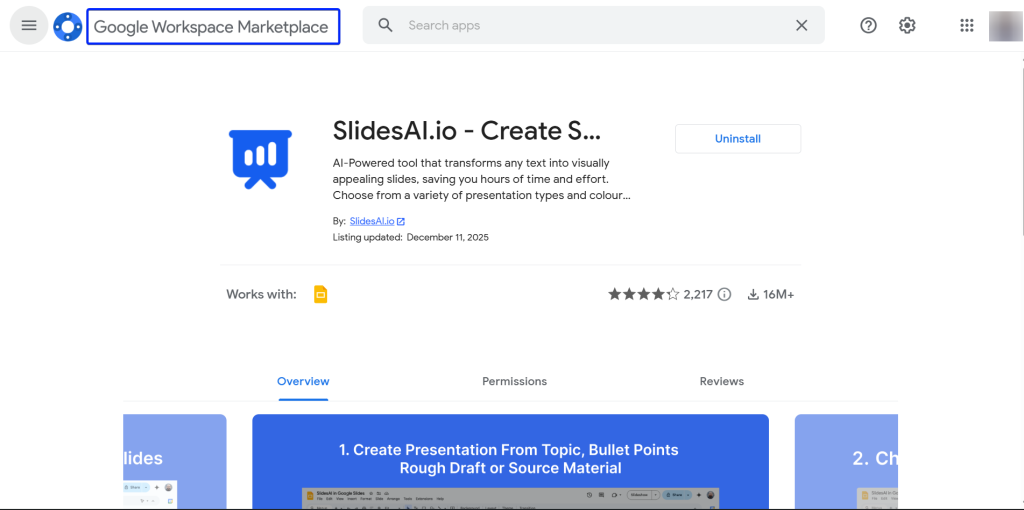
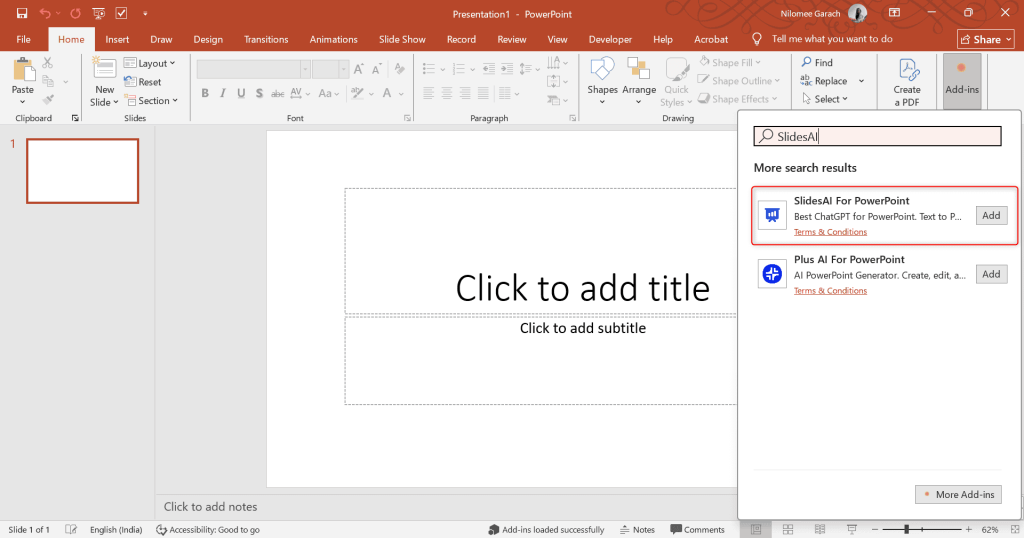
For PowerPoint: Open a blank presentation, go to Add-ins, search for SlidesAI, and install the add-in.
Step 2: Start a New Presentation
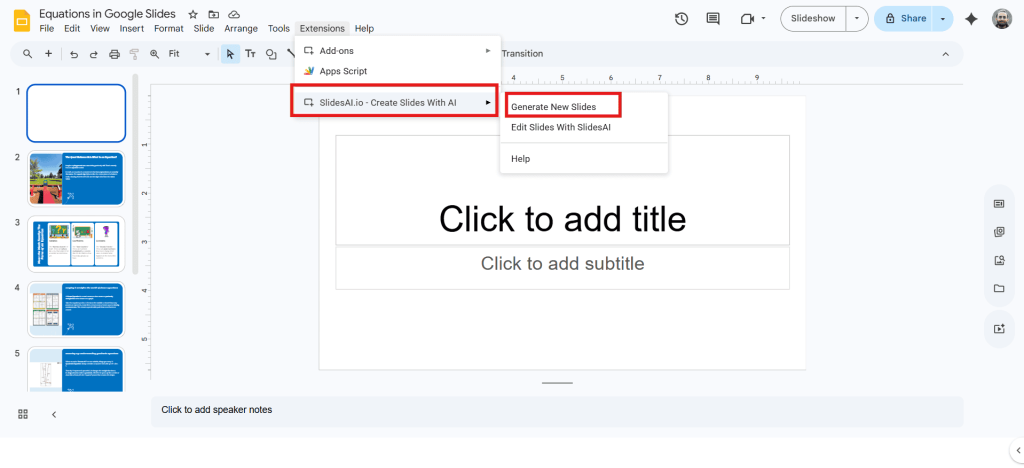
For Google Slides and PowerPoint, open SlidesAI and select the option to generate a new presentation.
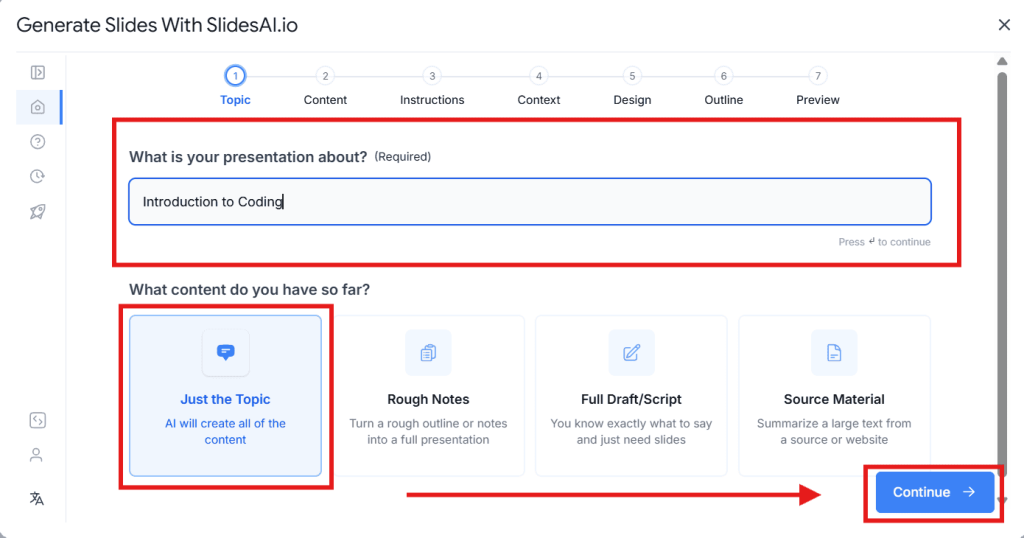
Step 3: Enter Your Topic
Add the topic of your presentation to begin generating structured content.
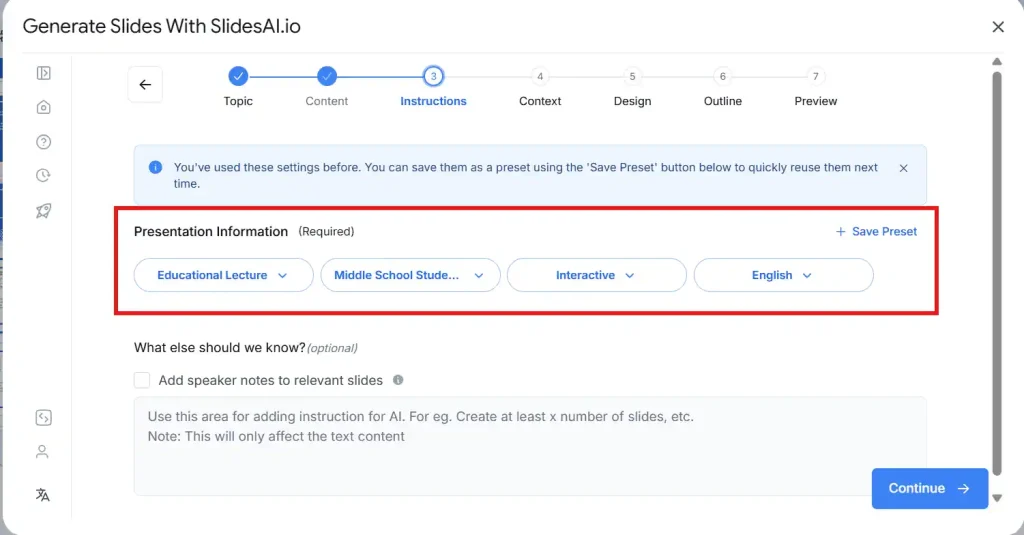
Step 4: Choose Presentation Settings
Select the presentation type, audience, tone, and language based on your needs.
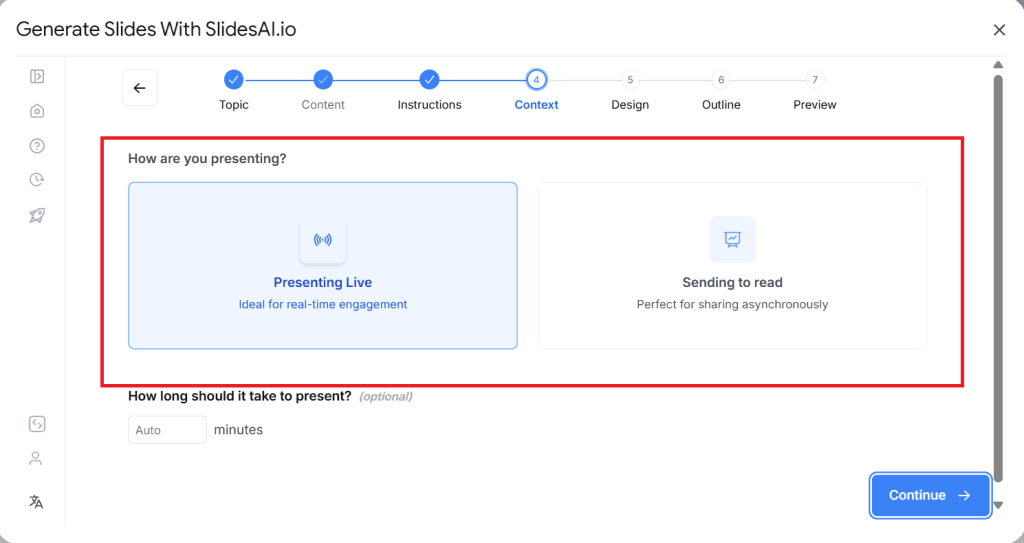
Step 5: Set the Presentation Mode
Choose “Presenting Live” to optimize your slides for live delivery.
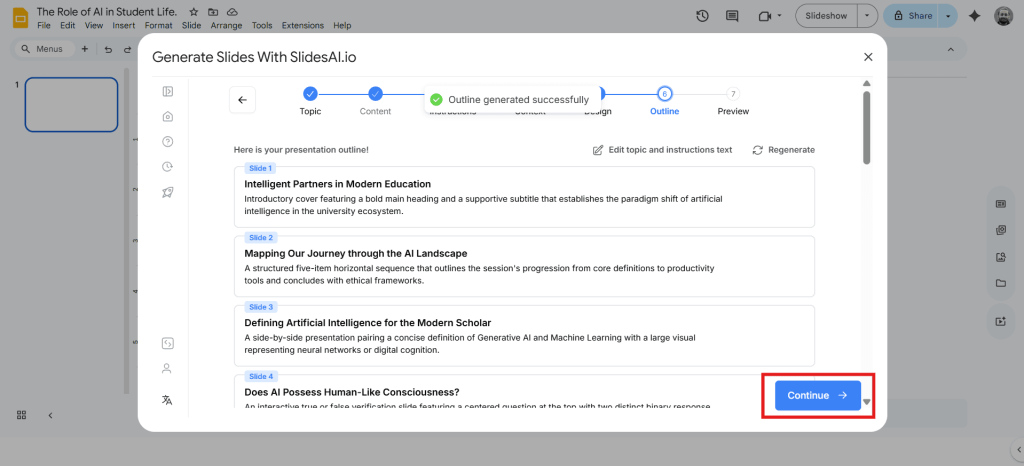
Step 6: Review the Generated Outline
SlidesAI creates an outline for your presentation. You can review and edit it if necessary.
Step 7: Review the Content
Go through the generated content and refine it as needed before proceeding.
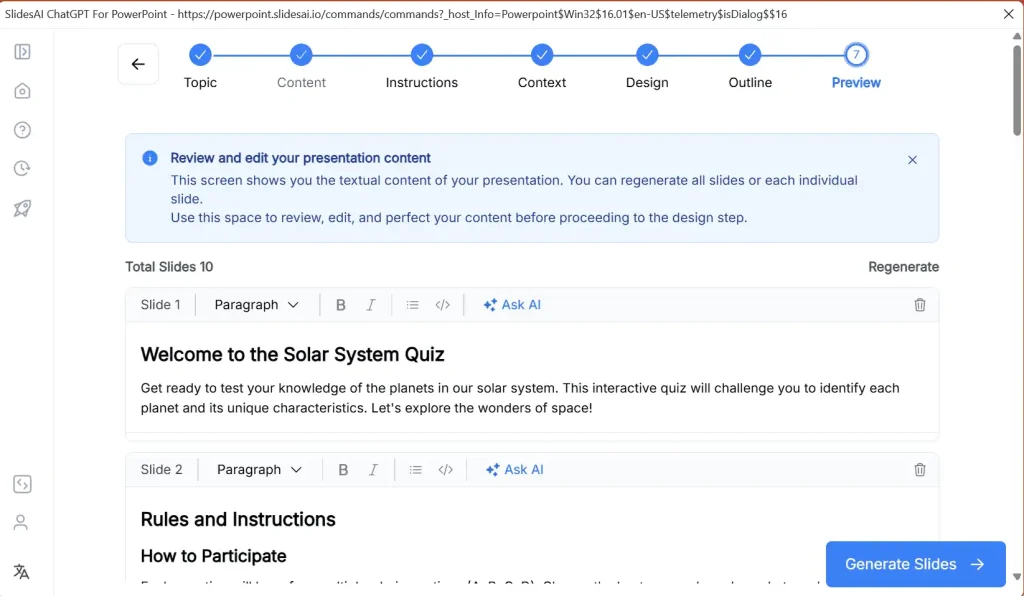
Step 8: Select a Template
Choose a suitable template that matches your presentation style and purpose.
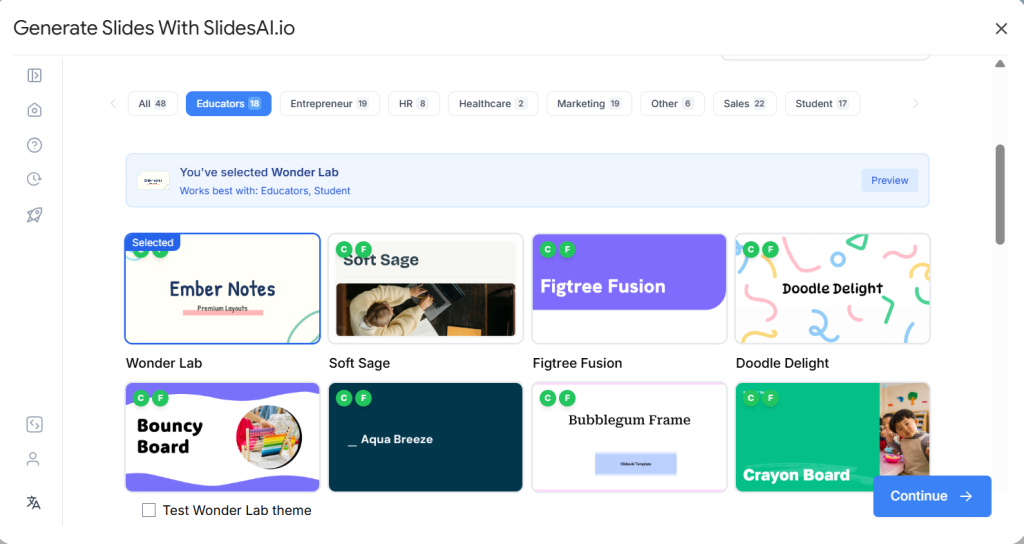
Step 9: Finalize Your Presentation
SlidesAI generates the complete presentation. Review the slides and make final adjustments.
<SlidesAICTAWeb />
Final Thoughts
You don’t need to become a designer to make presentations that look and feel professional. You just need to stop doing everything manually. AI handles the parts that used to slow you down, the layouts, the formatting, the translations, the visuals, so you can spend your time on what actually matters: your ideas and how you deliver them. Give SlidesAI a try and see how much lighter the whole process feels.
Related Posts
-

SlidesAI is a Google Workspace Add-on (think of it like a Chrome Extension but only…
-

Do you need to record your Google Slides presentation with your voice or webcam? While…
-

The tone of a presentation plays a major role in how your audience understands and…