Virtual meetings are now a part of daily work. And if you’re the presenter, you may understand the struggles of screen-sharing, such as lagging animations, some errors, and timing issues where slides may not appear properly during meetings. And the worst one – presenting Google Slides in a Google Meet call while dealing with technical problems!
In this guide, you will learn multiple methods for how to present Google Slides in Google Meet, along with tips to ensure your presentation runs flawlessly.
Why Combine Google Slides & Google Meet?
Google Slides and Google Meet are both part of Google Workspace, which makes them highly compatible. Here are some reasons why individuals prefer presenting their presentation in Google Meet using Google Slides:
- You do not need to download files before presenting.
- You can collaborate and edit slides in real time.
- You can easily switch between the audience view and the presenter view.
- You can present from a desktop, laptop, or Chromebook.
Because they are built to work together, it’s the easiest way to present your presentation.
Method 1: Share Using the “Present Now” Tab Option (Recommended)
This is the most reliable way to present Google Slides in Google Meet:
Step 1: Open Google Meet and join or start your meeting.
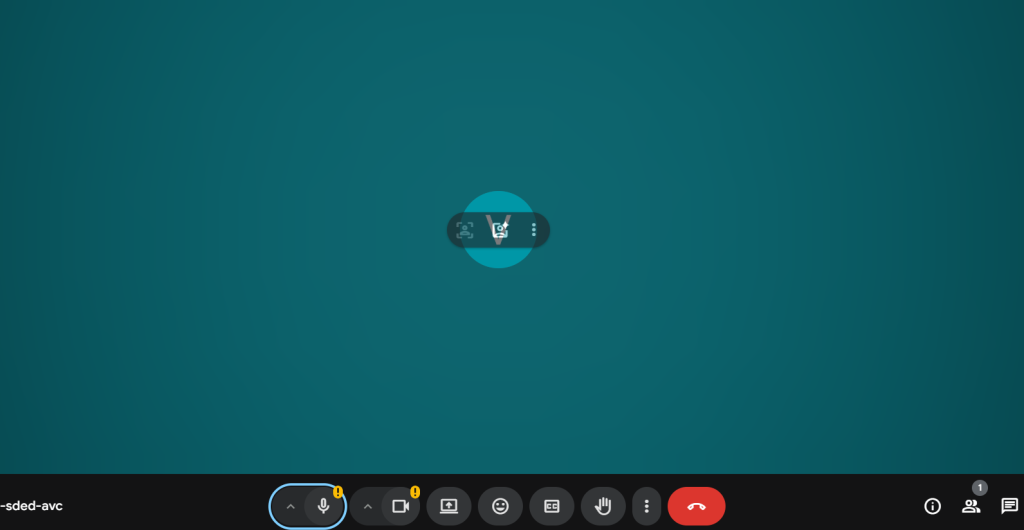
Step 2: Click the “Present now” button at the bottom of the screen.
Step 3: Choose “A tab.” This option is recommended for smoother performance, especially if there are animations in your slides.
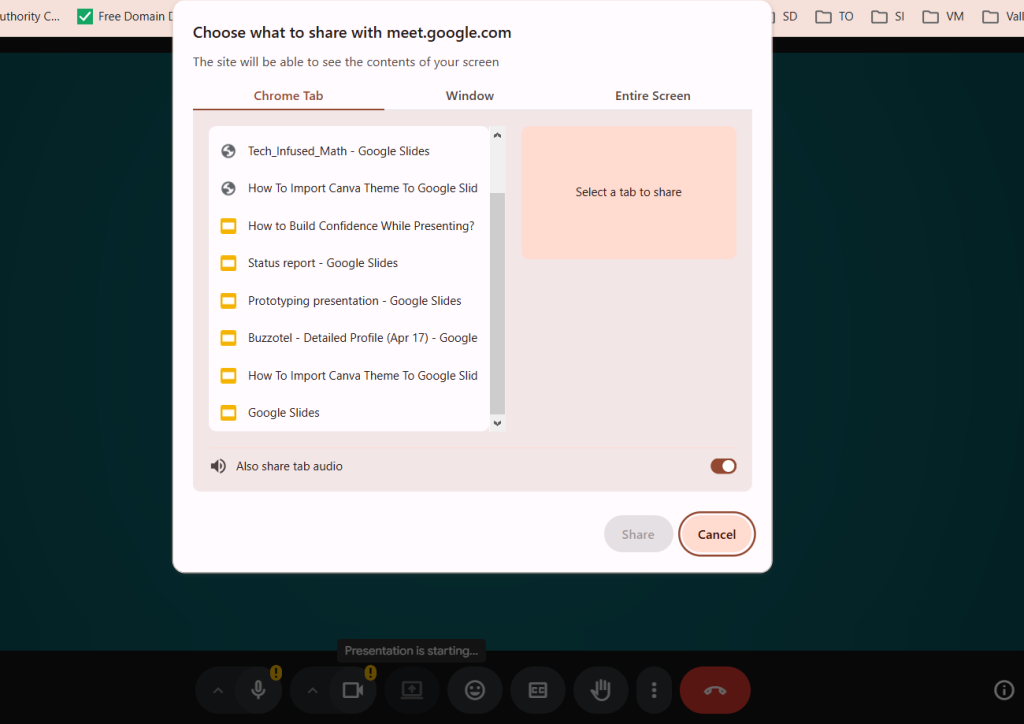
Step 4: Select the browser tab where your Google Slides presentation is open, and then click “Share.”
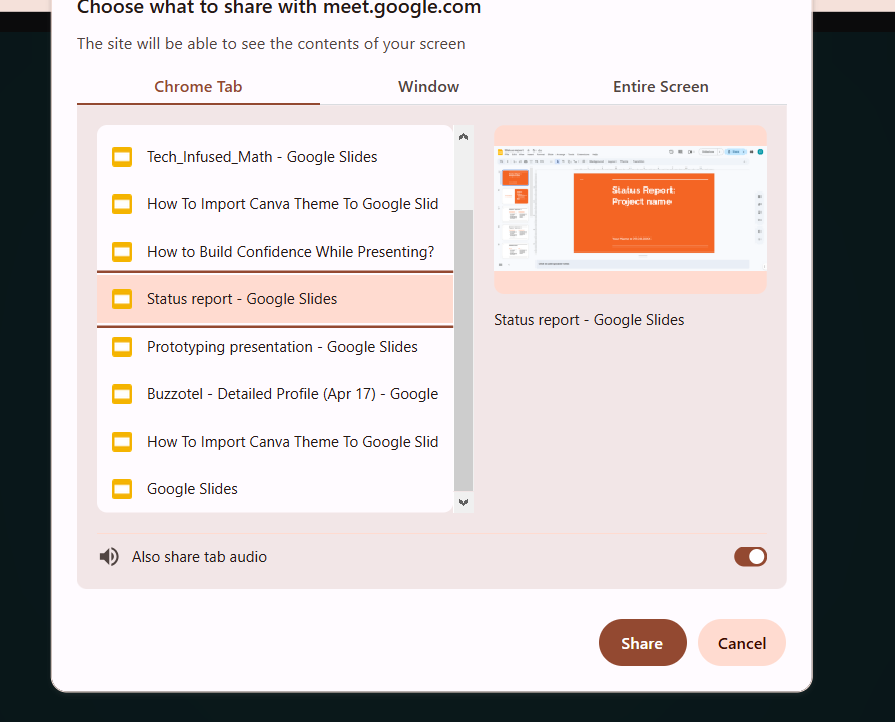
Step 5: In Google Slides, click “Present” to begin the slideshow.
Why Choose the “A Tab” Option?
- It delivers better audio and video synchronization.
- It provides smoother animations and slide transitions.
- It prevents pop-up notifications from appearing.
Method 2: Share Your Entire Screen
This method works well if you need flexibility during your session.
Step 1: Join your Google Meet meeting.
Step 2: Click “Present now.”
Step 3: Select “Your entire screen.”
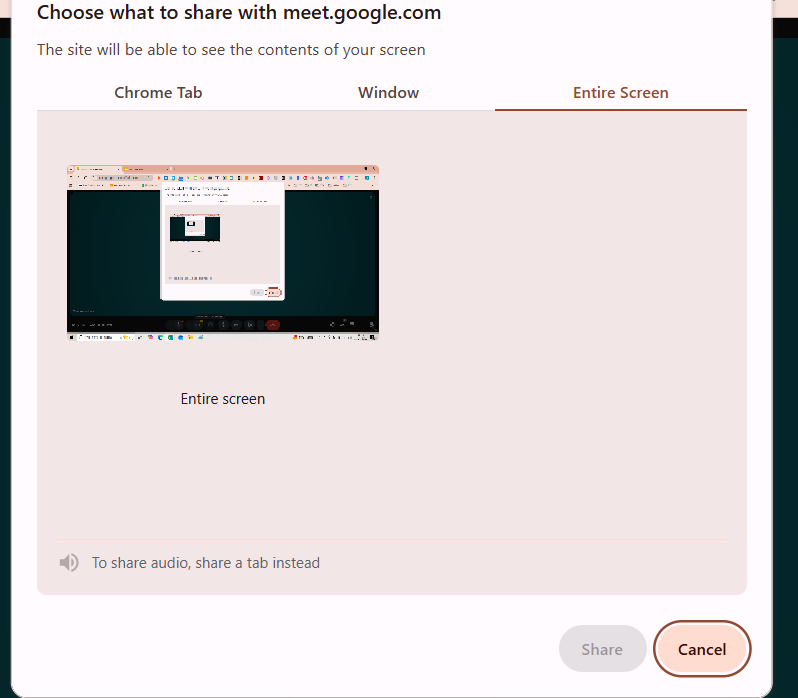
Step 4: Choose the screen you want to share.
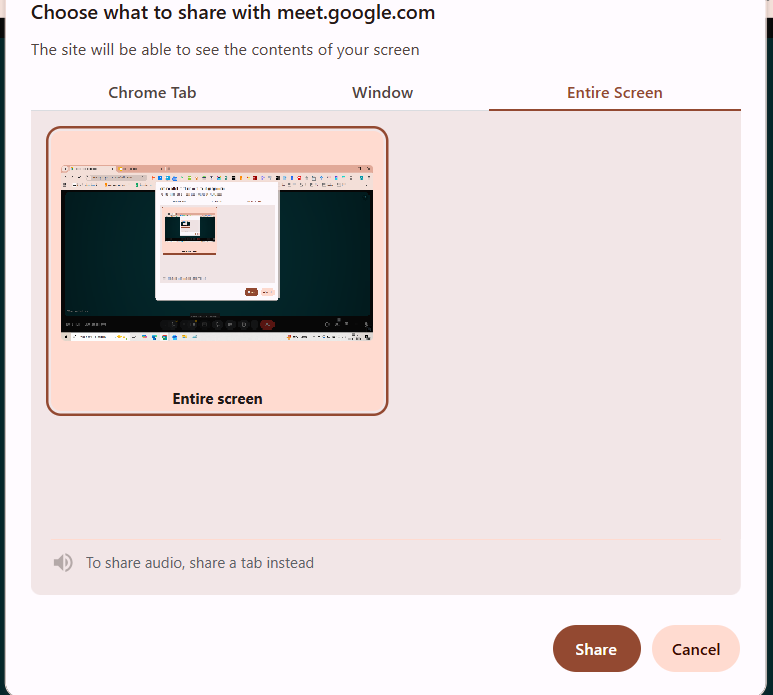
Step 5: Open Google Slides and click “Present.”
This approach works well when you need to switch between slides, documents, or websites while presenting slides in Google Meet.
When to Use This Method?
You can use this method when you want to present:
- Live demonstrations
- Software tutorials
- Slides where you’ll be required to switch between multiple applications
⚠️Tip: Turn on Do Not Disturb mode to avoid unwanted notifications during screen sharing.
Method 3: Share Only a Specific Window
This method allows you to present Google Slides in Google Meet without showing other tabs or applications.
Step 1: Join Google Meet.
Step 2: Click “Present now.”
Step 3: Select “A window.”
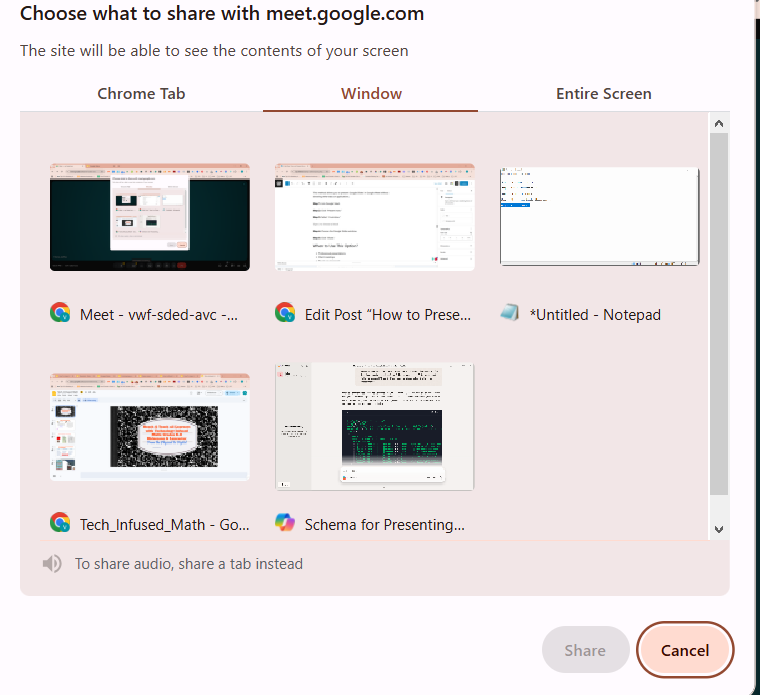
Step 4: Choose the Google Slides window.
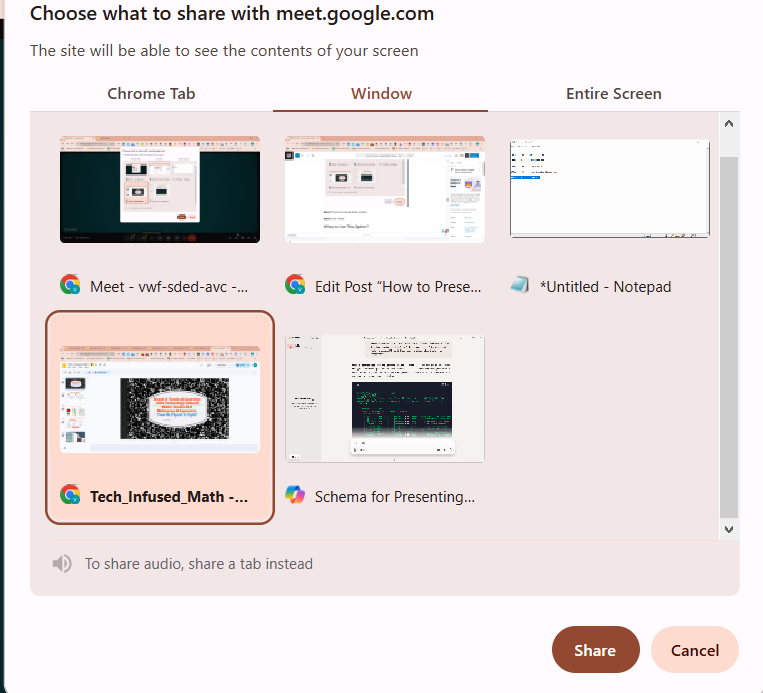
Step 5: Click “Share.”
When to Use This Option?
- Professional presentations
- Client meetings
- Private environments
- Only want to share one application
- Want fewer distractions
Method 4: Present Directly From Google Slides
If you use dual monitors, this method works exceptionally well.
- Open your Google Slides presentation.
- Click “Present” in the top-right corner.
- Choose “Present on another screen.”
- Select your active Google Meet session.
This allows you to control slides from one screen while your audience sees the presentation on another.
How to Present Google Slides in Google Meet on Mobile Devices?
Presenting on mobile devices is possible, but there are limitations.
1. Presenting on Android Devices
- Open the Google Meet app.
- Join or start a meeting.
- Tap the three-dot menu.
- Select “Share screen.”
- Confirm when prompted.
- Open the Google Slides app.
- Open your presentation.
- Tap “Present” or manually swipe through slides.
Important Notes for Android Users:
- Notifications may appear during screen sharing. You can enable “Do Not Disturb” for fewer interruptions.
- Animations may not be as smooth as desktop presentations.
2. Presenting on iPhone or iPad
- Open the Google Meet app.
- Join or start a meeting.
- Tap “Share screen.”
- Select “Start Broadcast.”
- Open Google Slides.
- Start your presentation.
Important Notes for iOS Users:
- Only full-screen sharing is supported.
- Switching apps may briefly pause sharing.
- Presenter notes are not visible.
This method works best for shorter presentations.
Mobile works, but desktop remains better for full control when presenting Google Slides in Google Meet.
Expert Tips for Smooth Presentations
- Always choose “A tab” for better performance, especially when you have animation-heavy slides.
- Keep slides simple and readable.
- Test your microphone and audio before starting.
- Close unnecessary applications.
- Use Presenter View to see speaker notes privately.
Common Problems & Their Quick Fixes
While presenting slides on Google Meet is mostly a smooth process, especially when done through a desktop, you may still face some challenges. Here are their quick fixes:
- Problem #1 – Slides Not Appearing: Make sure screen sharing is active and confirm that you selected the correct tab or window.
- Problem #2 – Audio Not Playing: Use the “A tab” option and ensure “Share tab audio” is enabled.
- Problem #3 – Lag or Freezing: Close background apps and check your internet connection.
Conclusion
Learning how to present Google Slides in Google Meet does not have to be complicated. Whether you choose to share a tab, your entire screen, a window, or present directly from Slides, each method serves a specific purpose.
For most professionals, the “A tab” option delivers the best balance of performance and privacy. Mobile options work in emergencies, but a desktop provides full functionality.
<SlidesAICTA1 />
FAQs About Presenting Google Slides in Google Meet
1. Can multiple people present slides in the same meeting?
Yes, anyone with permission can click “Present now” and share their slides or screen.
2. Can I present Google Slides from my phone?
Yes, you can, but a desktop or laptop offers more control and smoother performance.
3. Can I view my speaker notes while presenting?
Yes. Use Presenter View to see notes privately while your audience sees only the slides.
4. Does Google Meet record slide presentations?
Yes. If the meeting is recorded, your slides and audio will appear in the recording.
5. Do animations work while presenting?
Yes. Using the “A tab” method works best because it allows you to share a browser tab with smoother animations and transitions.
6. Can others control my slides during sharing?
In Workspace accounts, co-presenters can control slides when you share a tab and enable collaboration.
7. What if co-presenting does not work?
Make sure you are sharing a browser tab and that slideshow mode is active. Window or full-screen sharing may limit control features.
Key Takeaways
- You can master presenting Google Slides in Google Meet using four different screen-sharing methods depending on your presentation setup.
- The “A tab” option is the most reliable way, especially for smooth animations and audio sharing.
- You can choose between sharing a browser tab, an entire screen, or a specific window based on your meeting needs.
- Mobile users can still present slides, but desktop offers better control and performance.
- Knowing how to fix common issues like lag, audio errors, or slides not appearing ensures a distraction-free presentation.
Related Posts
-

Creating strong visuals can transform your presentations from flat to attention-grabbing. By learning how to…
-

Working with multiple slides at once in Google Slides can save you a lot of…
-

{ “@context”: “https://schema.org”, “@type”: “FAQPage”, “mainEntity”: [{ “@type”: “Question”, “name”: “Why should I time my…
-
Accidentally lost your default Google Slides templates or switched to a custom theme you don’t…
-

Do you need to turn a text-heavy Google Doc into a visual presentation? Whether you’re…