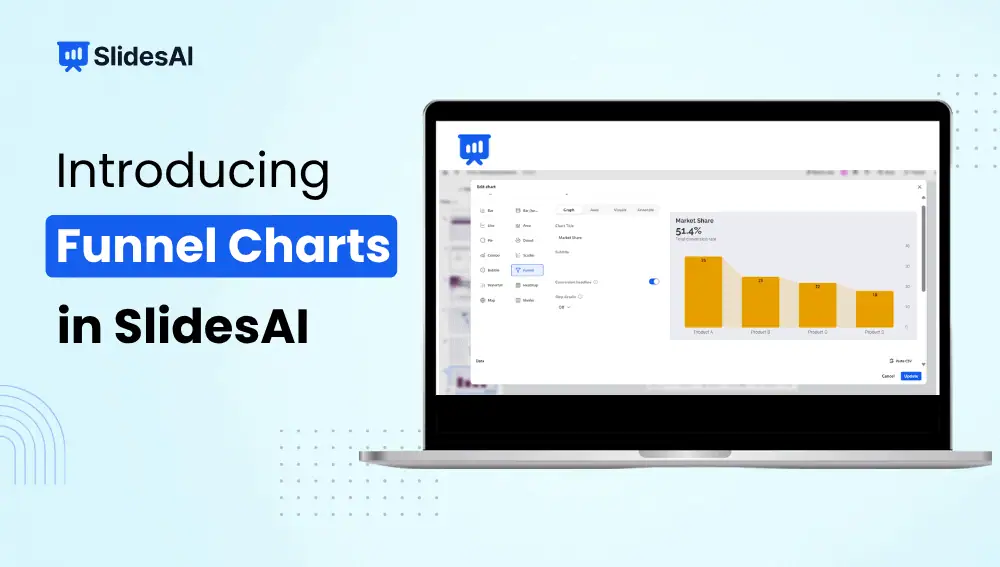
See where your funnel is moving, where people are dropping off, and how each stage compares.
A funnel chart can show how many people or opportunities make it through each stage of a process. But the size of each stage only tells you part of the story.
For example, if 10,000 people enter a funnel and 2,000 reach the next stage, you can see that there has been a significant drop. But you may also want to know the conversion rate between those stages, how many people dropped off, and how much of the original audience remains.
With the latest SlidesAI update, funnel charts now include conversion rates, drop-off counts, and stage comparisons directly in the chart.
You can compare each stage with the stage immediately before it or with the first stage, giving you more context without having to calculate the numbers separately.
What’s New With Funnel Charts in SlidesAI?
You can now:
- See the conversion rate at each stage
- See the number of people or opportunities that dropped off
- Compare each stage with the previous stage
- Compare each stage with the first stage
- Edit your chart data and add annotations
Instead of looking at the shape of the funnel and working out what happened, you can see the numbers that explain the progression.
See Conversion Rates at Each Stage
A funnel usually starts with a large group and becomes smaller as people move through different stages.
For example:
10,000 visitors → 4,000 sign-ups → 2,000 active users → 500 customers
The shape of the funnel shows that the audience is getting smaller. Conversion rates give you more detail about how well each step is performing.
You can see how many people continue from one stage to the next without having to estimate the change from the size of each section.
See Drop-Off Counts Alongside Conversion Rates
Percentages only tell you part of the story.
A 20% drop could mean losing 20 people or 20,000 people, depending on the size of the audience.
SlidesAI funnel charts now show the number of users or opportunities lost at each stage alongside the conversion information.
This lets you answer two questions at once:
- How many continued to the next stage?
- How many dropped off?
Seeing both makes it easier to identify stages that may need a closer look.
Compare Each Stage With the Previous One
Sometimes you want to understand what happens between two consecutive stages rather than looking at the entire funnel.
The previous-stage comparison lets you focus on exactly that.
For example:
Leads → Qualified Leads → Proposals → Closed Deals
You can see how each stage compares with the one immediately before it and identify where the biggest change occurs.
If many qualified leads fail to move to the proposal stage, that transition becomes easier to spot.
You don’t have to calculate the stage-to-stage change yourself—the comparison is shown directly in the funnel.
Compare Every Stage With the Starting Point
You can also compare each stage with the first stage in the funnel.
This gives you a broader view of how much of the original audience remains as they move through the process.
For example, if your funnel starts with 20,000 visitors and ends with 800 customers, comparing the final stage with the first shows how much of the original audience made it all the way through.
The two comparison options answer different questions:
- Previous stage: What happened between these two steps?
- First stage: How much of the original group remains?
Choose the view that best supports the story you’re presenting.
How to Add a Funnel Chart in SlidesAI?
Adding a funnel chart takes just a few steps.
1. Open Your Presentation
Open the SlidesAI presentation where you want to add the funnel chart.
2. Select Insert
From the editor toolbar at the bottom, select Insert.
3. Choose Funnel
Open the chart options and select Funnel.
The funnel chart will be added to your slide.
4. Edit the Chart Data
Select the chart and choose Edit Data.
Update the values for each stage and make any changes to the information shown in the funnel.
5. Customize the Chart
Once your data is in place, adjust the visual elements and add annotations where needed.
Your funnel is then ready to use in your presentation.
Where Can You Use Funnel Charts?
Funnel charts work well whenever people, opportunities, or other values move through a series of stages.
1. Marketing and Lead Generation
Show how an audience moves from an initial interaction to a lead and eventually to a customer.
Visitors → Leads → Marketing Qualified Leads → Customers
The conversion and drop-off details help you see where people are leaving the journey.
2. Sales
Show how prospects move through a sales pipeline.
Prospects → Opportunities → Proposals → Closed Deals
Comparing consecutive stages can make it easier to see where opportunities are being lost.
3. E-commerce
Show the steps a customer takes before completing a purchase.
Visitors → Product Views → Add to Cart → Checkout → Purchases
The additional details give context to the final purchase number and show where customers are dropping out of the journey.
4. Product and SaaS
Show how users move through onboarding and product adoption.
Sign-ups → Activation → Engagement → Paid Subscription
The funnel can help teams see how many users continue through each stage and where the biggest drop-offs occur.
Tips for Using Funnel Charts Effectively
A funnel works best when the stages represent a clear progression.
- Keep the stages meaningful. Each stage should represent a distinct step in the process.
- Use the comparison that supports your story. Previous-stage comparisons are useful for examining individual transitions, while first-stage comparisons show the overall progression from the starting point.
- Pay attention to both percentages and counts. Conversion rates show how efficiently people move through the funnel, while drop-off counts show the absolute number being lost.
- Don’t overload the chart. Include the information your audience needs to understand the funnel without adding unnecessary detail.
Frequently Asked Questions
What information can a funnel chart show?
A funnel chart can show the number of users or opportunities at each stage, conversion rates between stages, and the number of users who drop off.
What types of data are best suited for funnel charts?
Funnel charts work well with sequential data where people or opportunities move through a series of stages. Common examples include sales pipelines, marketing leads, customer journeys, and product onboarding.
How can funnel charts help identify bottlenecks?
A large drop-off or low conversion rate at a particular stage can show where fewer users or opportunities are continuing to the next step. This can help you identify areas that may need a closer look.
Should funnel stages always decrease in size?
Typically, yes. Funnel charts are generally used for processes where the number of people or opportunities decreases as they move through successive stages.
Can funnel charts be used for marketing campaigns?
Yes. You can use them to show how an audience moves from impressions or website visits through leads and eventually to conversions.
Can SlidesAI show conversion rates between funnel stages?
Yes. SlidesAI funnel charts can show conversion rates, helping you see how users or opportunities progress from one stage to the next.
See More in Every Funnel
A funnel chart should do more than show where the numbers get smaller.
With the latest SlidesAI update, you can see conversion rates, drop-off counts, and stage comparisons directly in the chart. Compare each stage with the one before it to understand specific changes, or compare it with the first stage to see how much of the original audience remains.
That gives you a clearer way to present sales, marketing, product, and customer data without making your audience work through the calculations themselves.
Try the new funnel charts in SlidesAI and bring more context to your data.
Related Posts
-

SlidesAI is a Google Workspace Add-on (think of it like a Chrome Extension but only…
-

SlidesAI introduces world map charts for presentations. Learn how to visualize country data, highlight regional…
-

How do I cancel my SlidesAI Subscription? You can cancel your subscription from Your Account…