Mindblown: a blog about philosophy.
-

How to Highlight on Google Slides?
Highlighting text is a common technique used to emphasize key points or draw attention to specific information within a document or presentation. It helps improve readability and makes your content easier to follow. While Google Slides doesn’t offer a traditional highlighter tool like you might find in a word processor, it does provide a “Highlight…
-

How to Print Multiple Slides on One Page PowerPoint?
PowerPoint is a powerful tool for creating presentations. It offers various options for printing slides in different formats. Whether you want to save paper, make notes on a hard copy, or organize your presentation more compactly, printing multiple slides on one page can be a great solution. Let’s walk through how you can easily print…
-

How To Add Table of Contents in Google Slides?
Creating a table of contents in Google Slides can really help organize your presentation. It gives your audience a clear idea of what to expect and makes it easier for them to follow along. Whether you’re working on a school project or a business pitch, a well-structured table of contents can make a big difference.…
-

Interview Presentation: A Complete Guide for Job Success
An interview presentation isn’t just about answering questions; it’s your chance to showcase communication skills, confidence, and your understanding of the role. Many employers use this format to see how you organize ideas, solve problems, and engage an audience. Whether you’re presenting on a topic they provide or highlighting your own experience, the goal is…
-
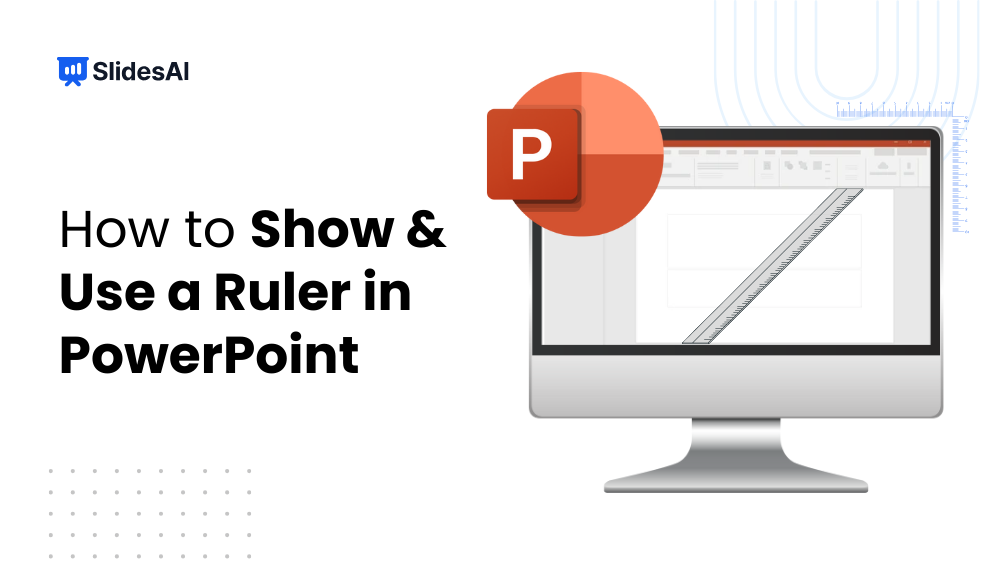
How to Show & Use Ruler in PowerPoint: Step-by-Step Guide
Ever tried to align text boxes or images in PowerPoint and found them just slightly off? It’s frustrating, especially when you are preparing a client pitch or class presentation. Imagine spending hours on slides, only to have uneven margins or misaligned graphics. That’s where PowerPoint’s ruler feature comes in. By showing the ruler, you can…
-
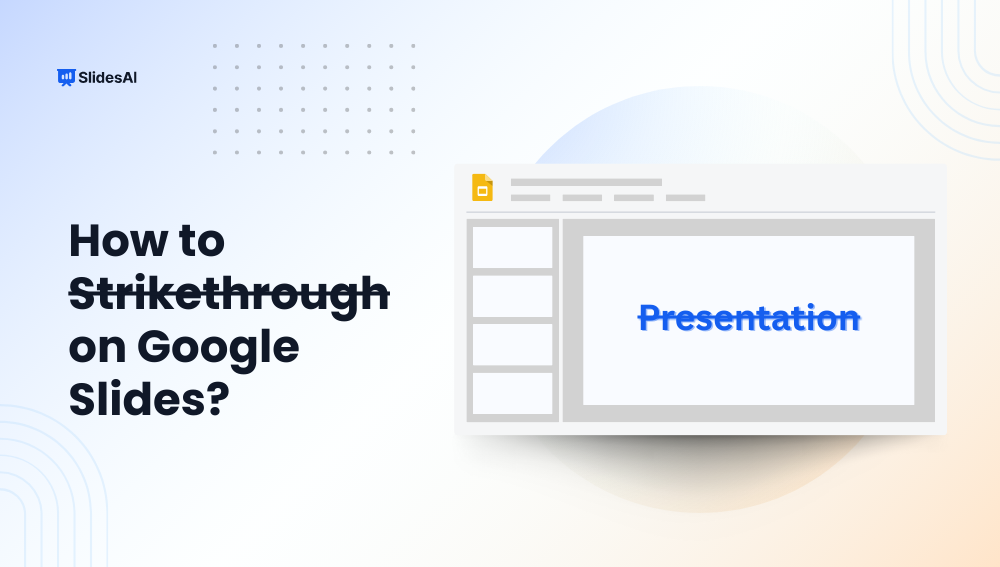
How to Strikethrough on Google Slides?
Strikethrough in Google Slides is a simple yet effective way to indicate revisions, mark completed tasks, or highlight changes without removing content. Whether updating a to-do list, reviewing edits, or presenting progress, learning how to strikethrough text in Google Slides ensures your slides are both clear and visually organized. In this guide, we’ll walk you…
-

How to Make a Poster in PowerPoint?
This guide will show you how to make a poster in PowerPoint, whether for school, conference, exhibition, or work project.
-

How to Record a Presentation on Google Slides?
Do you need to record your Google Slides presentation with your voice or webcam? While Google Slides doesn’t offer built-in recording, there are easy ways to capture both your slides and narration using tools like Tella, Riverside, Zoom, or Loom.
-
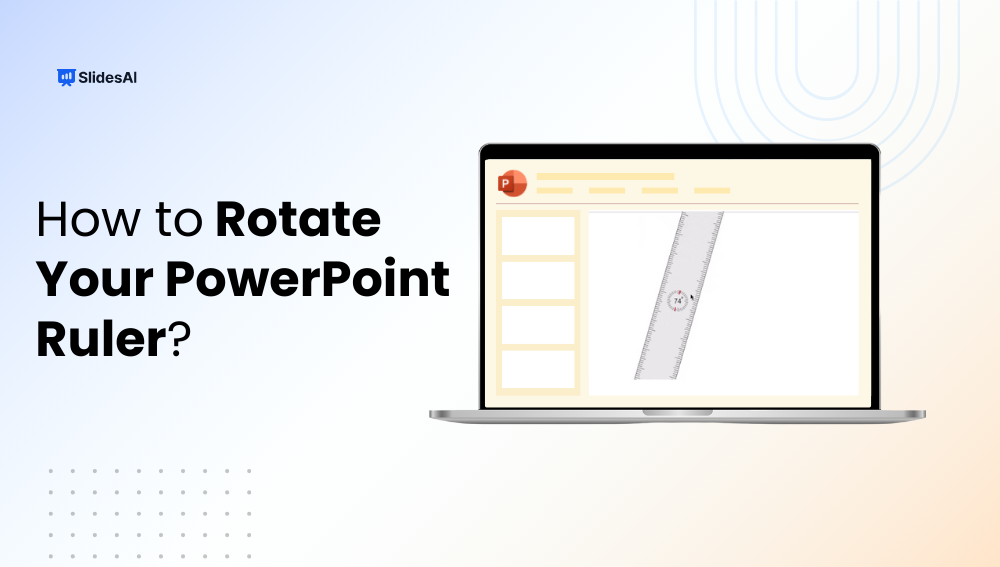
How to Rotate Your PowerPoint Ruler?
The ruler in PowerPoint is an essential tool for aligning objects, drawing straight lines, and positioning elements precisely on your slides. While most users know how to display the ruler, few realize you can rotate it to measure angles for diagonal text, flowcharts, or unique slide layouts. In this guide, we’ll show you how to…
-
7 Types of Pitch Decks Every Small Business Owner Needs
Not all pitch decks are the same. Discover 7 types of pitch decks, what is the purpose and focus for each one, and how to choose the right one for your goal.
Got any book recommendations?