
You’ve created a great Google Slides presentation, but sharing it as slides isn’t always the best experience. Maybe your audience doesn’t have time to click through, or you want something more engaging for social media, email, or offline viewing.
The problem is, turning a presentation into a video isn’t always obvious. Many users aren’t sure which method to use, how to add voiceovers, or how to export it properly without losing quality.
The good news? Google Slides now offers built-in and alternative ways to convert your presentation into a video. In this guide, we’ll walk you through the different methods to turn your Google Slides into a video step by step, so you can choose the one that works best for you.
How to Convert Google Slides to Video?
Looking to take your Google Slides presentations to the next level? Converting them to videos allows you to share them more easily and create engaging content. Here are several methods to achieve this:
Method 1: Using Google’s Convert to Video Feature
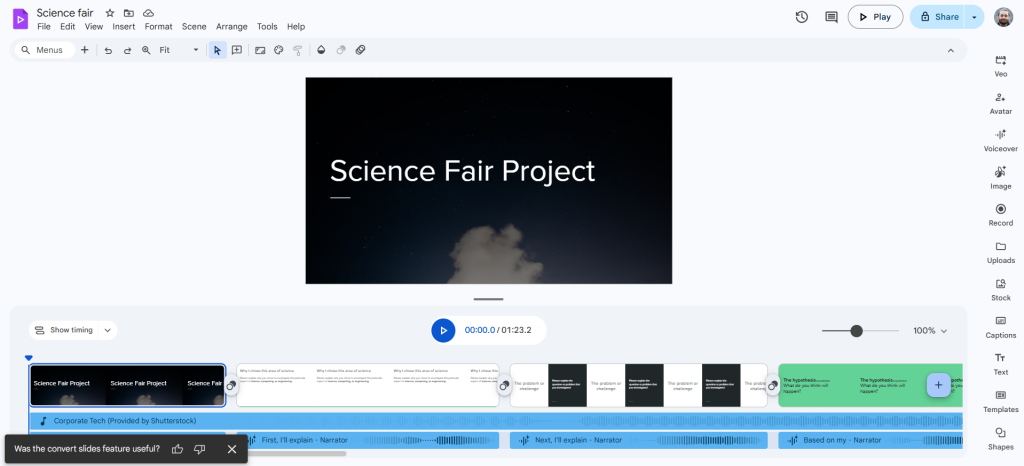
Google Slides now provides a Convert to Video option that allows users to export presentations as videos.
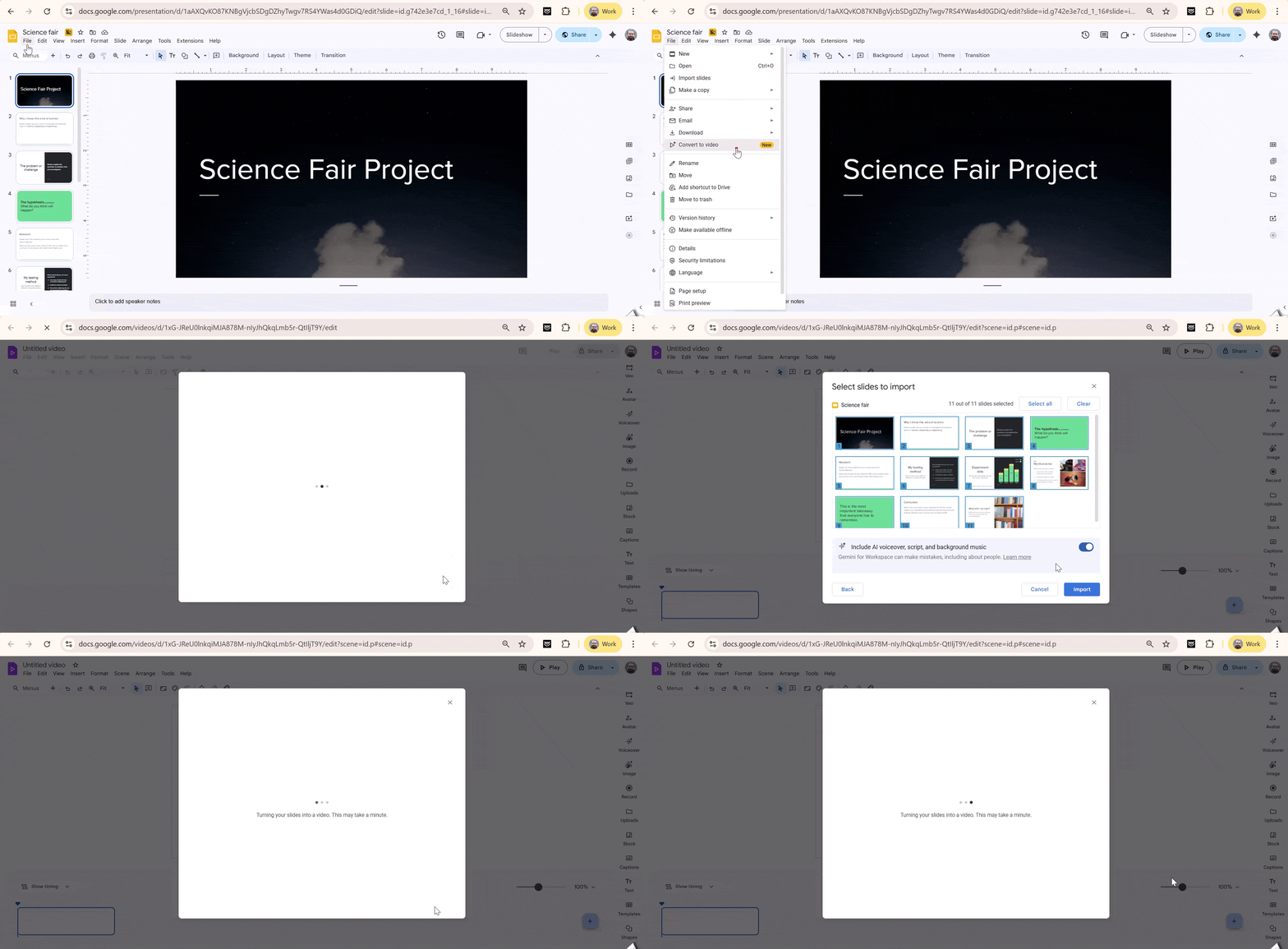
Step 1: Open your presentation in Google Slides.
Step 2: Click File in the top menu.
Step 3: Select Convert to Video.
Step 4: Adjust slide timings if required.
Step 5: Add optional AI voiceover or narration.
Step 6: Export the presentation as an MP4 video file.
Method 2: Using PowerPoint
If you have Microsoft PowerPoint, you can download your Google Slides presentation as a PPTX file and use PowerPoint’s Create a Video feature to export it as a video with better quality control.
Step 1: Download: Go to File > Download as > Microsoft PowerPoint (.pptx).

Step 2: Open in PowerPoint: Launch PowerPoint and open the downloaded file.
Step 3: Export to Video: Go to File > Export. Choose Create a Video.
Step 4: Customize: Select the desired video quality and resolution.
Step 5: Record Narration (Optional): Click Record Narration to add your voiceover.
Step 6: Save: Click Create Video and choose your preferred saving location.

Method 3. Using Screenpal
ScreenPal is a screen recording and video editing tool that lets you import Google Slides and convert them into a video with narration and simple editing. Follow these steps to convert your slides using ScreenPal:
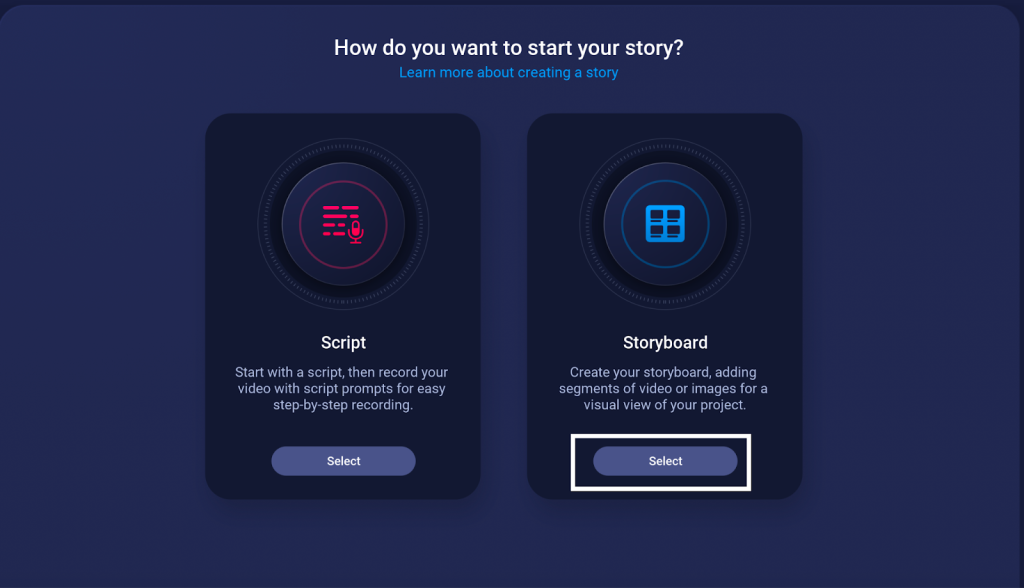
Step 1 – Prepare and Import Slides: Save your Google Slides as a PDF. Open ScreenPal’s desktop app or web editor, start a new project, and select “Storyboard”.
On the next screen, select “import from PDF”.
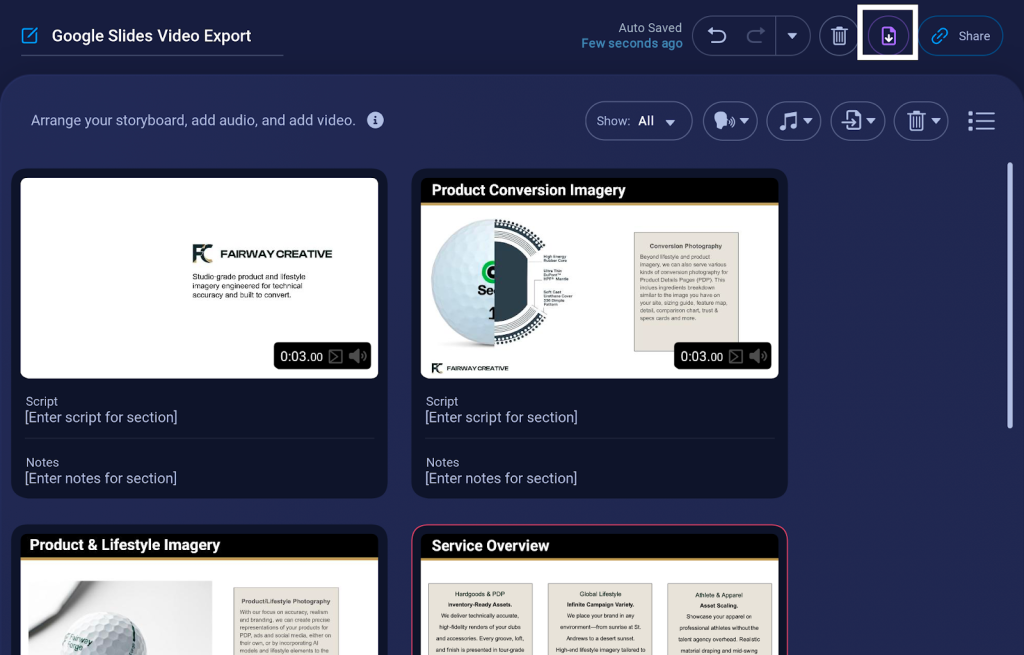
Step 2 – Make any desired edits using ScreenPal’s editing features. You can add transitions between slides, adjust timing per slide (e.g., 5-10 seconds), overlay voice narration via built-in recording, insert text animations, or add cursor effects for emphasis.
Step 3 – Press the download button once you are ready. Select your preferred video file format and export.
Method 4. Using Canva
Canva lets you import your Google Slides presentation and easily convert it into a video. Its simple interface and templates help create visually engaging presentations quickly.
Step 1: Import Slides: Go to Canva and click Create a Design. Choose Presentations and select Import from Google Slides.

Step 2: Edit (Optional): Make any desired edits using Canva’s editing tools.
Step 3: Convert to Video: Click the Share button and choose Download as MP4.

Step 5. Using a Recording App
Use a screen recording app for a quick and simple solution. It offers limited customization but works well for basic presentations where you narrate your slides.
Step 1: Select a screen recording app like Loom or Screencastify.

Step 2: Choose the recording area (entire screen or specific window).

Step 3: Start recording your presentation while narrating or adding annotations (if the app allows).
Step 4: End the recording and edit the video (optional) using the app’s features.
Step 5: Download the final video in your preferred format.

Method 6: Using AI Video Maker
If you want a quick way to turn Google Slides into a polished video, try an AI video generator like Heygen. These tools can add voiceovers, animations, and music in minutes, syncing your slides with smooth transitions and professional templates no advanced editing needed.
Turn your ideas into beautifully designed Google Slides presentations with our Google Slides Maker, ready to present or convert into videos.
What are the Benefits of Converting Google Slides into a Video?
1. Easy to Watch and Share – Videos can be viewed on phones, TVs, computers, and tablets without needing special software or a Google account. They are also easy to share on platforms like YouTube, TikTok, and Facebook.
2. Engaging Content Everywhere – Videos perform well on websites, social media, and emails, helping attract attention and increase engagement from a wider audience.
3. Better Storytelling – Videos combine visuals, narration, music, and animations to explain ideas more clearly and create a stronger emotional connection with viewers.
4. Easy Offline Viewing – When converted to a video, your presentation can be downloaded and watched anytime without an internet connection.
<SlidesAICTA2 />
Frequently Asked Questions Related to Turning Google Slides into a Video
1. How do I convert Google Slides to PowerPoint?
You can change your Google Slides into PowerPoint. Just download your Google Slides file as a PowerPoint file. To do this, go to the top bar, click on “File,” and then select “Download.”
2. How to Convert Google Slides to PowerPoint with Audio?
Unfortunately, you can’t directly convert Google Slides to PowerPoint with audio. You’ll need to export the Slides as a PPT file. After downloading it, open the file in Microsoft PowerPoint and then add the audio manually.
3. Will my slide animations work in the video?
Sometimes, depending on the method you choose.
4. How long does it take to convert Google Slides to video?
It depends on the length of your presentation and the tool you use.
Related Posts
-

“Attention, please!” – this is what your presentations will shout, not you. No more yawning…
-

Facing an error, especially when you’re in a rush to deliver a presentation using Google…
-

Traditional landscape mode slides are well-suited for laptop or desktop viewing, but they fall short…
-

n today’s fast-paced world, people have short attention spans when it comes to reading and…
-

The world is becoming increasingly connected, and sharing your ideas with a global audience is…