
What Is a Footer in Google Slides & How Does It Work?
A footer in Google Slides is a small text element placed at the bottom of a slide. It often includes information such as page numbers, company names, dates, or copyright text. Unlike Google Docs, there is no built-in automatic footer field in Slides. Instead, users must manually create or manage the footer Google Slides elements using text boxes or the Theme builder.
How to Add a Footer to One Slide in Google Slides
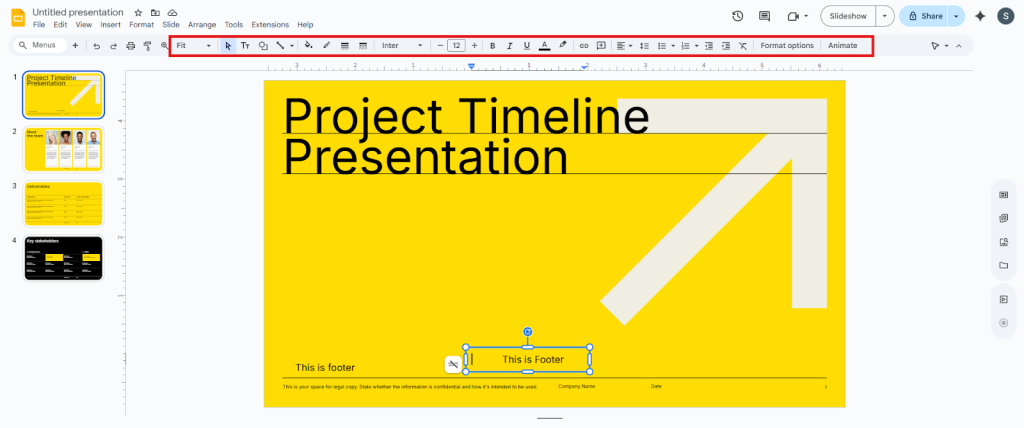
If you only need a footer on a specific slide, you can add it manually. Follow these steps to understand how to add a footer in Google Slides on an individual slide:
Step 1: Insert a Text Box
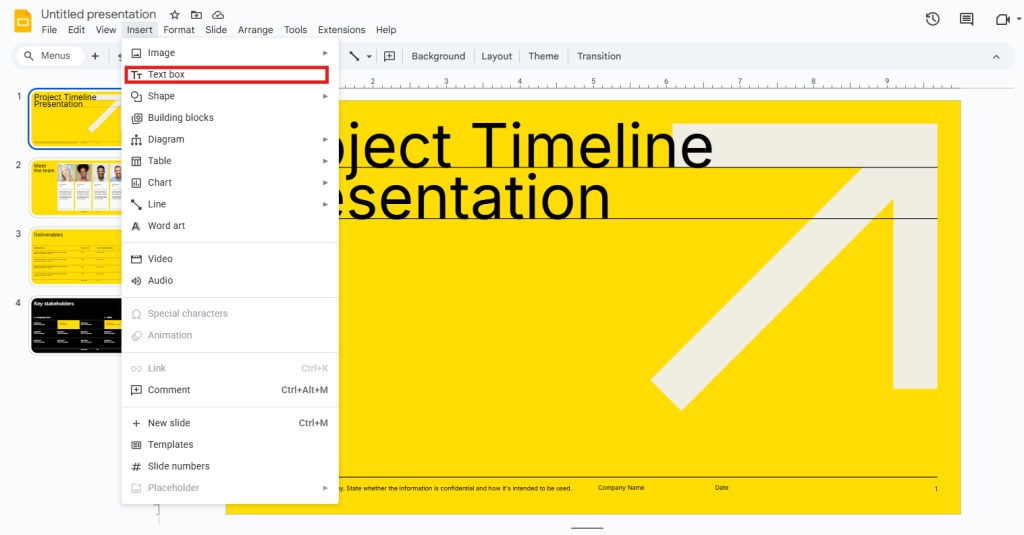
Click on the “Insert” option in the top menu, then choose “Text box.” This allows you to create a custom footer area.
Step 2: Draw the Footer Area
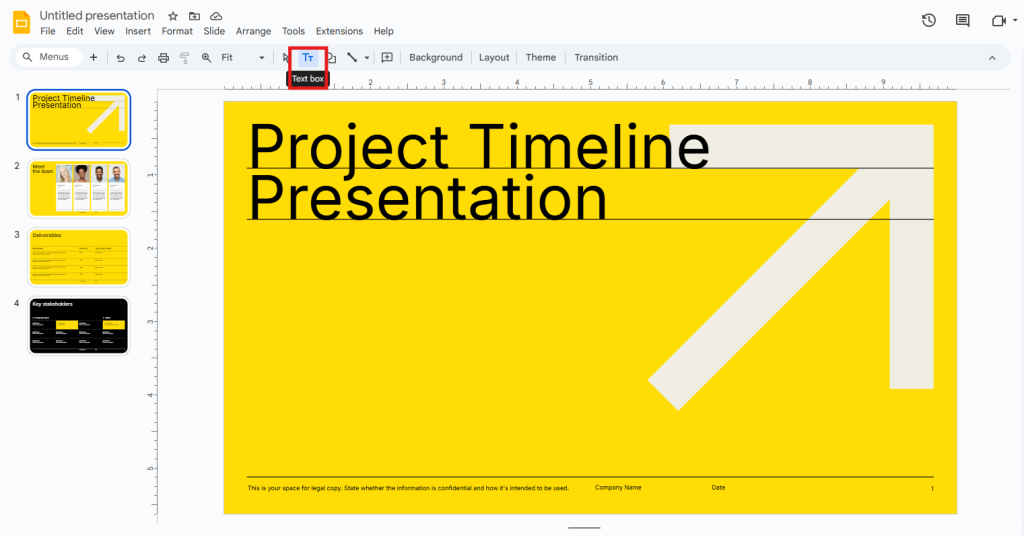
Click and drag your cursor near the bottom of the slide to draw the text box. Position it where you want the footer to appear.
Step 3: Type & Format Your Footer
Enter the desired text, such as a company name, slide title, or date. Use the toolbar options to adjust font size, color, and alignment.
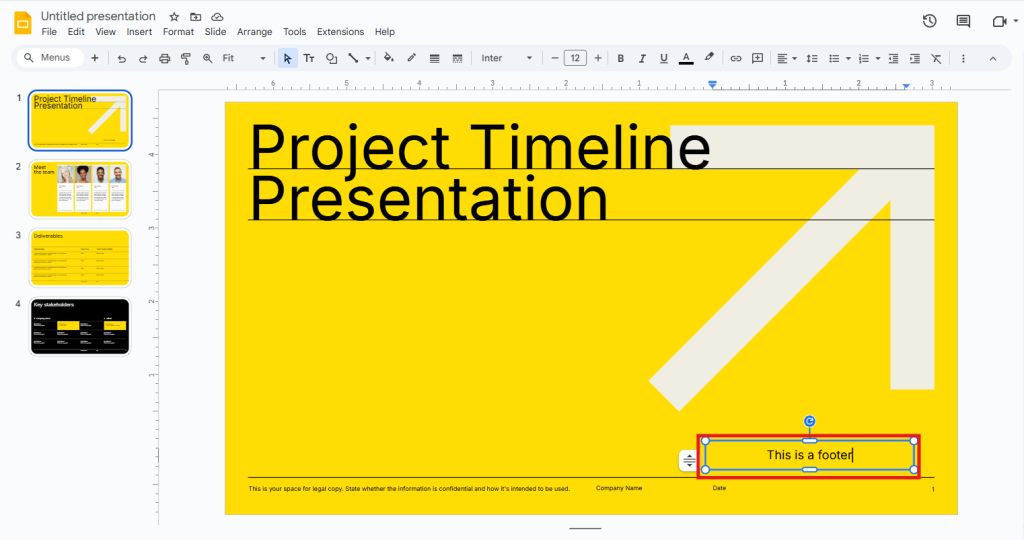
This method works best when you need different footer content on selected slides.
How to Add the Same Footer to All Slides in Google Slides
If you want the same footer to appear on every slide, you must edit the theme layout instead of adding text manually to each slide. This method ensures consistency across the entire presentation:
Step 1: Open the Theme Editing Panel
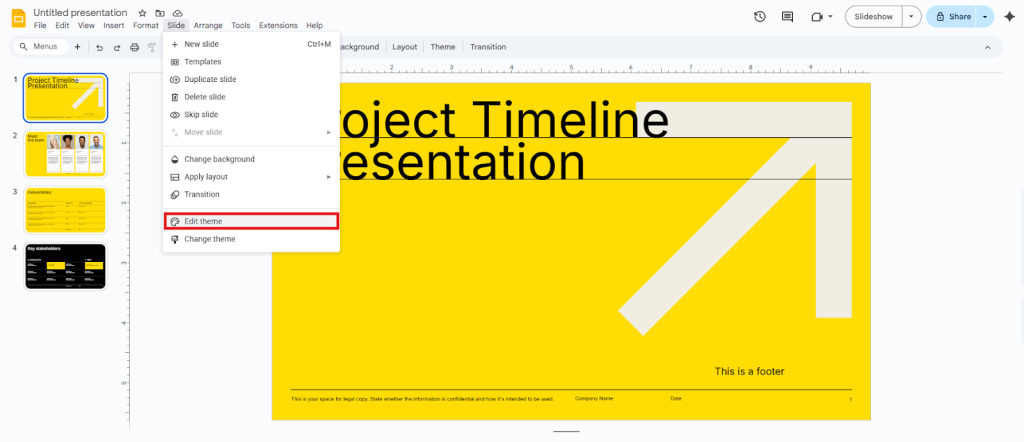
Click on the “Slide” option in the top menu, then select “Edit theme” from the dropdown menu. This opens the master slide view where global design elements are controlled.
Step 2: Insert a Text Box in the Master Slide
Select the top master slide layout. Click on “Insert,” choose “Text box,” and draw the text box at the bottom of the slide where you want the footer to appear.
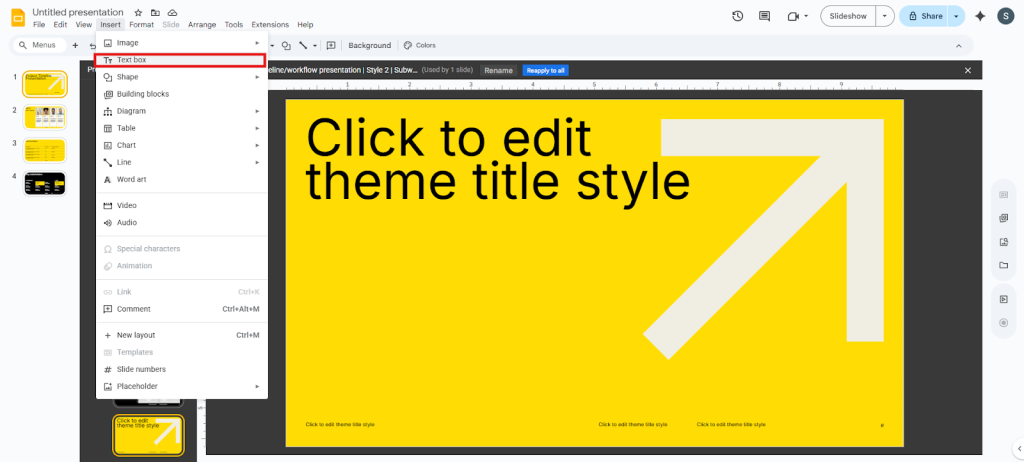
Step 3: Enter & Format the Footer Text
Type the footer content according to your requirement, such as a company name, date, or copyright notice. Adjust the font, size, alignment, and color using the toolbar.
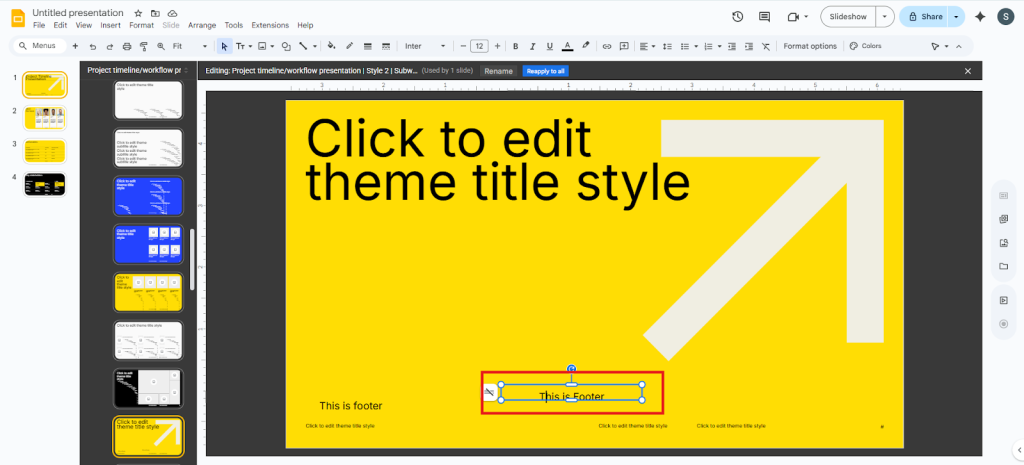
Step 4: Exit the Theme Editor
Click the “X” button at the top right to exit the master view. All slides that use this theme will now automatically display the same footer.
How to Add Slide Numbers as a Footer in Google Slides?
Slide numbers can also act as a type of footer element in Google Slides. The process for this is extremely simple and can be added quickly. Follow these steps to add numbering:
Step 1: Enable Slide Numbers
Go to the “Insert” menu at the top and select “Slide numbers” in the dropdown menu.
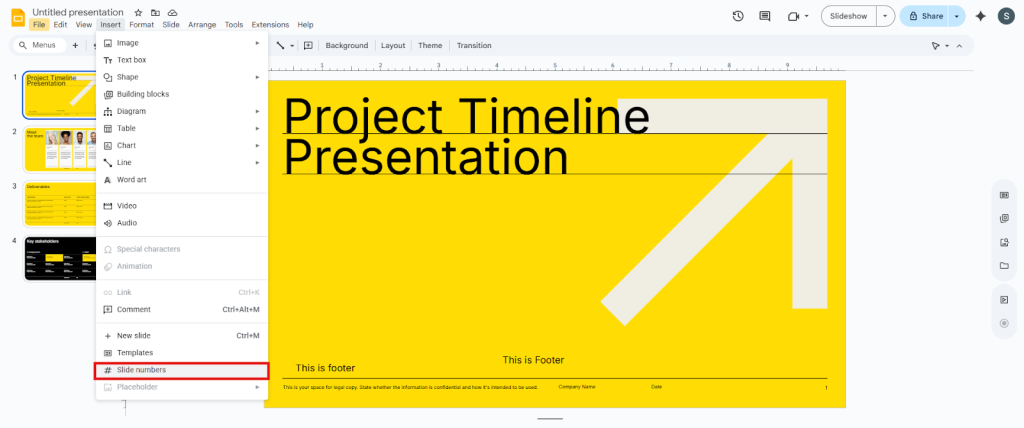
Step 2: Apply Your Preference
Choose whether to apply numbers to all slides or skip the title slide. Then click “Apply.”
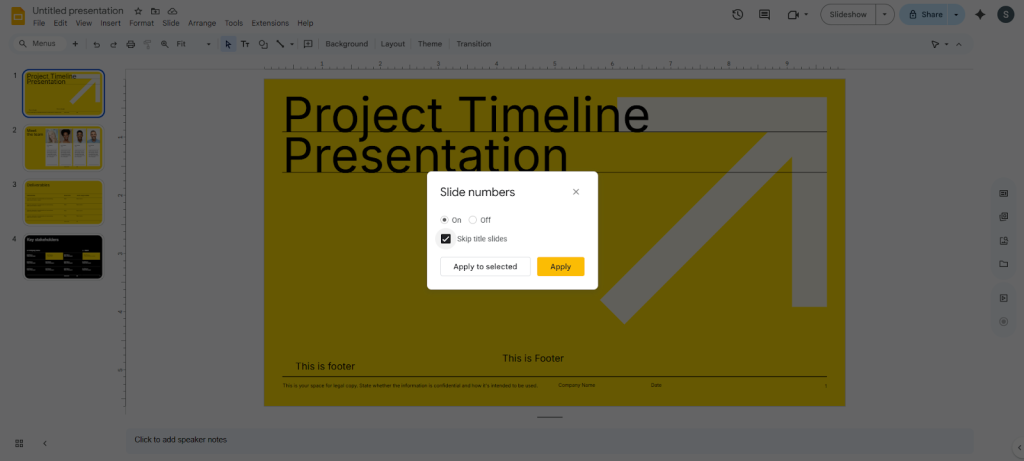
Step 3: Format Footer Text as Needed
Once added, you can adjust font size and formatting using the toolbar options.
“Want consistent footers, branding, and layouts across every slide? Explore our professionally designed presentation templates.“
Conclusion
Understanding how to change the footer in Google Slides helps maintain professional formatting and branding throughout your presentation. Whether you add a footer manually, apply the same footer throughout the slides, or use slide numbers, the process is straightforward once you know the correct steps. Always choose the method that matches your presentation needs.
<SlidesAICTAGoogleSlides />
Frequently Asked Questions (FAQs)
1. Does Google Slides have a built-in footer option?
No, Google Slides does not have a dedicated footer feature like Google Docs. You’ll have to create footers manually using text boxes or by editing the Theme builder.
2. How do I change the footer on all slides at once?
To change the footer for all slides at once, go to View → Theme builder. Then select the master slide and add or edit the footer text.
3. Why can’t I edit or delete footer text on my slide?
If the footer cannot be selected, it could be part of the slide theme. To edit or remove it, you must open the Theme builder.
4. How do I add page numbers to the footer in Google Slides?
To add page numbers as the footer in Google Slides, click Insert → Slide numbers, enable the option, and apply it to all slides.
5. Can I have different footers on different slides?
Yes, you can manually add different footer text on individual slides or create multiple layouts in the Theme builder.
6. How do I remove a footer from one slide only?
To remove the footer from only one slide, select that slide and then change the slide layout to one without footer text. You can do this, or manually delete the footer text box on that specific slide if it was added directly.
7. Will changing the theme footer affect existing slides?
Yes, any slide using that layout or theme will update automatically when the footer is modified in the Theme builder.
Related Posts
-

Master the art of editing the master slide in Google Slides with this step-by-step guide.…
-

Adding slide numbers to your presentation is a neat way to keep everything organized. When…
-

If you’ve ever looked at a slide and thought, “This could use a little extra…
-

Learn how to add transitions to Google Slides to make your presentation more dynamic. Also…
-

Learn how to add, move, duplicate or delete slides in Google Slides with this step-by-step…