
You’re building a presentation for a math class, an engineering pitch, or a science lecture, and then it hits you: Google Slides has no built-in equation editor. So you try typing the formula manually, only to realize your keyboard doesn’t have half the symbols you need. You copy-paste from another tool, and the formatting breaks. You screenshot an equation from Word, and it comes out blurry. And if you need to tweak even one variable, you’re back to square one. Unlike Google Docs, which has a native equation editor, Google Slides leaves you hunting for workarounds every single time. In this guide, we’ll walk you through both, so you can spend less time fighting with formatting and more time nailing your presentation.
How to Insert an Equation in Google Slides?
Inserting equations in Google Slides can be a little tricky since there isn’t a built-in equation editor like in Google Docs. However, there are a couple of simple ways you can still add equations to your slides. Here are two methods to help you easily insert equations:
Method 1: Using Special Characters
To add equations to your Google Slides presentations, you can use the built-in “Special Characters” feature. While this method might be suitable for simpler equations, it can be time-consuming for more complex ones.
Step 1: Open Your Google Slides Presentation
Begin by opening the Google Slides presentation where you want to insert the equation.
Step 2: Select the Slide
Choose the specific slide within your presentation where you’d like to place the equation.
Step 3: Create a Text Box
If there isn’t already a text box on the slide where you want the equation, insert a new one. This will provide a space for you to enter the equation.
Step 4: Access the Special Characters Menu
Navigate to the “Insert” menu at the top of your Google Slides screen. From the dropdown options, select “Special Characters.”

Step 5: Choose Mathematical Symbols
In the “Insert special characters” dialogue box that appears, locate the “Symbols” category in the left-hand dropdown menu. Select this category to view a variety of symbols, including mathematical operators and symbols.

Step 6: Find the Desired Symbols
On the right-hand side of the dialogue box, you’ll find a dropdown menu labeled “Math.” Click on this option to access a collection of mathematical symbols that are commonly used in equations.

Step 7: Manually Type and Insert Symbols
Begin typing your equation into the text box on your slide. Whenever you need a specific mathematical symbol, click on the corresponding symbol in the “Special Characters” dialogue box. The symbol will be inserted into your equation at the current cursor position.

Step 8: Complete Your Equation
Continue typing your equation and inserting symbols until you’ve finished constructing the desired mathematical expression.

Use a ChatGPT presentation maker to generate technical presentations with equations automatically.
Method 2: Using Add-ons
The second method that has recently gained popularity is using Add-ons. Add-ons can make it easy to add a wide range of features to your Google Slides presentations. While there are a lot of add-ons available for inserting equations, Hypatia Create is the most popular option. Let’s see how it works:
Step 1: Open your Google Slides presentation.
Begin by opening the Google Slides presentation where you want to insert the equation.
Step 2: Access the Add-ons Menu
Go to “Extensions” > “Add-ons” > “Get Add-ons.”

Step 3: Install Hypatia Create
Search for and install the “Hypatia Create” add-on from the Google Workspace Marketplace.

Step 4: Insert an Equation
Go to “Extensions” > “Hypatia Create” > “Insert/Edit Math.”

Step 5: Enter your Equation
Type your equation into the provided text field.

Step 6: Insert the Equation
Click “Insert” to add the equation to your slide

Also Read: How to Subscript and Superscript in Google Slides?
How to insert equations using SlidesAI quickly?
If you’re looking for a faster way to create presentations with mathematical formulas, an AI Google Slides generator like SlidesAI can help. It generates well-structured slides in minutes, allowing you to focus on adding equations and fine-tuning your content instead of building your presentation from scratch.
Step 1: Open the Google Slides Presentation and install SlidesAI Add-on. Log in or set up your Slides AI account.

Step 2: After setting up the account, go to “Extensions” > SlidesAI > Generate New Slides
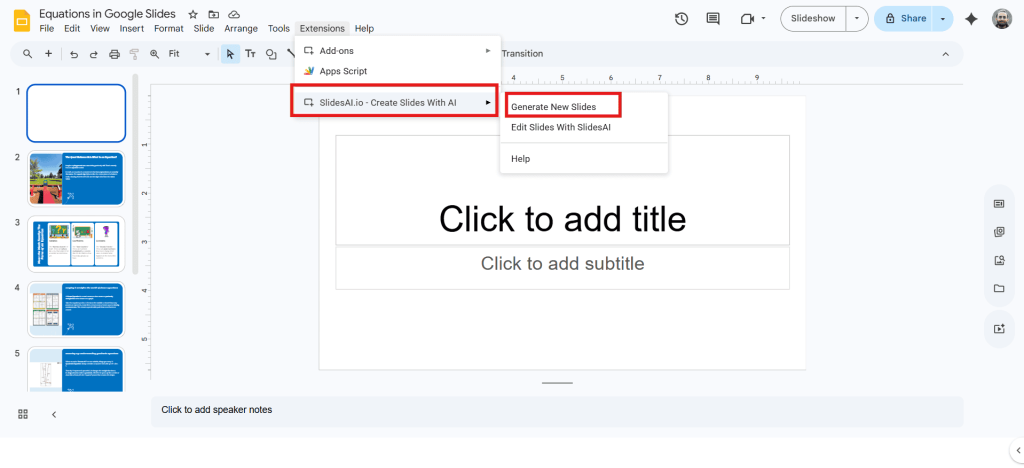
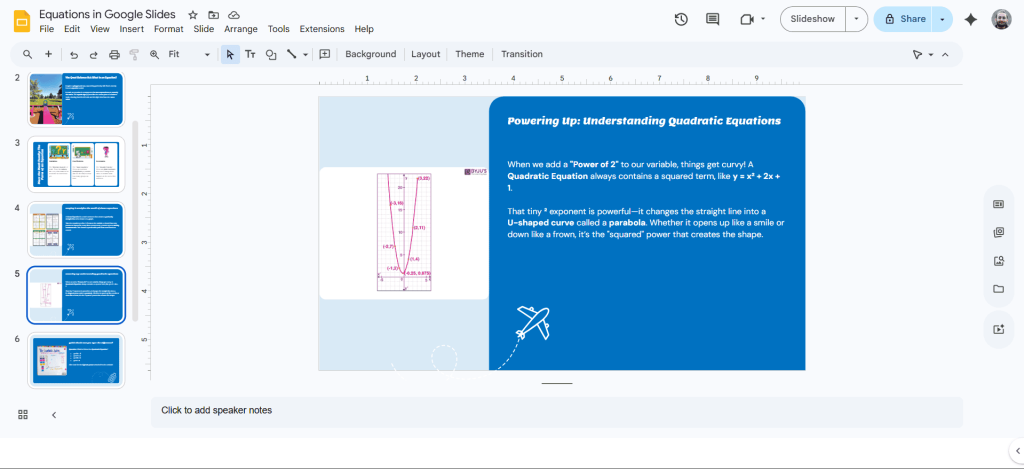
Step 3: Enter the topic of your presentation. For example, here I have entered “Introduction to Linear and Quadratic Equations.”

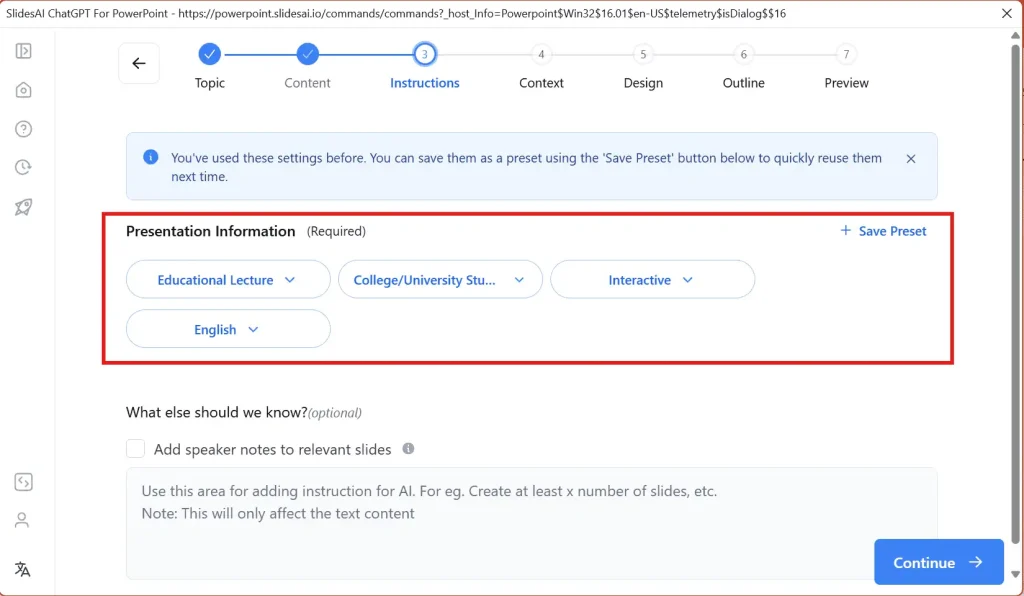
Step 4: Select the Presentation type, Audience, Tone, and language.
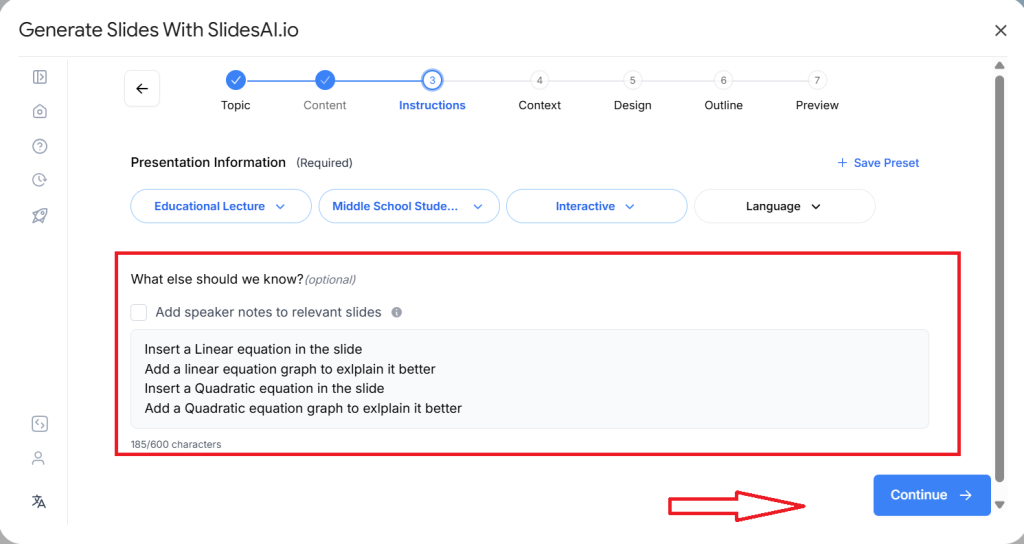
Step 5: Under the section “What else should we know?”, add proper instruction of which codes to add. For example Linear equation, quadratic equation, etc.
Step 6: Choose how you want to present your presentation.

Step 7: Select the presentation template of your choice from the template options. Insert your logo, and choose if you want to insert AI images.

Step 8: SlidesAI will generate an outline for your presentation. Review the outline. Make edits if necessary.
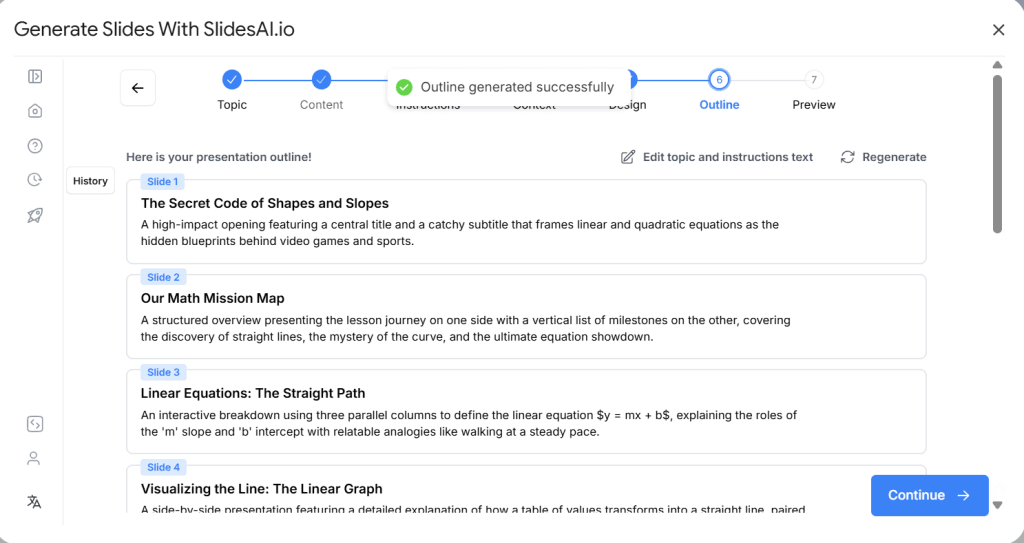
Step 9: Once the outline is final, SlidesAI will now generate the content for your presentation. Review the content before proceeding further, and then click on “Generate Slides.”

Step 10: SlidesAI will create a whole presentation. Review the slide with the equations to make sure they are perfect.
<SlidesAICTAGoogleSlides />
Why Add Equations in Google Slides?
1. Essential for teaching and academic presentations
Whether you’re a teacher walking through a formula or a student presenting a project, equations are often non-negotiable. Having them on-slide means your audience can read along as you explain.
2. Adds credibility to technical and scientific work
For engineers, researchers, and analysts, showing your methodology through equations builds trust with your audience and backs up your conclusions with hard evidence.
3. Works across subjects, not just math
From physics formulas to financial models to chemical reactions, equations show up across disciplines. Knowing how to add them cleanly means you’re ready for any technical presentation that comes your way.
4. Improved Understanding:
A well-placed equation shows your audience exactly how you arrived at a result, no guesswork, no “just trust me.” It turns abstract concepts into something tangible and follow-along-friendly.
Need to present mathematical concepts clearly? Explore our education presentation templates to create engaging lessons, lectures, and classroom presentations in minutes.
Closing Thoughts
Inserting equations into Google Slides may seem challenging, but with these simple methods, it’s completely doable. Whether you use special characters or add-ons, you’ll be able to add the equations you need with ease. Give it a try, and enhance your presentations today!
Create AI-powered presentations with equations, charts, and visuals in minutes using our AI powred presentation maker.
Frequently Asked Questions About Inserting an Equation in Google Slides
1. Can I type mathematical equations directly in Google Slides?
You can type basic equations with numbers and standard math symbols, but Google Slides doesn’t have a built-in tool for more complex formulas.
2. Does Google Slides have an equation editor?
No, there isn’t a built-in equation editor in Google Slides. However, you can use alternatives like special characters or add-ons to add more advanced equations.
3. What types of equations can I create with special characters?
You can create simple equations using the numbers, operators, and symbols found in the special characters menu.
4. Can I change how the equations look to fit my presentation style?
Yes, you can adjust the font, color, and style of your equations using the formatting options available in the toolbar.
5. Can I animate equations in Google Slides?
Currently, Google Slides doesn’t offer animation for equations, but you can still add them as static elements in your slides.
Related Posts
-

Have you ever wanted your audience to actively participate in your Google Slides presentation? Checkboxes can…
-

Working with multiple slides at once in Google Slides can save you a lot of…
-

{ “@context”: “https://schema.org”, “@type”: “FAQPage”, “mainEntity”: [{ “@type”: “Question”, “name”: “Why should I time my…
-

If you see the “Error Rendering Shape” message while trying to insert an image into…
-

When preparing for a presentation, it’s often helpful to provide your audience with handouts that…