
Creating a good presentation is about more than putting text on slides and hoping for the best. The right tool can make it much easier to organise your ideas, add visuals, work with classmates, or even build a presentation when you are short on time. In this blog, we’ll look at the best presentation tools for students in 2026, what each one does well, what you get for your money, and which type of student each tool suits best.
Best Presentation Tools for Students – Quick Overview
Before getting into the details, here’s a quick look at what each tool is good at and how difficult it is to get started.
| Presentation Tool | A Good Pick For | Ease of Use |
| Microsoft PowerPoint | Traditional assignments and detailed editing | Easy to moderate |
| Google Slides | Group projects and working online | Very easy |
| Keynote | Clean, polished presentations on Apple devices | Easy |
| Canva | Good-looking slides without much design work | Very easy |
| SlidesAI | Making a presentation quickly with AI | Very easy |
| Visme | Data, charts, infographics and visual projects | Easy to moderate |
| Zoho Show | Online presentations and team projects | Easy |
| VoiceThread | Narrated presentations and class responses | Easy |
| Genially | Interactive presentations, quizzes and animations | Easy to moderate |
| Gamma | Creating a complete deck from a prompt | Very easy |
| Gemini in Google Slides | AI help while building a Slides presentation | Very easy |
| PowToon | Animated and video-style presentations | Easy to moderate |
| Mentimeter | Polls, quizzes and audience participation | Very easy |
| Slido | Live Q&A, polls and audience interaction | Very easy |
| Kahoot! | Quizzes and classroom engagement | Very easy |
| Prezi! | Non-linear and visually different presentations | Moderate |
Core slide-building tools (manual/traditional deck builders)
- Microsoft PowerPoint
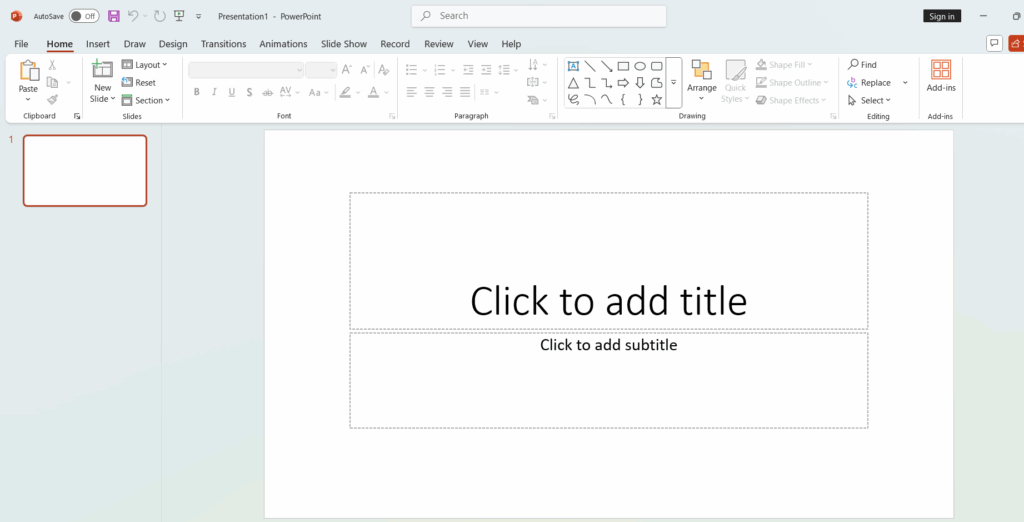
PowerPoint has been around for years, and it is still one of the first tools students think of when they hear the word presentation. You get a lot of control over layouts, fonts, charts, animations and transitions. It is especially useful when your professor expects a traditional slide deck or when you need to make detailed changes to individual slides.
Key Features
- Detailed slide editing, animations, transitions and formatting.
- Desktop apps for Windows and Mac.
- Real time collaboration through OneDrive and Teams.
- Accessibility features and live captions.
- Copilot AI features on eligible Microsoft 365 plans.
Pricing + What You Get
- Free web version: Basic PowerPoint features through a Microsoft account.
- Microsoft 365 Personal: About $99.99/year, with full PowerPoint, 1 TB of OneDrive storage and other Office apps.
- Microsoft 365 Family: About $129.99/year for up to six people.
- Business plans: Start at roughly $6 to $12.50/user/month depending on the plan and are often used by schools and universities.
-
Google Slides
About the tool
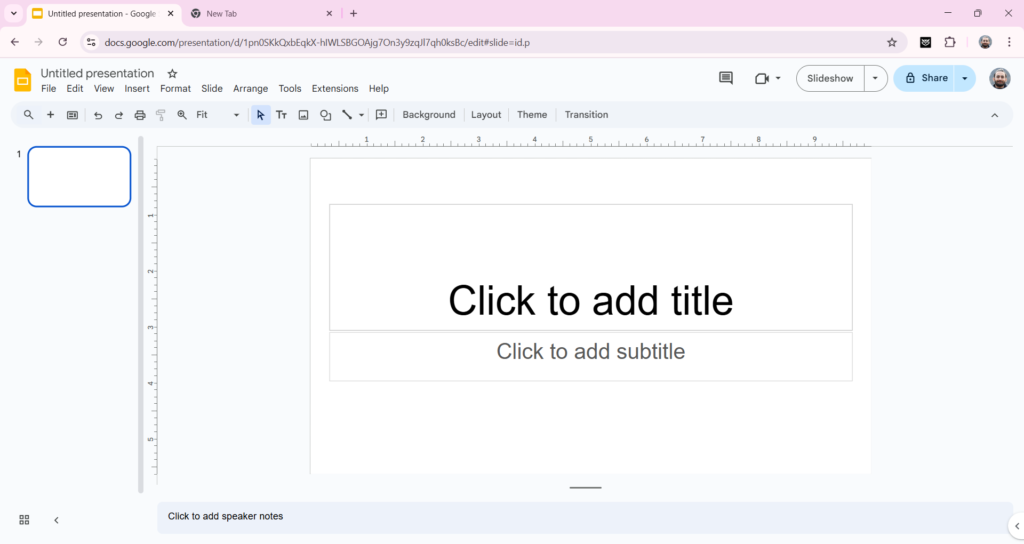
Google Slides is probably one of the easiest options for students who regularly work on group assignments. Everything is stored online, so you can open your presentation from almost any device and see the latest version. It also works nicely with Google Drive, Docs and Sheets, which makes it convenient if most of your coursework already happens inside Google Workspace.
Key features for students
- Real time editing with classmates.
- Comments and version history.
- Integration with Google Drive, Docs and Sheets.
- Works directly in a browser.
- Gemini can help create, rewrite and summarise presentation content on eligible plans.
Pricing + what you get
Google Slides is free with a personal Google account and comes with 15 GB of shared storage across Drive, Gmail and Photos.
-
Keynote
About the tool
Keynote is Apple’s answer to PowerPoint, and it is a particularly nice option if you already use a Mac, iPad or iPhone. The templates look polished without requiring much design work, while the animations and transitions give you plenty of room to make a presentation feel more refined. It also works well with iCloud when you move between Apple devices.
Key features for students
- Clean templates and professional animations.
- Works across Mac, iPhone and iPad.
- iCloud syncing and collaboration.
- Easy sharing with people who use other platforms.
- New AI features are available through Apple Creator Studio.
Pricing + what you get
Keynote is free with modern Macs, iPhones and iPads and is also available through iCloud.com.
Apple Creator Studio adds premium content and AI features across Keynote, Pages and Numbers. It costs around $12.99 per month or $129 per year. Discounted student and education pricing is around $2.99 per month or $29.99 per year.
-
Canva
About the tool
Canva is a good choice when you care about how your slides look but don’t want to spend hours figuring out design software. You can start with a template, drag in images and icons, change the text, and have a decent-looking presentation without much effort. It works particularly well for visual assignments, portfolios and projects where images matter as much as the written content.
Key features for students
- Large collection of presentation templates, graphics, images and fonts.
- Drag-and-drop editor that works in browsers and mobile apps.
- Easy collaboration for group presentations.
- AI tools for writing, design and image creation on eligible plans.
Pricing + what you get
- Canva Free: $0/year with the basic editor, templates, AI features and 5 GB of storage.
- Canva Pro: Around $120/year for one person, with premium templates, advanced AI tools and 1 TB of storage.
- Canva Business: Around $25/user/month or $250/user/year.
- Canva for Education: Many premium features are available at no cost for eligible students and educators.
AI Slide Makers and Auto Design Tools
-
SlidesAI
About the tool
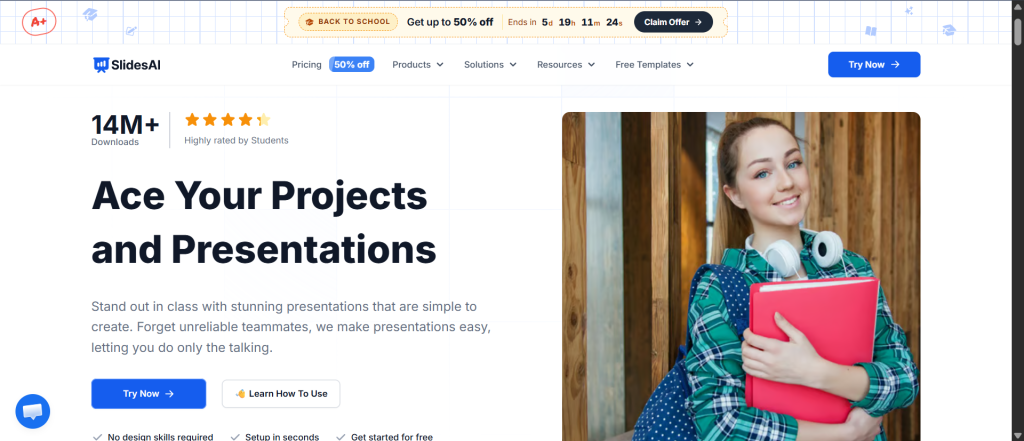
SlidesAI is made for those moments when you know what you want to say but do not feel like building 15 slides from scratch. You give it a topic, notes or written content, and it turns that material into a presentation. It works with Google Slides and PowerPoint, so you can continue editing the deck afterwards.
Key features for students
- Create presentations from notes or pasted text.
- Automatically organise content into slides.
- Suggestions for images and themes.
- Rewrite, shorten or expand slide content.
- Works inside Google Slides and PowerPoint.
Pricing + what you get
- Basic: Free, with limited presentations and AI credits for occasional use.
- Pro: Around $10/month when billed annually, with more presentations, longer inputs and document support.
- Premium: Around $20.83/month when billed annually, with unlimited presentations and higher AI limits.
-
Gamma
About the tool
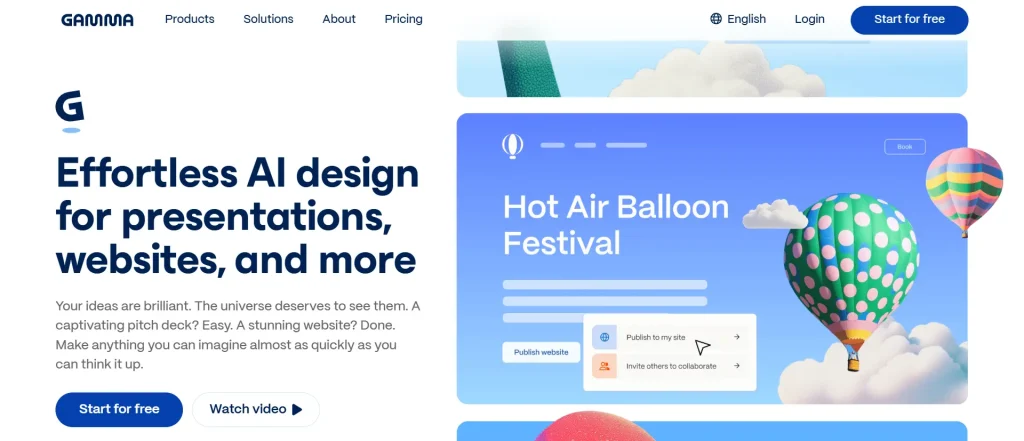
Gamma takes the idea of making slides from scratch and cuts out much of the manual work. You can give it a prompt, an outline or existing text, and it creates a complete presentation with the layout and visual structure already in place. It is especially useful when you have the information ready but don’t have much time to turn it into slides.
Key features for students
- Generate presentations from prompts and outlines.
- Create documents and simple websites too.
- Multiple AI models and design themes.
- Export to PowerPoint, PDF and Google Slides.
- Collaboration for group projects.
Pricing + what you get
- Gamma has a free plan for smaller projects. It includes up to 10 slides per prompt, basic creation formats and limited AI credits.
- The Plus plan costs around $9 per seat per month and includes 1,000 AI credits per month, removal of Gamma branding and more room for creating content.
- The Pro plan costs around $18 per seat per month and provides 4,000 AI credits per month, custom branding, analytics, advanced sharing and API access.
-
Google Gemini in Google Slides
About the tool
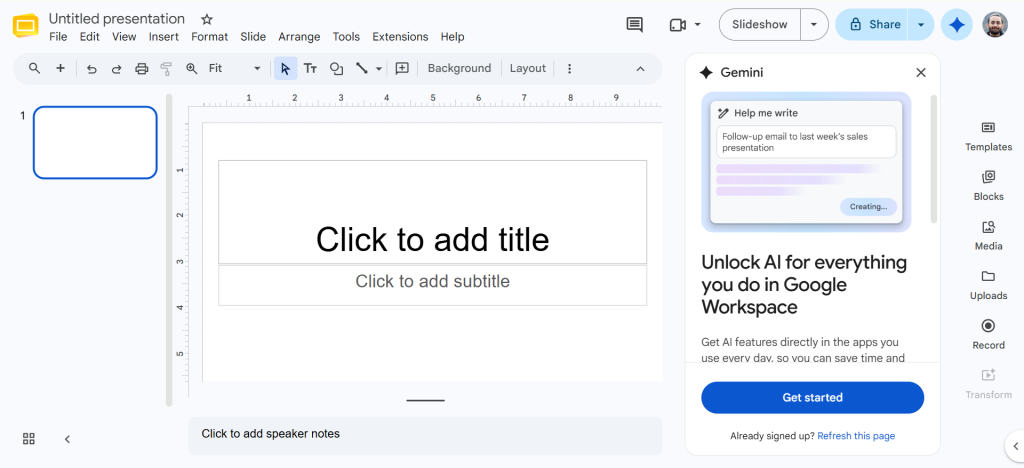
Gemini brings AI directly into Google Slides, so you don’t have to move your notes into a separate presentation generator. You can ask it to create slides, rewrite content, summarise a deck or suggest visuals while working inside Slides. For students who already use Google Workspace, it can feel more natural than switching between several different tools.
Key features for students
- Generate slides from ideas or existing content.
- Rewrite and summarise slide text.
- Generate images.
- Help create speaker notes and summaries.
- Work with content stored in Google Drive.
Pricing + what you get
- Gemini features depend on the Google Workspace plan available to you. Business Standard and higher Workspace tiers typically start at around $12 to $14 per user per month and include Gemini features inside Slides.
- Business Starter costs around $6 to $7 per user per month but does not include the same advanced Gemini tools in Slides.
- For personal Google accounts, core Slides remains free, but Gemini in Slides is primarily available as a Workspace feature.
Data and Interactive Visualisation Tools
-
Visme
About the tool
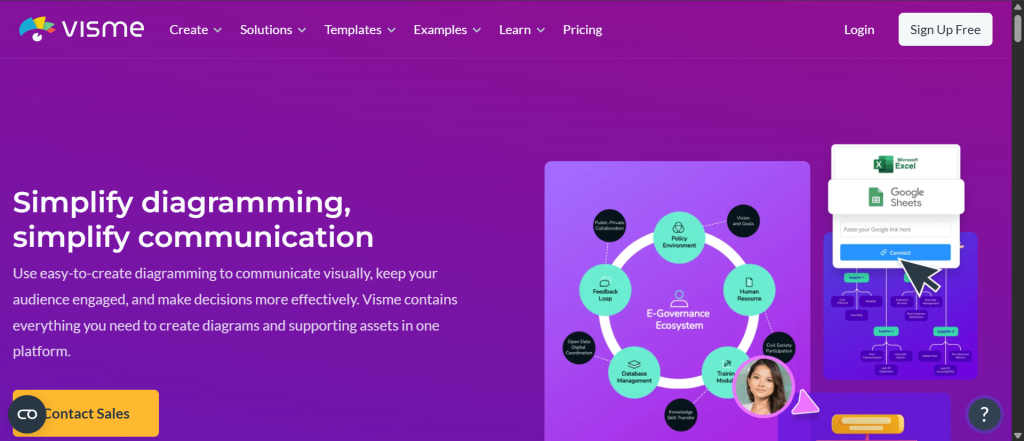
Visme sits somewhere between a presentation maker and a visual design platform. It is a great option when your assignment includes charts, statistics, maps or infographics and you want those elements to feel like part of the presentation rather than something pasted in at the end. It takes a little more time to learn than Canva, but gives you more options for data-heavy projects.
Key features for students
- Presentation and infographic templates.
- Charts, maps and data visualisation.
- Interactive content.
- AI assisted design tools.
- Multiple export options on paid plans.
Pricing + what you get
- Basic: Free, with unlimited projects but limited templates and exports.
- Starter: Around $12.25/user/month when billed annually.
- Pro: Around $24.75/user/month when billed annually, with features such as PPTX and HTML5 export.
- Education plans: Student pricing is listed around $48/year, with educator plans around $96/year.
-
Zoho Show
About the tool
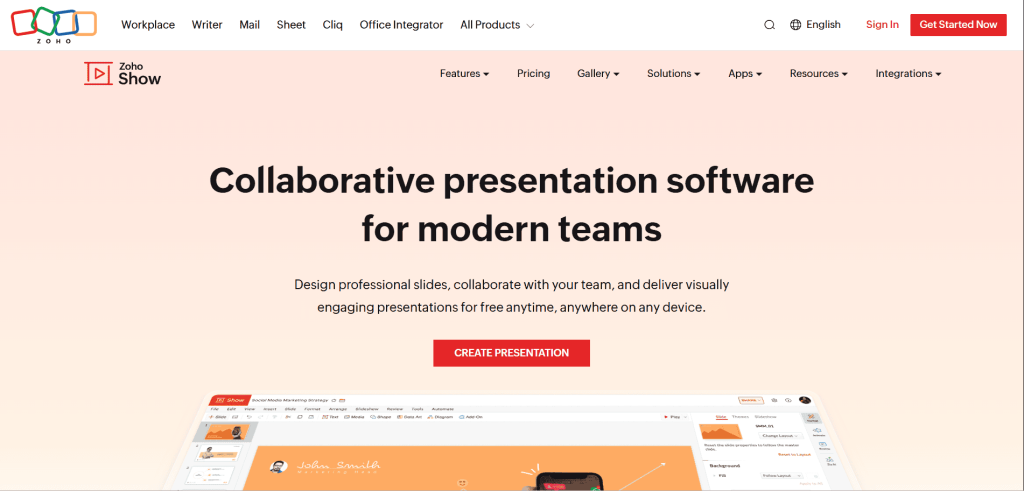
Zoho Show is a useful option for students who want a straightforward online presentation tool without paying for the basics. It supports collaborative editing, comments and PowerPoint files, so it is practical for both individual assignments and group work. The interface is less familiar than PowerPoint or Google Slides, but it is not difficult to learn.
Key features for students
- More than 100 templates.
- Real time collaboration and comments.
- Imports PowerPoint and other presentation formats.
- Exports to formats including PPTX and PDF.
- Apps for mobile devices and offline use.
Pricing + what you get
- Zoho Show is free for individual users and includes templates, cloud storage, collaboration, imports and exports.
-
Genially

About the tool
Genially is for students who want their presentation to do more than sit on a screen while they talk. You can build clickable content, animated slides, quizzes, games and interactive images. It can be a particularly good fit for subjects where explaining a process or getting the audience involved matters.
Key features for students
- Interactive presentations and animations.
- Clickable elements and hotspots.
- Quizzes and gamified content.
- AI tools for creating content.
- Imports from PowerPoint, PDF and Google Slides.
Pricing + what you get
- Free: €0/month with free templates, interactions, animations and a limited number of AI credits.
- Pro: About €6/month when billed annually.
- Master: About €20/month with higher AI limits and additional features.
- Author: About €40/month with more advanced tools and integrations.
-
Prezi
About the tool
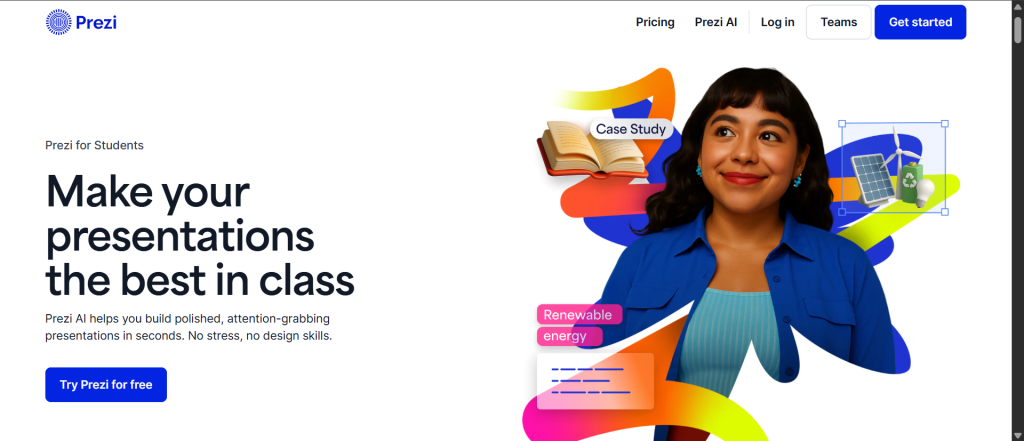
Prezi takes a different approach to presentations. Instead of moving from one rectangular slide to another, you move around a larger visual canvas and zoom in on different parts of your topic. That style can work really well for storytelling, mind maps and presentations where ideas connect to one another.
Key features for students
- Zooming and non linear presentations.
- Prezi AI for creating presentation outlines.
- Video presentation tools.
- PowerPoint import.
- Offline access on higher plans.
Pricing + what you get
- Free plan: Available with limited features and storage.
- Paid plans: Offer more templates, presentation controls and export options.
- Prezi also offers education-focused plans and discounts, with exact pricing varying by region and current student offers.
Audience Engagement and Live Interaction
-
Mentimeter
About the tool
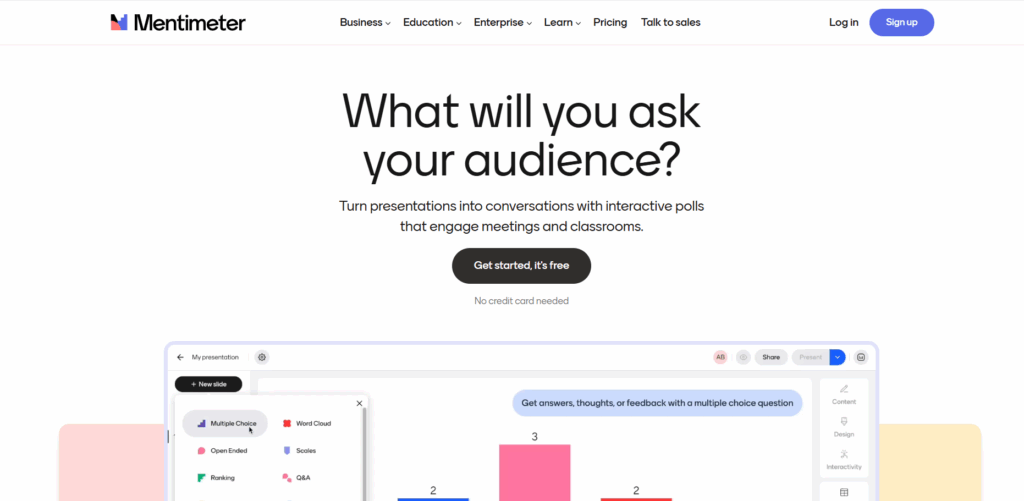
Mentimeter is designed for presentations where the audience is supposed to participate rather than simply listen. You can add polls, quizzes, word clouds and anonymous questions to your presentation and let people respond from their phones. For students presenting in seminars or classrooms, it can make a long presentation feel a lot more interactive.
Key features for students
- Live polls and quizzes.
- Word clouds.
- Anonymous audience responses.
- Q&A sessions.
- Exportable results.
Pricing + what you get
- Free account: Supports interactive presentations with limits suitable for smaller groups.
- Education plans: Available with larger participant limits and additional features.
- Exact education pricing depends on the plan and institution.
-
Slido
About the tool
Slido is another good option when you want people to participate instead of simply watching your presentation. It focuses heavily on questions, polls and audience responses and can integrate with presentation tools such as PowerPoint and Google Slides.
Key features for students
- Live polls and surveys.
- Anonymous Q&A.
- Question upvoting.
- Multiple question formats.
- PowerPoint, Google Slides and Teams integration.
Pricing + what you get
Slido has a free version with basic interaction features, although the number of poll questions and some advanced features are limited.
Slido also offers special education plans for students, teachers and professors. These can include unlimited polls, quizzes and surveys, with pricing depending on the region.
-
Kahoot!
About the tool
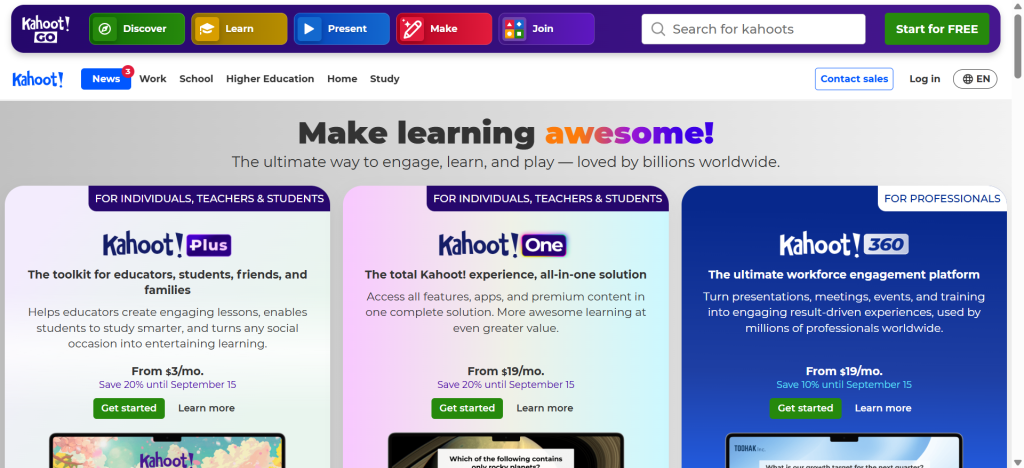
Kahoot! is best known for turning quizzes into games. Instead of asking your classmates a series of questions and waiting for answers, you can have everyone join from their own device and respond in real time. It works especially well at the end of a presentation when you want to see what people actually remember.
Key features for students
- Live quizzes and polls.
- Scores, points and leaderboards.
- Large library of existing quizzes.
- Works across connected devices.
- AI assisted quiz creation on selected plans.
Pricing + what you get
- Individual plans: Start from around $3/month, depending on the plan and billing cycle.
- Kahoot!+ Total: Around $19/month with a broader collection of premium features and content.
- Education pricing is also available for students, teachers and institutions.
Video, Narration and Multimedia Storytelling
-
VoiceThread
About the tool
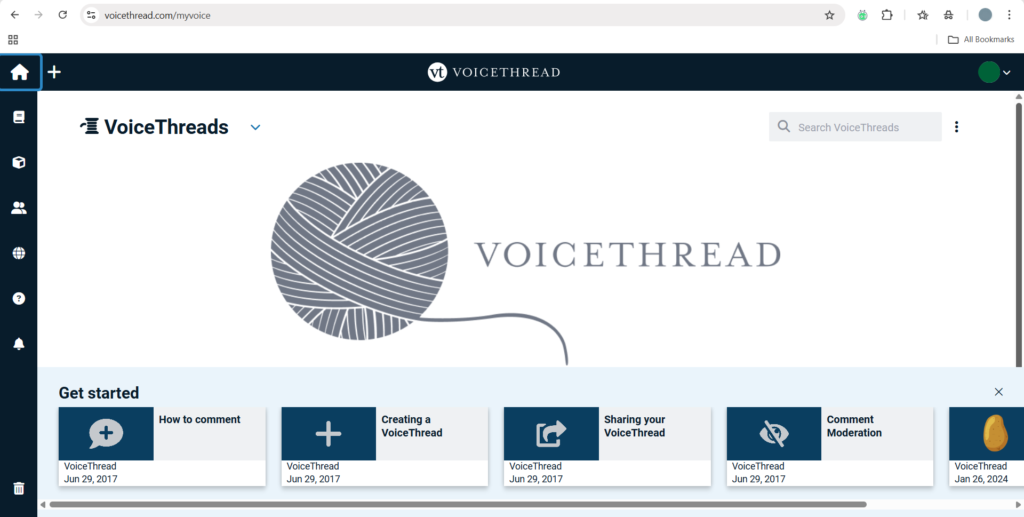
Sometimes a presentation needs more than slides. VoiceThread lets you combine slides, images or documents with voice, video and written responses. That makes it useful for assignments where your teacher wants you to explain your work rather than simply submit a deck.
Key features for students
- Voice, video and text comments.
- Narrated presentations.
- Ongoing discussions around uploaded content.
- Useful for remote assignments.
- Supports multimedia projects.
Pricing + what you get
- VoiceThread offers a free basic tier for viewing and commenting, with paid individual and educator plans starting at $24 per month or $259 per year.
-
PowToon
About the tool
PowToon is a good choice when a standard slideshow feels too boring for the assignment. It lets you create animated scenes using characters, text, illustrations, music and transitions. The final result can feel more like a short explainer video than a presentation.
Key features for students
- Voice, video and text comments.
- Supports slides, images and documents.
- Persistent spaces for ongoing class discussions.
- Useful for students who prefer explaining ideas through speech.
Pricing + what you get
- Free: $0/month, with 720p video quality, videos up to 3 minutes long, screen recording, and a PowToon watermark.
- Lite: $15/month, with watermark removal, up to 5 exports per month, HD 1080p MP4 downloads, 10-minute videos, and 300 AI credits per year.
- Professional: $40/month, with unlimited premium exports, access to all templates, camera movement controls, videos up to 20 minutes, and 500 AI credits per year.
- Advanced: $125/month, with full character customisation, branding tools, lip-sync, custom font uploads, videos up to 30 minutes, reseller rights, and 1,200 AI credits per year.
What Should Students Look For in a Presentation Tool?
The best tool depends a lot on the assignment in front of you.
For a group project, Google Slides is hard to beat because everyone can work on the same file. PowerPoint is another solid choice, especially if your college already provides Microsoft 365.
For a presentation where design matters, Canva and Keynote are easy places to start. You can get a polished result without spending half your evening figuring out where every element should go.
And when the deadline is tomorrow and you’ve barely started, AI tools such as SlidesAI, and Gemini can help you get a first draft together much faster. You should still read through everything they generate, though. AI can give you a structure, but your presentation still needs your own research and judgment.
<SlidesAICTAWeb />
Final Thoughts
We hope this guide makes it a little easier to find a presentation tool that works for you. You don’t necessarily need the most advanced option. If you want something simple, Google Slides or PowerPoint can get the job done. If design is your priority, Canva is worth a look, while SlidesAI and Gemini can help when you’re short on time. The important thing is to choose a tool that fits your assignment, your workflow and the way you like to present. Once you find one that feels comfortable, creating your next presentation becomes a lot less of a chore.
Frequently Asked Questions
What is the best free presentation tool for students?
Google Slides is a great choice because it’s free and supports collaboration. Canva and Zoho Show are also excellent options.
Which tool is best for group projects?
Google Slides and Zoho Show allow real-time teamwork, making them perfect for group projects.
Which tool is best for creative slides?
Canva and Visme offer fantastic design options and customization.
Can AI create a presentation?
Yes! SlidesAI can generate structured slides in seconds based on your input.
How can I make my presentation more engaging?
Use images, animations, and storytelling. Prezi is a great tool for interactive presentations.
Can I use these tools offline?
Microsoft PowerPoint and Keynote work offline. Google Slides also has limited offline access.
Can I turn my presentation into a video?
Yes! PowerPoint, Canva, and Visme allow you to export presentations as videos.
What is the best tool for interactive presentations?
Prezi and Visme offer animations and non-linear navigation to make presentations more engaging.
By exploring the best presentation tools for students, you can find the perfect one to enhance your work!
Related Posts
-

Presentations are a big part of student life, whether you’re in school, college, or stepping…
-

If you’re working on a presentation this year, it’s worth paying attention to the design…
-

Presentation aids are tools that speakers use alongside their words and delivery to help get…
-

{ “@context”: “https://schema.org”, “@type”: “ItemList”, “name”: “14 Best AI Tools for Students”, “description”: “A list…
-

Coming up with an exciting presentation topic isn’t always easy. Whether you’re a student trying…