Author: abhagsain
-

How to Add a Video in Google Slides – 3 Easy Methods
“Attention, please!” – this is what your presentations will shout, not you. No more yawning audiences or glazed-over eyes as your slide deck unfolds. Imagine transforming your presentations into captivating visual journeys!
-

How to Extract Video from Google Slides?
Master two easy methods to extract videos from Google Slides, ideal for offline viewing, video editing, or repurposing in new projects.
-

How to Print Multiple Slides on One Page in Google Slides?
When preparing for a presentation, it’s often helpful to provide your audience with handouts that they can refer to during your talk. These handouts can serve as a visual aid, allowing attendees to follow along with your slides and take notes. One easy way to create these handouts is by printing multiple slides onto a…
-

How to Turn on Dark Mode in Google Slides?
Tired of staring at a bright screen while working on Google Slides? Switching to dark mode can make your experience easier on the eyes, especially during late-night sessions. Whether you’re presenting or just editing, dark mode can add some comfort and style to your workflow. Here’s how you can easily turn it on and enjoy…
-

How to Draw on Google Slides?
Making your Google Slides presentation more interesting is easy when you add drawings. You can use the Scribble tool right in Google Slides to draw lines or circles for emphasis. If you want to make more detailed drawings, like shapes or illustrations, you can use Google Drawings, which is a part of Google Drive.
-
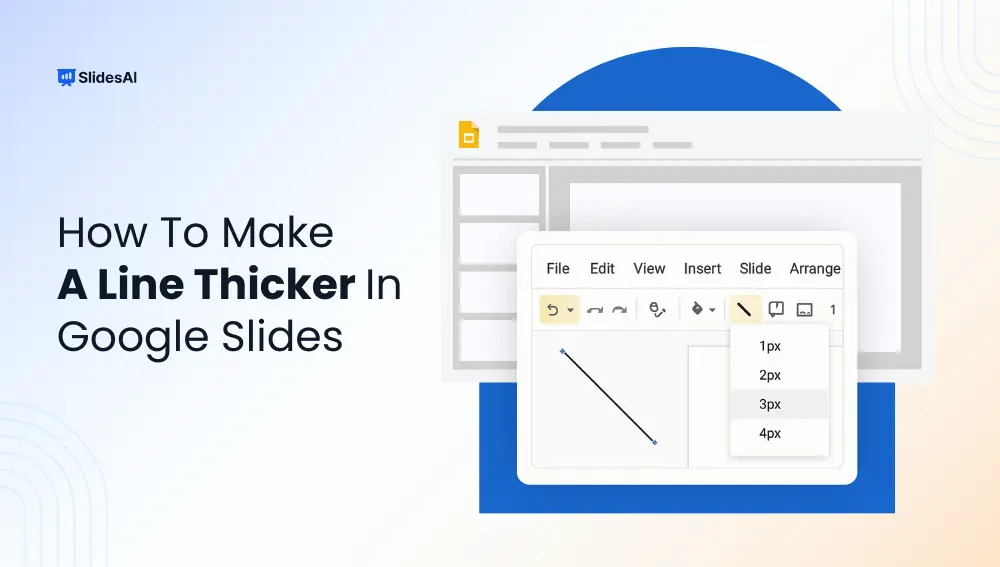
How to Make Lines Thicker in Google Slides – Step-by-Step Tutorial
Want to make your lines stand out in Google Slides? Whether you are designing a presentation for work, school, or a pitch deck, tweaking line thickness is a quick design fix that makes a big difference. This guide walks you through how to make a line thicker in Google Slides in just a few clicks.
-

How to Print Google Slides with Notes (Step-by-Step Guide)
To print Google Slides with notes, go to File > Print settings and preview, then choose “1 slide with notes” from the layout dropdown. Each page will show one slide with its speaker notes below. You can then print directly or download as a PDF. Printing slides with notes is useful when you need a…
-

How to Add a Border in Google Slides + Free Template
Borders can be a handy way to make your slides look a bit more interesting without going overboard. They can help improve the visual appeal of your presentation and make it easier for your audience to follow along. In Google Slides, you can add borders to your entire slide design, to text boxes, and even to shapes. The best part? You can customize them to fit your…
-
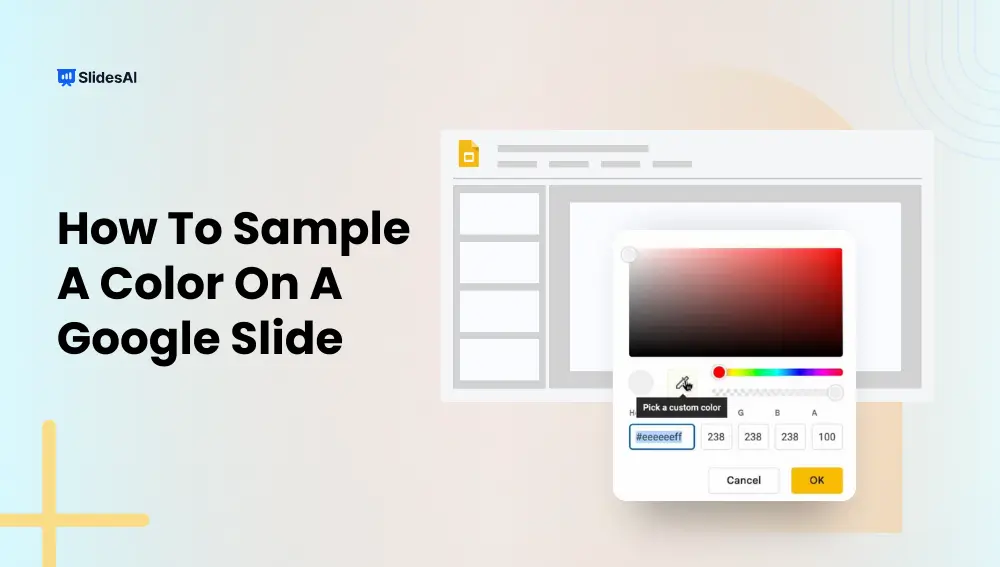
How to Sample a Color on a Google Slides?
Ever found yourself staring at a slide, wishing you could copy the exact color from an image or design, but had no idea what it’s called or how to match it? You’re not alone. Picking the perfect color can be surprisingly frustrating, especially when you’re trying to match a specific shade from a picture or…
-

How to Add Audio or Music to Google Slides?
To add audio or music to Google Slides, first upload your audio file to Google Drive. Then open your presentation, click Insert → Audio, select the file, and choose playback settings such as autoplay, click-to-play, looping, or volume. This works for voice recordings, background music, podcasts, and sound effects. Adding audio makes presentations more engaging…