Category: Shapes & Slides Styling
-

How to Draw on Google Slides?
Making your Google Slides presentation more interesting is easy when you add drawings. You can use the Scribble tool right in Google Slides to draw lines or circles for emphasis. If you want to make more detailed drawings, like shapes or illustrations, you can use Google Drawings, which is a part of Google Drive.
-
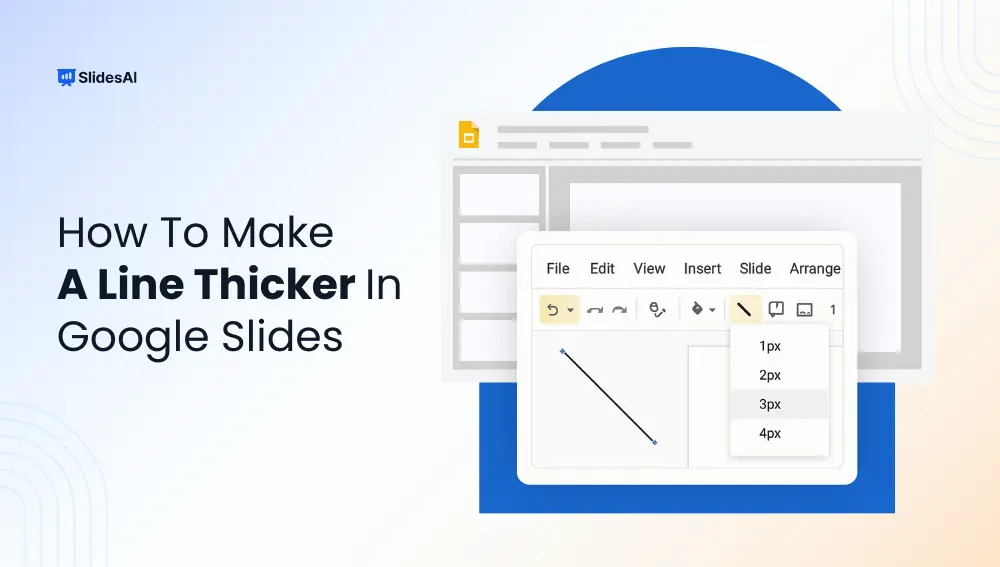
How to Make Lines Thicker in Google Slides – Step-by-Step Tutorial
Want to make your lines stand out in Google Slides? Whether you are designing a presentation for work, school, or a pitch deck, tweaking line thickness is a quick design fix that makes a big difference. This guide walks you through how to make a line thicker in Google Slides in just a few clicks.
-

How to Add a Border in Google Slides + Free Template
Borders can be a handy way to make your slides look a bit more interesting without going overboard. They can help improve the visual appeal of your presentation and make it easier for your audience to follow along. In Google Slides, you can add borders to your entire slide design, to text boxes, and even to shapes. The best part? You can customize them to fit your…
-
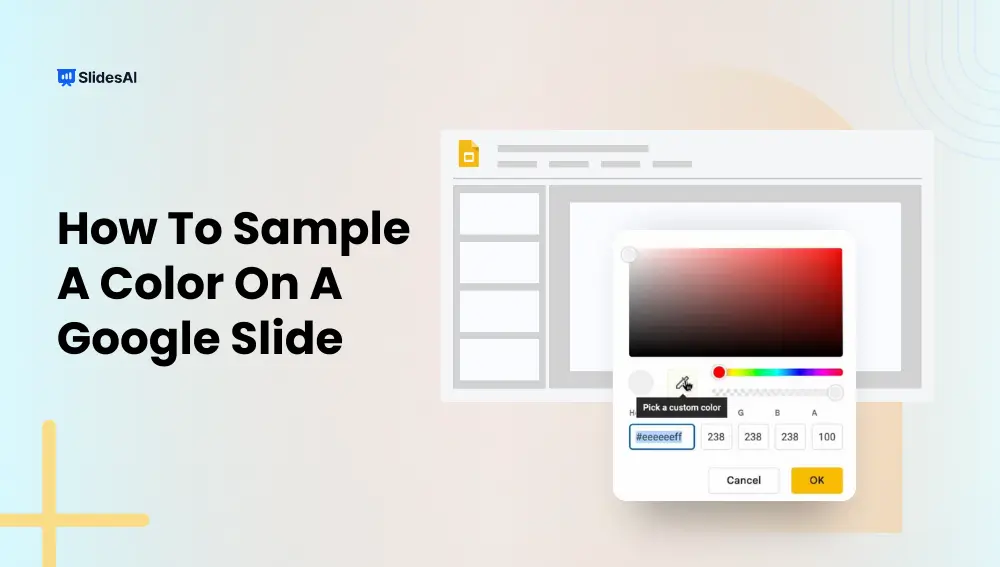
How to Sample a Color on a Google Slides?
Ever found yourself staring at a slide, wishing you could copy the exact color from an image or design, but had no idea what it’s called or how to match it? You’re not alone. Picking the perfect color can be surprisingly frustrating, especially when you’re trying to match a specific shade from a picture or…
-

How to Change Shape Color in Google Slides?
Google Slides is a popular and easy-to-use tool for making presentations. Whether you’re creating slides for school, work, or personal projects, it helps you design clear, attractive, and professional-looking slides. A simple trick to make your slides more vibrant and match your personal style or brand is learning how to change shape color in Google…
-

How To Merge Shapes in Google Slides?
Google Slides is a free online tool that lets you create and share presentations easily. You can work with others in real time and use different design features, shapes, and templates to make your presentation stand out.
-
How to Add Drop Shadow in Google Slides?
If you’ve ever looked at a slide and thought, “This could use a little extra flair,” adding a drop shadow might be just the thing. A drop shadow is a subtle effect that creates a shadow behind text, images, or shapes, giving them a bit of depth and making them stand out. It’s a great…
-

How to Change the Opacity of a Shape in Google Slides?
Shapes are a versatile tool in Google Slides, allowing you to create visuals, diagrams, and callouts to enhance your presentations. But sometimes, a completely solid shape might overpower the background content or text. Here’s where adjusting the opacity of your shape comes in. By making your shape partially transparent, you can achieve a more layered…