Mindblown: a blog about philosophy.
-
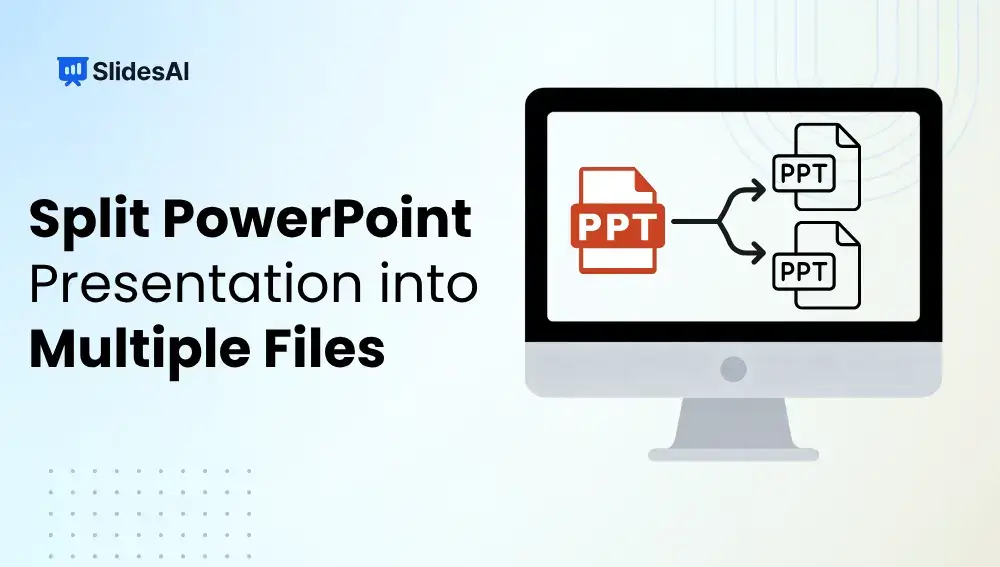
How to Split a PowerPoint Presentation into Multiple Files?
Working with a large PowerPoint presentation can quickly become overwhelming, especially when it covers multiple topics or needs to be shared with different audiences. Splitting your presentation into smaller, focused files makes it easier to manage, share, and present. Whether you are preparing separate decks for different teams, reducing file size for email, or organizing…
-

16 Best Presentation Tools for Students in 2026
Creating presentations is a big part of student life. Whether it’s for assignments, projects, or group discussions, a good presentation can help you stand out. But picking the right tool can be confusing with so many options available. Don’t worry. This guide will help you choose the best presentation tools for students to make your…
-

19 Best AI Tools for Teachers in 2026 to Boost Students’ Engagement
As a teacher, you’re constantly juggling lesson planning, grading, and finding new ways to keep students engaged. It’s a lot to manage, especially with everything else on your plate. That’s where AI tools come in. They’re here to help ease some of that workload and add an extra layer of creativity to your teaching. From…
-

Presentation Tips for Students
Presentations are a big part of student life, whether you’re in school, college, or stepping into the professional world. A good presentation can boost your confidence, make your message clear, and leave a strong impression on your audience. If public speaking makes you nervous, don’t worry; you’re not alone. With a few simple techniques, you…
-

How to Play Google Slides on Loop?
Creating presentations in Google Slides is becoming more and more popular. With its many features, even people who aren’t design experts can make professional-looking slideshows. One of the cool things about Google Slides is that you can make your presentations play automatically. This means your slides will change and animate without you having to do…
-

How to Play PowerPoint Slides Automatically Without Clicking?
To play PowerPoint slides automatically without clicking, go to the Transitions tab, uncheck “On Mouse Click”, enable “After”, set the time duration, and click “Apply to All.” Then start the slideshow. This feature is especially useful for business presentations, kiosks, webinars, and events where you want slides to move automatically without manual control. In this…
-

How to Save a PowerPoint Slide as an Image: Step-by-Step Guide
Sometimes, a single PowerPoint slide holds all the important details you need in a quick, shareable format. Taking a screenshot is one way to save it, but if you want a high-quality image without losing clarity, PowerPoint has built-in features that do the job much better.
-
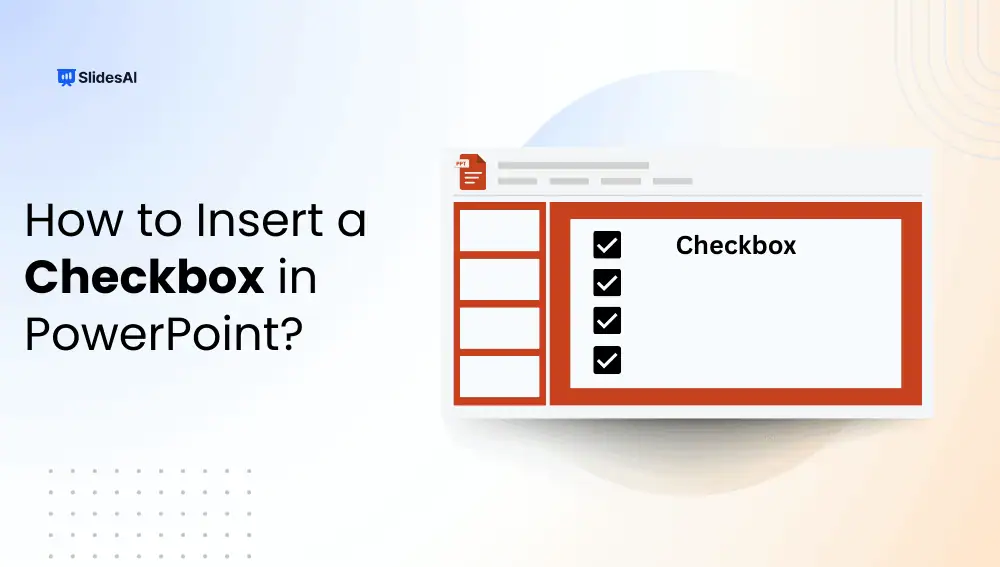
How to Insert a Checkbox in PowerPoint?
When you are creating presentations, there are times when you may want to add checkboxes. This could be for to-do lists, training slides, surveys, or interactive presentations where you want viewers to mark options. PowerPoint does not show a checkbox button by default, which is why many people get confused about how to insert one.…
-

How to Change Google Slides Defaults for a Smoother Workflow?
Customizing default settings in Google Slides helps streamline your presentation process and ensures design consistency. Whether you update the default font, adjust colors, or set preferred layouts, making these changes saves time and keeps your slides professional. This guide will walk you through how to change Google Slide defaults quickly and easily.
-

How to Change Language on Google Slides?
In today’s global world, presentations often reach people from different backgrounds. To communicate well and keep your audience engaged, it’s important to present in a language they understand. Google Slides makes this easy with its language customization feature.
Got any book recommendations?